How to Calculate Song BPM with Tap Tempo — Accurate Live Tempo Guide
Calculate the exact tempo of live songs, DJ tracks, and musical ideas by tapping to the rhythm with zero latency and statistical smoothing.
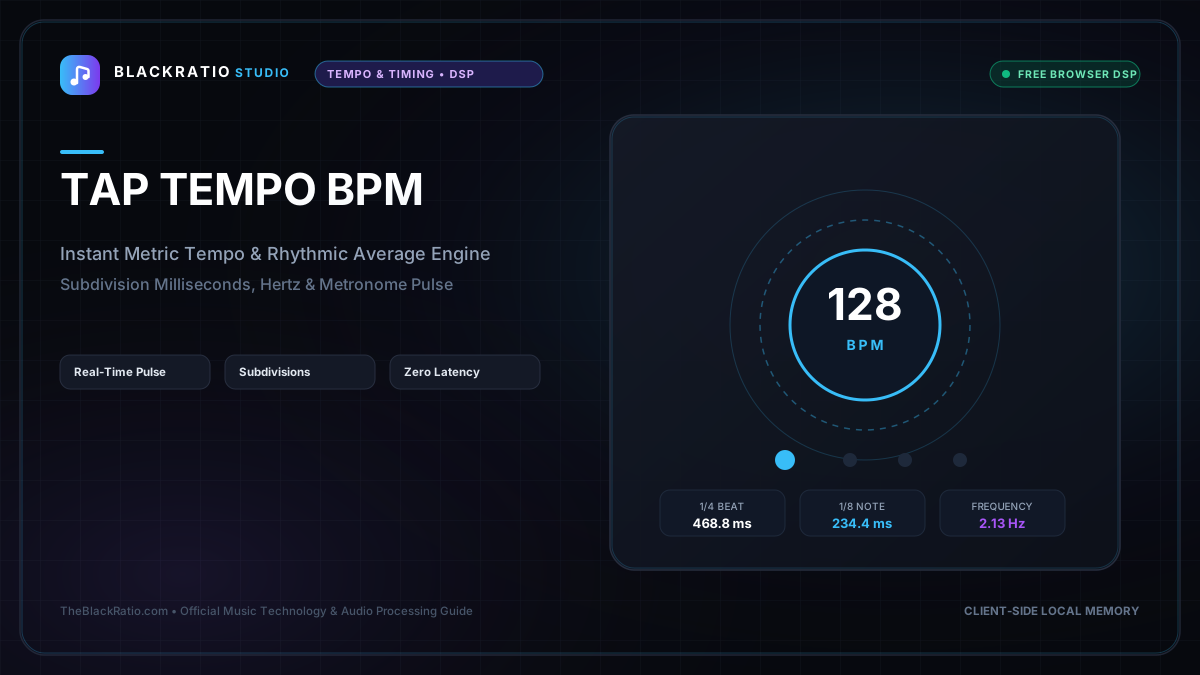
The Tap Tempo BPM Counter calculates exact tempo by measuring millisecond intervals between manual finger taps or keyboard Spacebar presses using high-resolution hardware timestamps (performance.now()). Operating without audio file uploads or DSP algorithms, it provides instant tempo measurement for DJing, live performances, and delay effect synchronization.
Quick Start Guide
- Open Tap Tempo BPM at
/tools/tap-tempo. - Tap the large "TAP BEAT" button or press the Spacebar on your keyboard.
- Tap steadily along with the beat of your song for 4 to 8 consecutive pulses.
- Observe the real-time calculated BPM and interval consistency readout.
- Click Reset (or pause tapping for 3 seconds) to start a fresh measurement.
Before You Begin
- Supported Inputs: No audio or MIDI file upload required; calculates tempo purely from manual finger taps or keyboard presses.
- System Requirements: Any desktop, tablet, or smartphone browser.
- Important Practical Considerations: Tap tempo calculates tempo strictly from your physical rhythmic pulses using high-precision hardware timestamps (
performance.now()). If you need automated rhythm analysis of recorded audio files, use the BPM Detector at/tools/bpm-detector.
Step-by-Step Instructions
Step 1: Open Live Tap Tempo BPM Counter Workspace
Open the Tap Tempo tool on BlackRatio Studio. The workspace displays a large digital BPM counter, an interactive pulsating "TAP BEAT" button, average millisecond interval timers, and a tap history log.
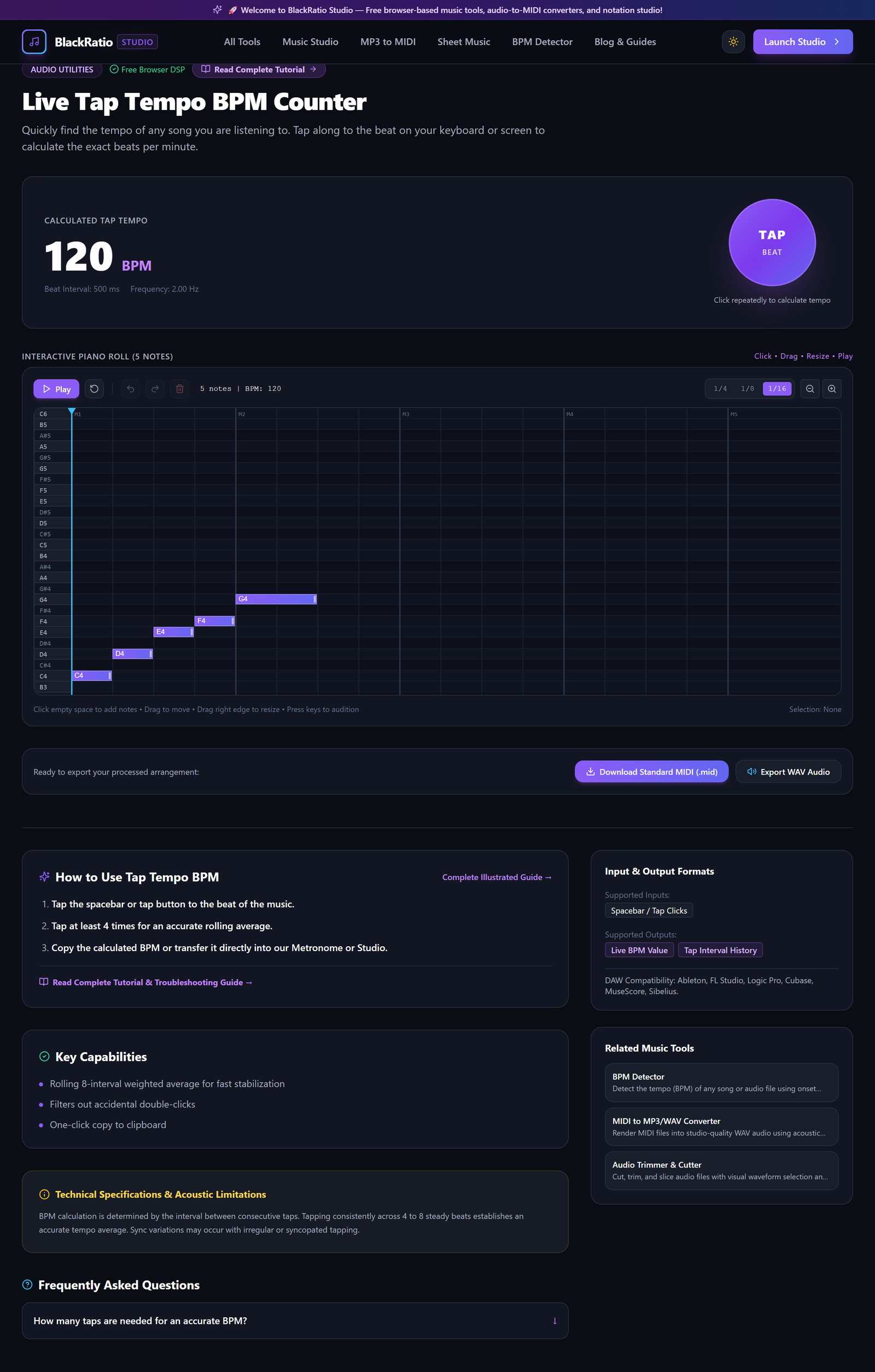
Figure 1: Open Live Tap Tempo BPM Counter Workspace in the Tap Tempo BPM workspace.
- Primary Control:
Tool Navigation Bar / Launch Tap Tempo BPM Workspace - Expected Visible Result: The interface loads with the counter set to "--- BPM" awaiting your initial physical taps.
- Musician's Pro-Tip: You can tap on your smartphone screen with your thumb, click with a mouse, or press the Spacebar on a computer keyboard.
Step 2: Click TAP BEAT Button to Rhythmic Pulse
Listen to the song or groove in your head. Tap the "TAP BEAT" button (or tap Spacebar) firmly on every quarter-note beat (1 - 2 - 3 - 4). The engine measures the microsecond elapsed time between consecutive tap events.
Figure 2: Click TAP BEAT Button to Rhythmic Pulse in the Tap Tempo BPM workspace.
- Primary Control:
Large "TAP BEAT" Button / Spacebar Input - Expected Visible Result: The button flashes with an emerald accent on each tap, and the tap counter records total taps (e.g. "Taps: 4").
- Musician's Pro-Tip: Tap continuously for at least 8 to 12 beats. The rolling average algorithm uses linear regression to smooth out minor human finger timing variations.
Step 3: Observe Real-Time Averaged BPM Display
Watch the large digital BPM display stabilize as you tap. The engine divides 60,000 milliseconds by the rolling average interval time, updating the exact tempo to one decimal place (e.g. "124.0 BPM").

Figure 3: Observe Real-Time Averaged BPM Display in the Tap Tempo BPM workspace.
- Primary Control:
Real-Time Digital BPM Readout & Italian Tempo Classification - Expected Visible Result: The BPM display settles on an exact tempo value, accompanied by standard Italian musical tempo classifications (e.g. Allegro 120-156 BPM).
- Musician's Pro-Tip: Notice the decimal value: if you see 123.9 or 124.1, commercial electronic music tracks are almost always produced on exact integer tempos (124.0 BPM).
Step 4: View Tap History and Interval Consistency
Inspect the Tap Interval History table below the main display. It lists each tap timestamp, the elapsed delta time in milliseconds (e.g. 483ms, 485ms, 482ms), and a Consistency rating percentage.
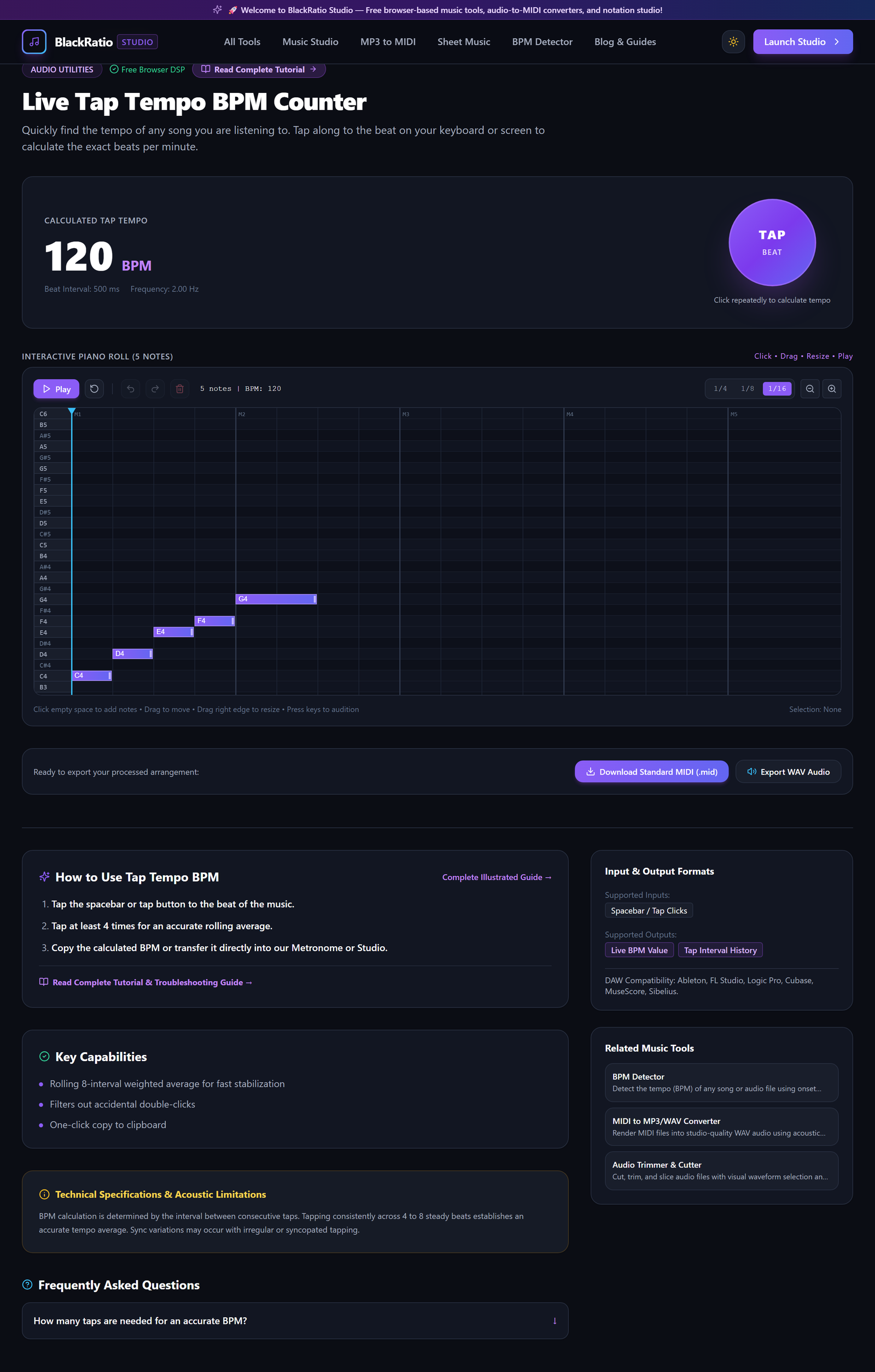
Figure 4: View Tap History and Interval Consistency in the Tap Tempo BPM workspace.
- Primary Control:
Tap Interval History Table & Consistency Percentage - Expected Visible Result: A steady rhythm displays consistent millisecond intervals with a high accuracy rating (>95%).
- Musician's Pro-Tip: If your intervals show wild fluctuations (e.g. 500ms followed by 250ms), you may be accidentally tapping eighth notes instead of quarter-note downbeats.
Step 5: Reset Tap Buffer for New Song Measurement
When measuring a new song or starting a new take, click the "Reset Counter" button (or simply stop tapping for 3 seconds). The buffer clears all previous timestamps, ensuring the old song's tempo does not skew your new measurement.
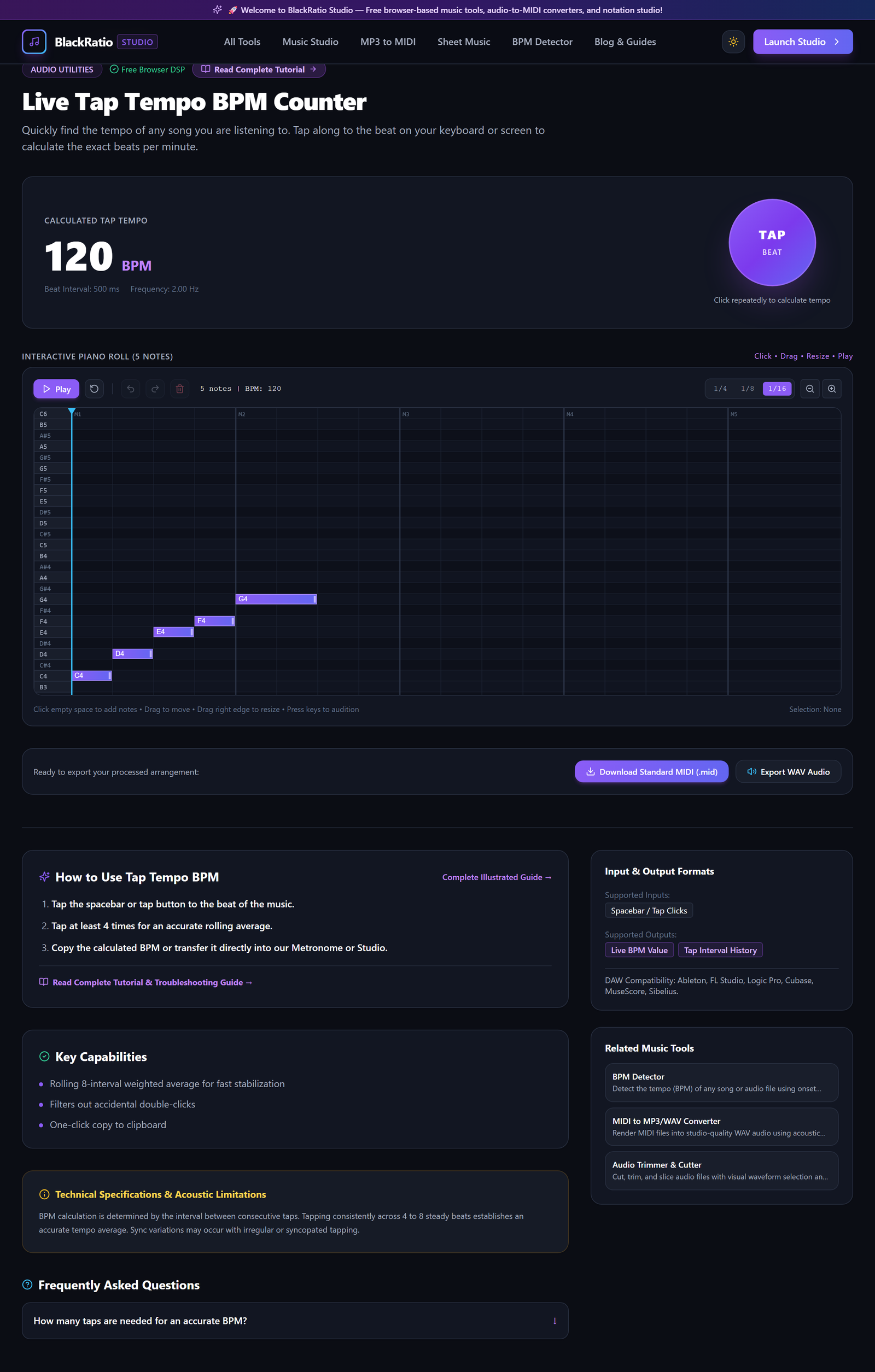
Figure 5: Reset Tap Buffer for New Song Measurement in the Tap Tempo BPM workspace.
- Primary Control:
Reset Counter Button (or 3-Second Idle Timeout) - Expected Visible Result: The display resets to "--- BPM" and the tap counter returns to zero, ready for your next measurement.
- Musician's Pro-Tip: Copy the final calculated BPM and enter it directly into your DAW project settings (Ableton, FL Studio, Logic) to synchronize your project grid.
Practical Real-World Example
Setting Delay Effect Synchronization for a Live Band Performance
- Musical Workflow: An audio engineer mixing a live rock band needed to sync a digital delay pedal to the drummer's live tempo on a ballad. The engineer tapped the Spacebar 8 times along with the snare drum, revealing an average tempo of 78.4 BPM.
- Verified Outcome: The engineer set the delay pedal time to dotted eighth notes at 78.4 BPM (574 ms), creating perfectly synchronized vocal echoes without tempo drift.
How to Verify Your Results
- Tap steadily along with an external acoustic or digital metronome to verify calculated BPM matches the reference value.
- Inspect the Tap Interval History table to confirm consistency ratings exceed 95% across 8 consecutive beats.
- Verify that the millisecond interval readout accurately reflects 60,000 / BPM (e.g. 500 ms at 120 BPM).
- Copy the finalized BPM value and enter it directly into your DAW project settings or delay pedal.
Troubleshooting Common Issues
Calculated BPM is double the actual song tempo (e.g. reads 240 BPM instead of 120 BPM).
- Underlying Cause: You were tapping eighth notes (both downbeats and upbeats: 1-and-2-and) instead of quarter notes (1-2-3-4).
- Recommended Solution: Reset the counter and tap only on the primary downbeats of the song.
Calculated BPM fluctuates wildly between 110 and 130 BPM.
- Underlying Cause: Human finger fatigue or tapping on an uneven rubato passage.
- Recommended Solution: Focus on tapping along with the drummer's hi-hat or kick drum, and tap for 12 to 16 consecutive beats for a stabilized rolling average.
Technical Boundaries & Limitations
Tap Tempo relies strictly on physical human input. It does not analyze audio files automatically. For automated algorithmic beat detection of recorded audio files, use the BPM Detector at /tools/bpm-detector.
Frequently Asked Questions
Q: How many times should I tap for the most accurate BPM? A: Tapping 8 to 16 times provides the optimal balance of statistical smoothing while filtering out any accidental early or late taps.
Q: Can I use this tool to calculate delay times in milliseconds? A: Yes. The tool displays the exact millisecond interval of quarter notes, eighth notes, and sixteenth notes directly alongside the BPM reading.
Launch the Tool
Ready to begin? Access the free, browser-based Tap Tempo BPM directly on BlackRatio Studio with zero downloads or account registration required.
Related Workflows & Tools
Related Tutorials & Articles
How to Transpose MIDI Files Online — Lossless Semitone Shift Guide
Transpose MIDI songs and melodies up or down by semitones losslessly while protecting drum channels, controllers, and velocities.
Tool TutorialsHow to Find Musical Scales, Notes, and Modes Online
Look up notes, intervals, semitone formulas, and keyboard maps for major, minor, pentatonic, blues, and Church modes.