How to Transpose MIDI Files Online — Lossless Semitone Shift Guide
Transpose MIDI songs and melodies up or down by semitones losslessly while protecting drum channels, controllers, and velocities.
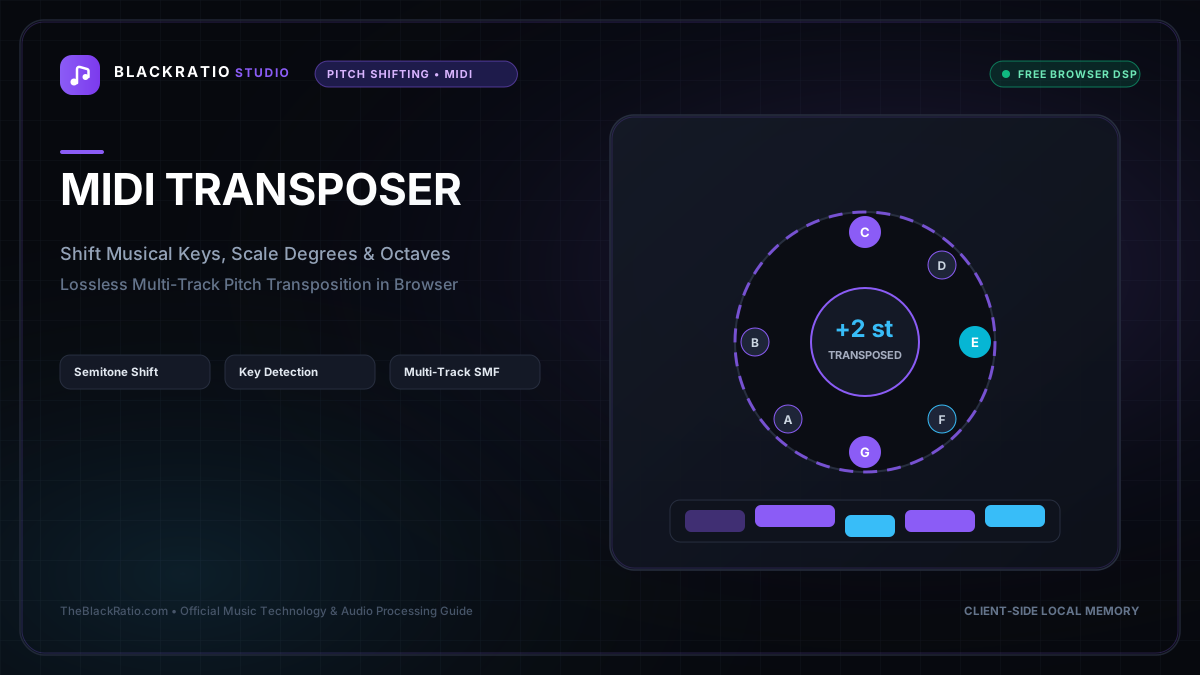
The MIDI Transposer shifts musical pitch numbers up or down by semitone offsets directly inside Standard MIDI File binary bitstreams. Operating as a pure data-level MIDI manipulation tool, it modifies note byte numbers losslessly while strictly protecting Channel 10 percussion tracks, CC modulation automation, and timing resolution.
Quick Start Guide
- Open the MIDI Transposer at
/tools/midi-transposer. - Upload any Standard MIDI File (.mid, .midi).
- Select your Semitone Transposition Offset (from -12 to +12 semitones).
- Audit the transposed notes in the interactive piano roll preview.
- Download the pitch-shifted Standard MIDI File (.mid) with all timing intact.
Before You Begin
- Supported Inputs: Standard MIDI Files (.mid, .midi), Type 0 or Type 1. Does not accept audio files (MP3/WAV).
- System Requirements: Modern desktop, tablet, or smartphone web browser.
- Important Practical Considerations: Unlike audio pitch-shifting—which can cause phase smear, metallic timbre, and comb filtering—MIDI transposition modifies numerical pitch byte values directly (e.g. shifting Note 60 [Middle C] to Note 62 [D]). It is mathematically 100% lossless.
Step-by-Step Instructions
Step 1: Open Browser MIDI Transposer Workspace
Navigate to the MIDI Transposer tool on BlackRatio Studio. The workspace provides a MIDI file parser, semitone shift selector (-12st to +12st), channel routing matrix, and an interactive piano roll display.
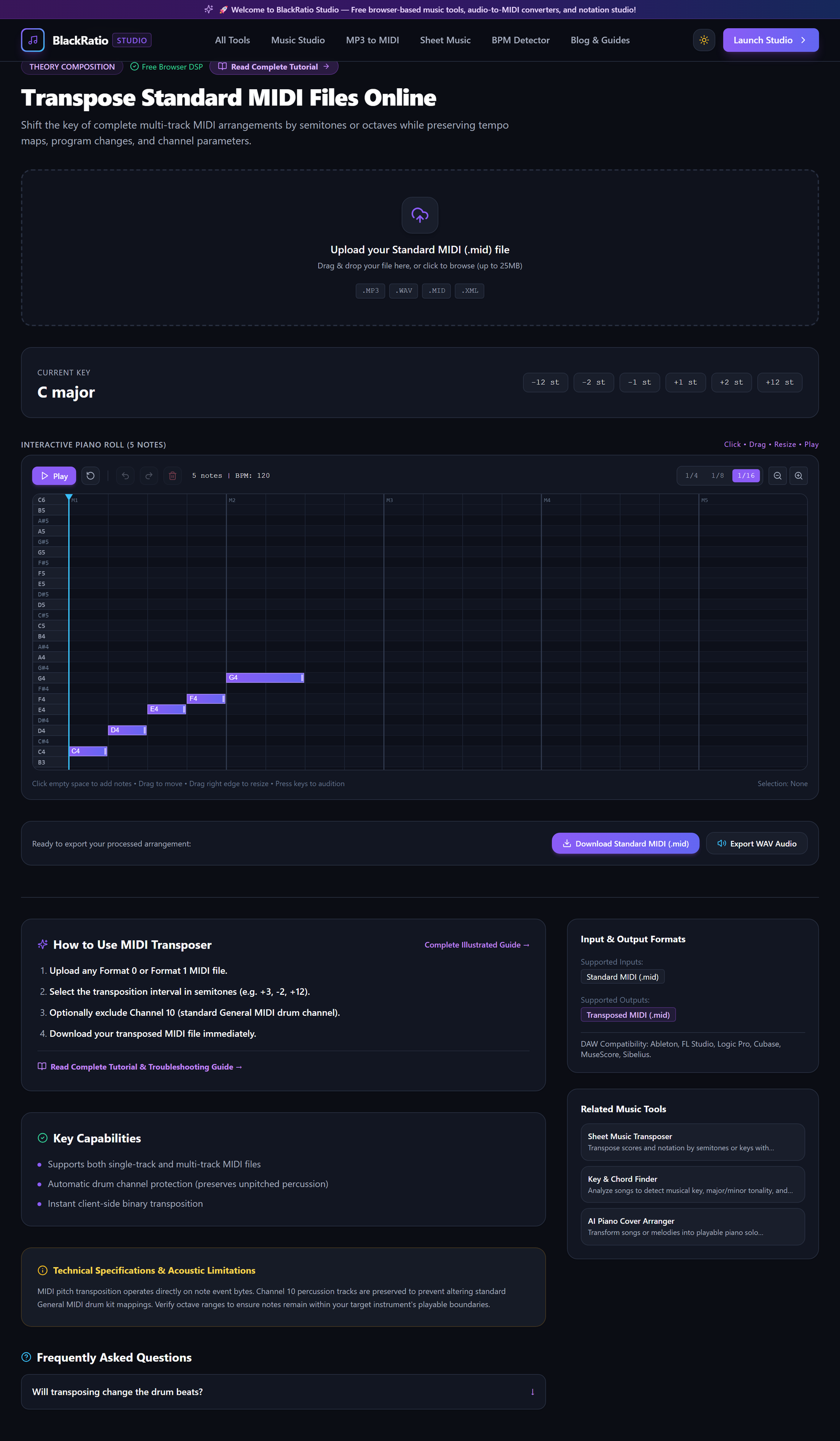
Figure 1: Open Browser MIDI Transposer Workspace in the MIDI Transposer workspace.
- Primary Control:
Tool Navigation Bar / Launch MIDI Transposer Workspace - Expected Visible Result: The workspace loads with a MIDI file dropzone and transposition interval controls ready for input.
- Musician's Pro-Tip: Keep your DAW open so you can immediately drag the transposed MIDI file back into your arrangement.
Step 2: Upload Standard MIDI File
Drag your .mid file into the upload container. The parser extracts the header chunk, tempo maps, track names, channel events, and note numbers into client memory.
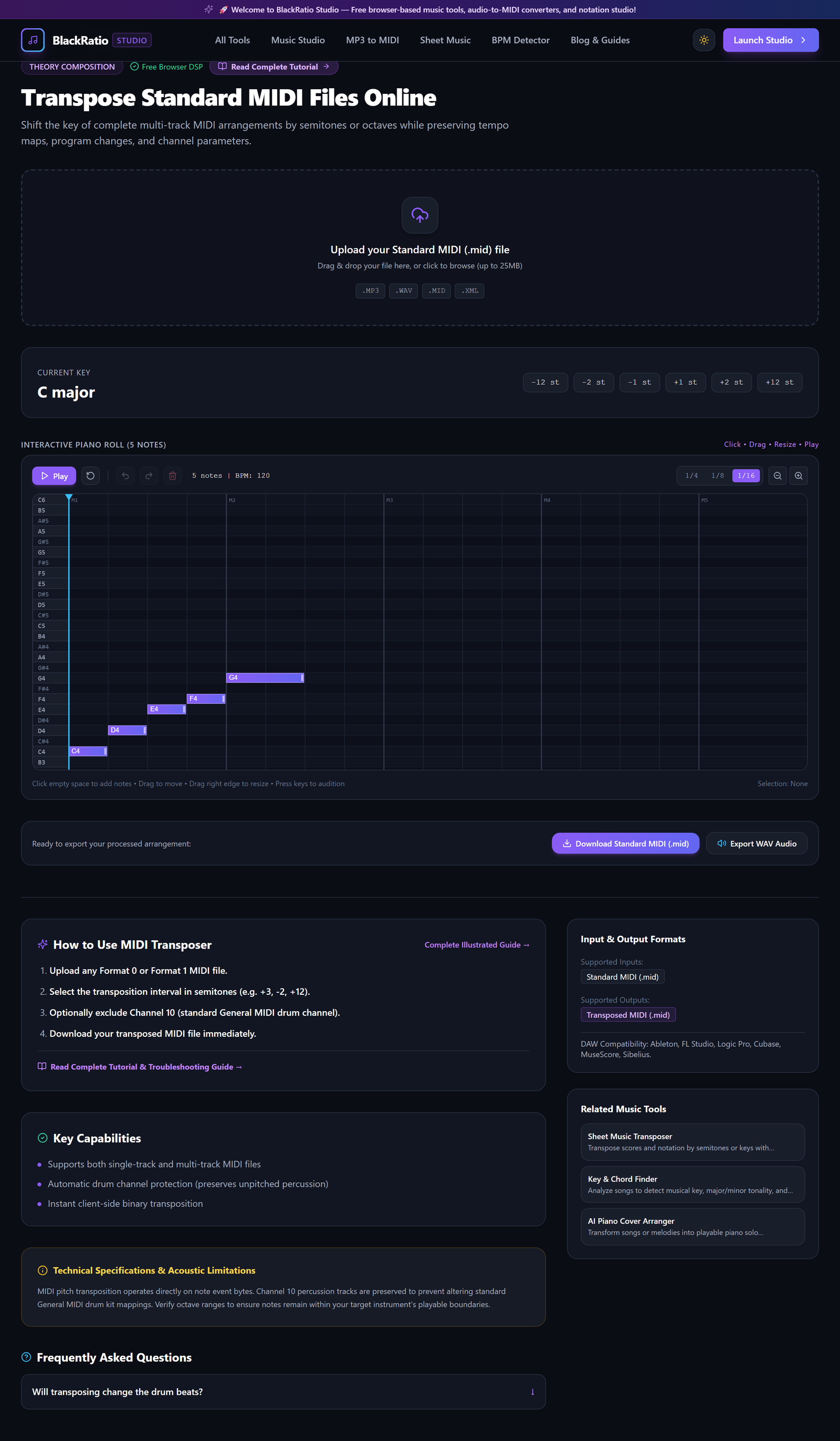
Figure 2: Upload Standard MIDI File in the MIDI Transposer workspace.
- Primary Control:
Standard MIDI File Upload Dropzone (.mid) - Expected Visible Result: File metadata displays: total track count, initial musical key (if tagged), total note count, and duration.
- Musician's Pro-Tip: If your song has multiple tracks (piano, bass, lead synth), the transposer shifts all melodic tracks while giving you the option to bypass drum channels.
Step 3: Choose Semitone Shift (-12st to +12st)
Adjust the Semitone Transposition slider or click the + / - buttons. Moving the slider to +2 shifts all notes up one whole step (e.g. C Major to D Major); -3 shifts down a minor third (e.g. C Major to A Major).

Figure 3: Choose Semitone Shift (-12st to +12st) in the MIDI Transposer workspace.
- Primary Control:
Semitone Transposition Offset Controls (-12st to +12st) - Expected Visible Result: The pitch shift indicator displays the exact semitone interval, musical interval name (e.g. "+4 semitones = Major Third Up"), and new key.
- Musician's Pro-Tip: To shift an entire octave without changing the musical key letter, select
+12(one octave up) or-12(one octave down).
Step 4: Preview Transposed Pitch Events in Piano Roll
Inspect the interactive piano roll preview. Note rectangles shift vertically along the chromatic keyboard ruler. Press Play to listen to synthesized audio playback and confirm the transposed melody sounds harmonically correct.
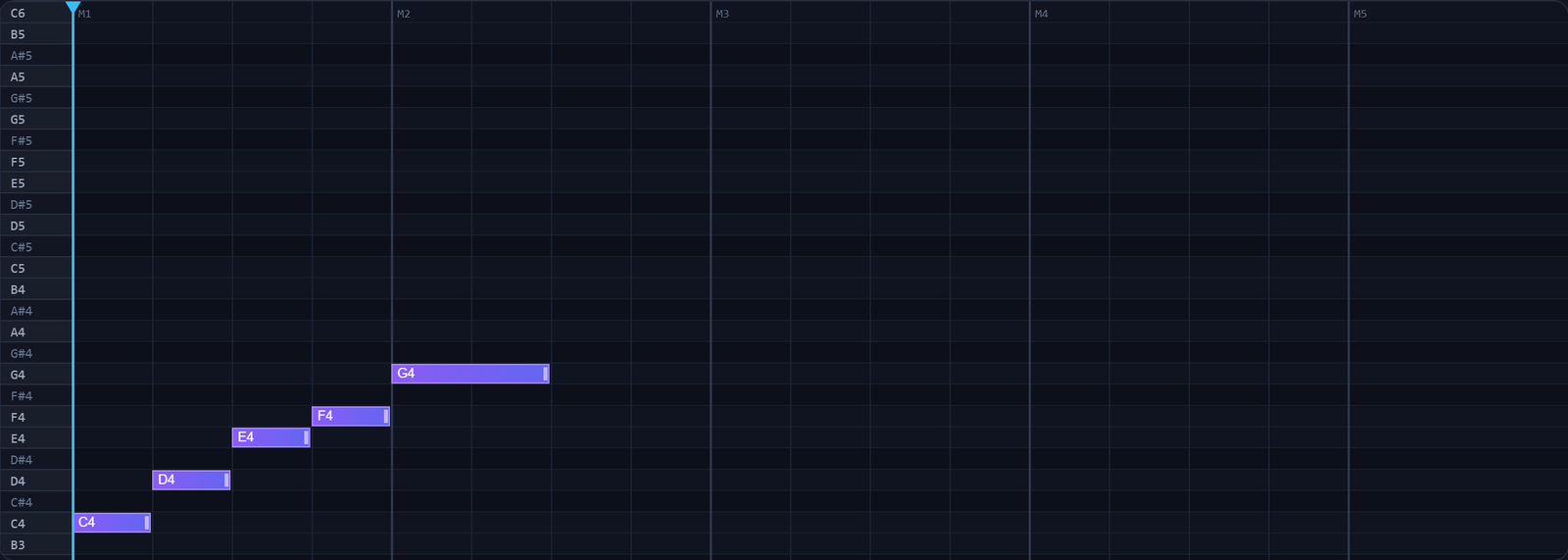
Figure 4: Preview Transposed Pitch Events in Piano Roll in the MIDI Transposer workspace.
- Primary Control:
Piano Roll Preview Canvas with Transposed Pitch Overlay - Expected Visible Result: The piano roll grid displays the updated note pitches, with notes sounding at their new frequencies during playback.
- Musician's Pro-Tip: Ensure "Bypass Channel 10 (Drums)" is checked: General MIDI drum kits use Note numbers for drum sounds (36=Kick, 38=Snare); transposing drums would turn your kicks into snares!
Step 5: Download Transposed MIDI File (.mid)
Click the purple "Download Transposed MIDI" button. The engine re-encodes the modified note numbers, preserving all original velocities, pitch bends, CC controllers, and timing ticks into a fresh .mid file.

Figure 5: Download Transposed MIDI File (.mid) in the MIDI Transposer workspace.
- Primary Control:
Download Transposed MIDI (.mid) Button - Expected Visible Result: A clean, compliant Standard MIDI File downloads instantly to your computer, ready for any DAW or hardware synth.
- Musician's Pro-Tip: Import the transposed MIDI file into your project to instantly accommodate a vocalist who needs a different key range.
Practical Real-World Example
Transposing a MIDI Piano Backing Track to Match a Singer's Vocal Range
- Musical Workflow: A producer purchased a MIDI ballad backing track arranged in F Major. The vocalist could not comfortably hit the highest note in the chorus (F5). The producer loaded the MIDI file into BlackRatio MIDI Transposer and set the offset to -3 semitones (D Major).
- Verified Outcome: The highest chorus note dropped to D5, allowing the vocalist to sing with full power in their optimal vocal tessitura without straining.
How to Verify Your Results
- Import the transposed .mid file into your DAW and confirm the musical key shifted by the exact semitones selected.
- Verify Channel 10 (percussion) to confirm kick, snare, and hi-hat note assignments remained completely untouched.
- Inspect MIDI CC automation lanes (pitch bend, mod wheel, expression) to verify continuous controller integrity.
- Compare playback timing against the original project to ensure note start ticks and durations remain sample-accurate.
Troubleshooting Common Issues
The drum track sounds completely wrong after transposition (cymbals became toms, kick disappeared).
- Underlying Cause: MIDI Channel 10 was transposed. In General MIDI, note numbers trigger percussion instruments, not musical pitches.
- Recommended Solution: Enable the "Preserve Channel 10 Drums" checkbox before exporting so drum triggers remain unchanged.
High notes disappeared or produce error warnings.
- Underlying Cause: Transposing very high notes upward exceeded the maximum Standard MIDI limit of Note 127 (G9).
- Recommended Solution: Select the affected lead track and transpose down an octave (-12 semitones) instead.
Technical Boundaries & Limitations
Modifies standard MIDI Note-On and Note-Off events (values 0-127). Does not alter embedded audio recordings or proprietary DAW project files.
Frequently Asked Questions
Q: Does MIDI transposition degrade audio quality like MP3 pitch-shifting does? A: No. MIDI contains digital numbers, not audio waveforms. Transposition changes note numbers (e.g. 60 to 62), resulting in 100% mathematically lossless transposition with zero audio artifacts.
Q: Can I transpose only specific instrument tracks within a multi-track MIDI file? A: Yes. Use the track selection checkboxes in the channel matrix to select which tracks to transpose and which to leave untouched.
Launch the Tool
Ready to begin? Access the free, browser-based MIDI Transposer directly on BlackRatio Studio with zero downloads or account registration required.
Related Workflows & Tools
Related Tutorials & Articles
How to Calculate Song BPM with Tap Tempo — Accurate Live Tempo Guide
Calculate the exact tempo of live songs, DJ tracks, and musical ideas by tapping to the rhythm with zero latency and statistical smoothing.
Tool TutorialsHow to Find Musical Scales, Notes, and Modes Online
Look up notes, intervals, semitone formulas, and keyboard maps for major, minor, pentatonic, blues, and Church modes.