How to Convert Audio Recordings to Printable Sheet Music & MusicXML
Transcribe live audio performances into engraved musical notation, clefs, and printable sheet music in a streamlined browser workflow.
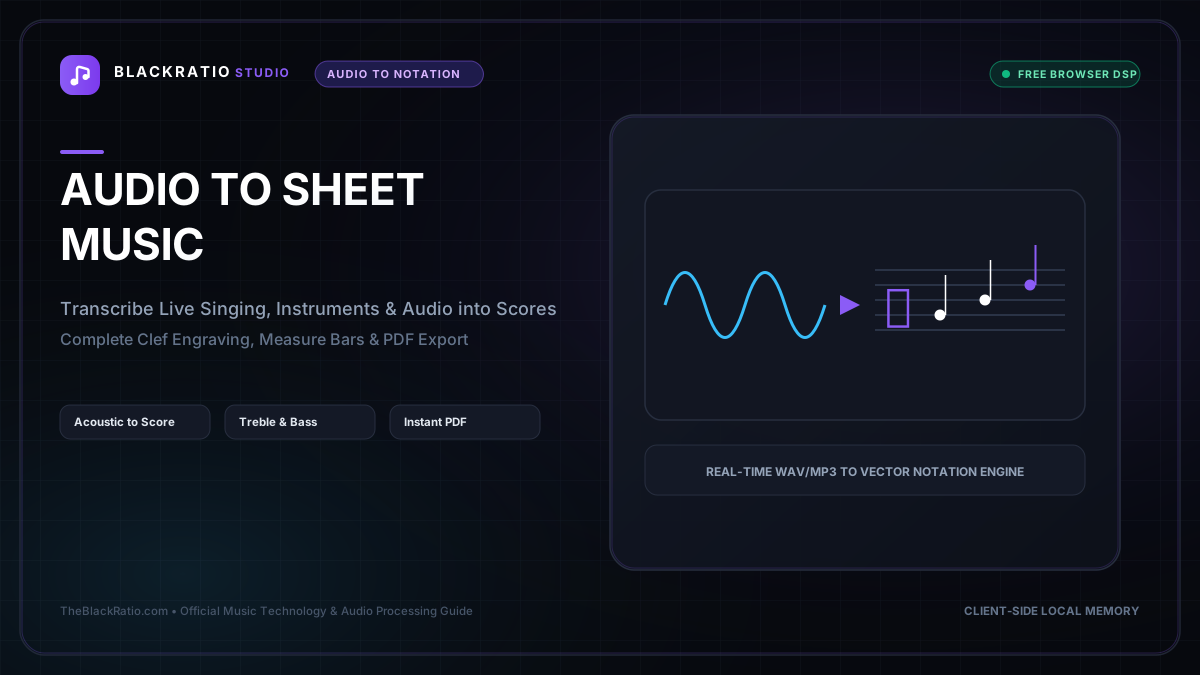
The Audio to Sheet Music tool combines polyphonic pitch tracking with rhythmic quantization algorithms to transcribe recorded audio performances directly into readable musical notation. It produces complete scores ready for practice, teaching, and publication without manual note entry.
Quick Start Guide
- Open Audio to Sheet Music at
/tools/audio-to-sheet-music. - Upload a clear audio recording of a solo instrument or vocal.
- Configure pitch tracking sensitivity and time quantization.
- Inspect the engraved musical staff with clefs, notes, and rests.
- Export the sheet music score as a vector PDF or MusicXML file.
Before You Begin
- Supported Inputs: Audio files (MP3, WAV, AAC, M4A) of solo instruments (flute, violin, saxophone, trumpet, solo piano, acoustic guitar, or voice).
- System Requirements: Any modern browser with audio decoding capabilities.
- Important Practical Considerations: Audio-to-score transcription executes a two-stage digital signal process: acoustic pitch tracking followed by notation quantization and vector engraving. High-contrast, reverberation-free recordings produce the cleanest sheet music.
Step-by-Step Instructions
Step 1: Open Audio to Sheet Music Tool
Open the Audio to Sheet Music converter. The interface combines an audio signal analyzer with a VexFlow-powered vector notation engraving canvas.
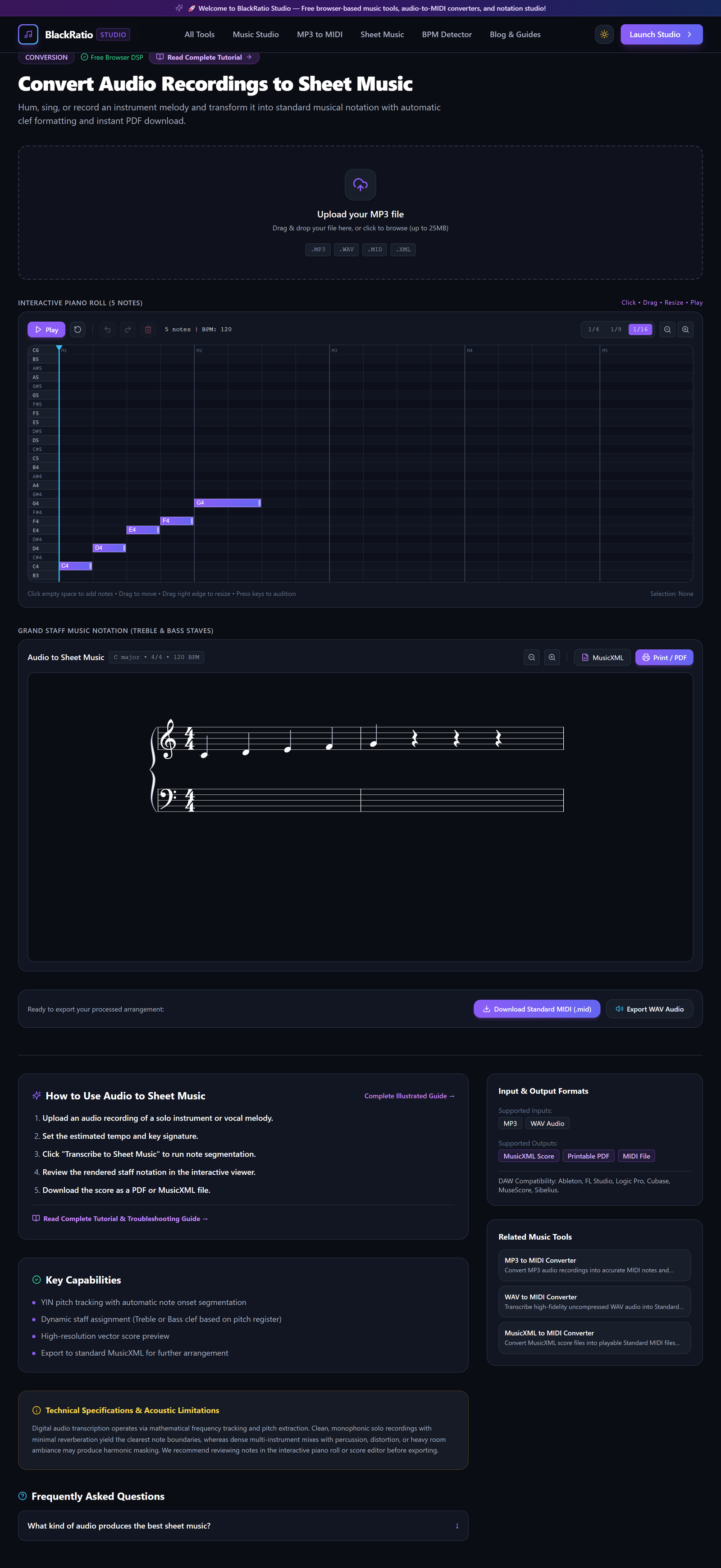
Figure 1: Open Audio to Sheet Music Tool in the Audio to Sheet Music workspace.
- Primary Control:
Tool Navigation Bar / Launch Audio to Sheet Music Workspace - Expected Visible Result: The workspace loads with an audio dropzone, staff settings, and score viewport.
- Musician's Pro-Tip: Select the appropriate clef (Treble for flute/violin/voice, Bass for cello/bassoon/bass) before importing audio.
Step 2: Upload Clean Solo Instrument Audio
Drag your audio file into the upload zone. The engine decodes the audio and runs a high-resolution pitch tracking algorithm across the performance.
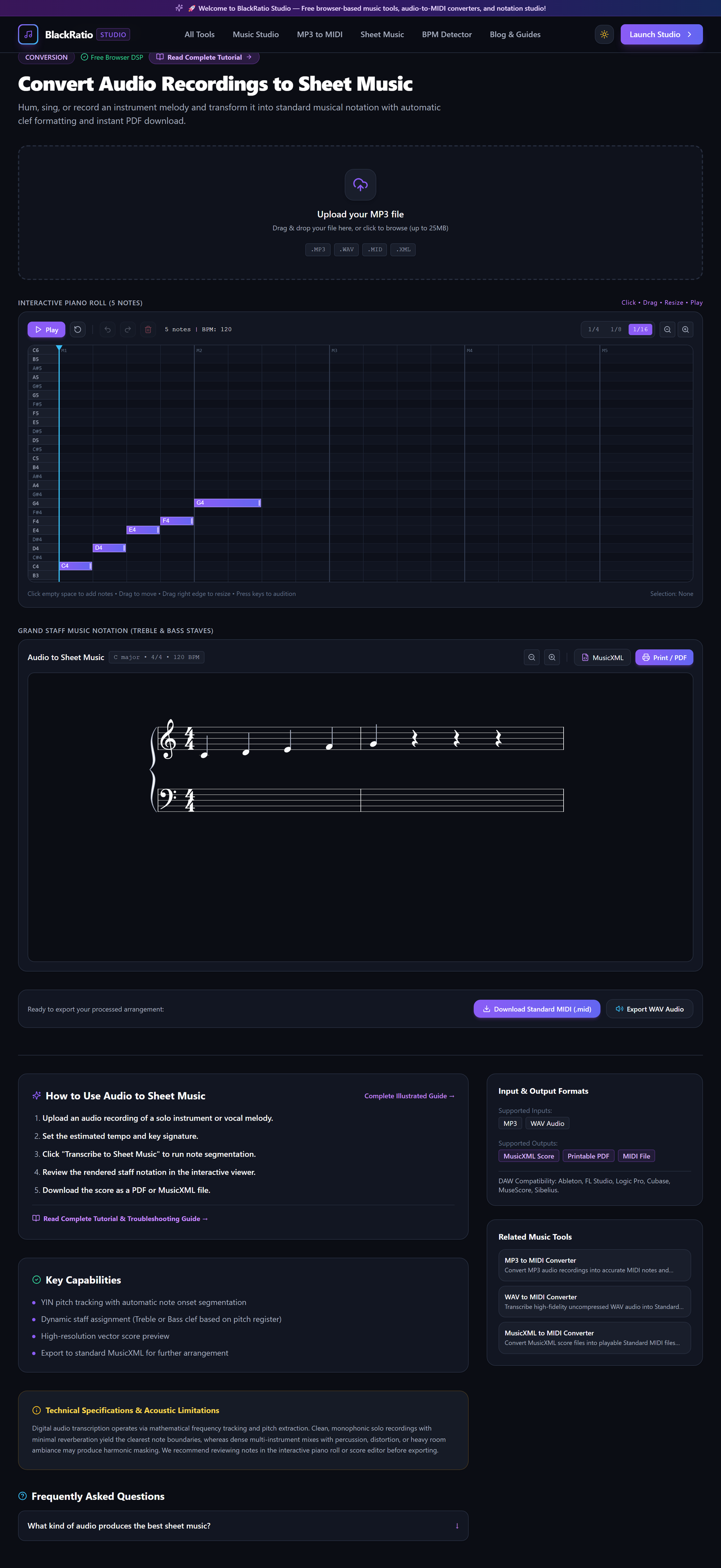
Figure 2: Upload Clean Solo Instrument Audio in the Audio to Sheet Music workspace.
- Primary Control:
Audio Recording Upload Dropzone (.mp3, .wav) - Expected Visible Result: The audio waveform appears, and the status bar indicates transcription progress.
- Musician's Pro-Tip: Use recordings made with a dedicated microphone placed close to the instrument to eliminate room reverberation and background noise.
Step 3: Perform Pitch Tracking & Rhythm Quantization
Adjust the rhythmic quantization control (default: 1/16 note). The engine snaps detected pitch onsets and releases to standard musical note values (quarter, eighth, sixteenth notes) and inserts appropriate rests.
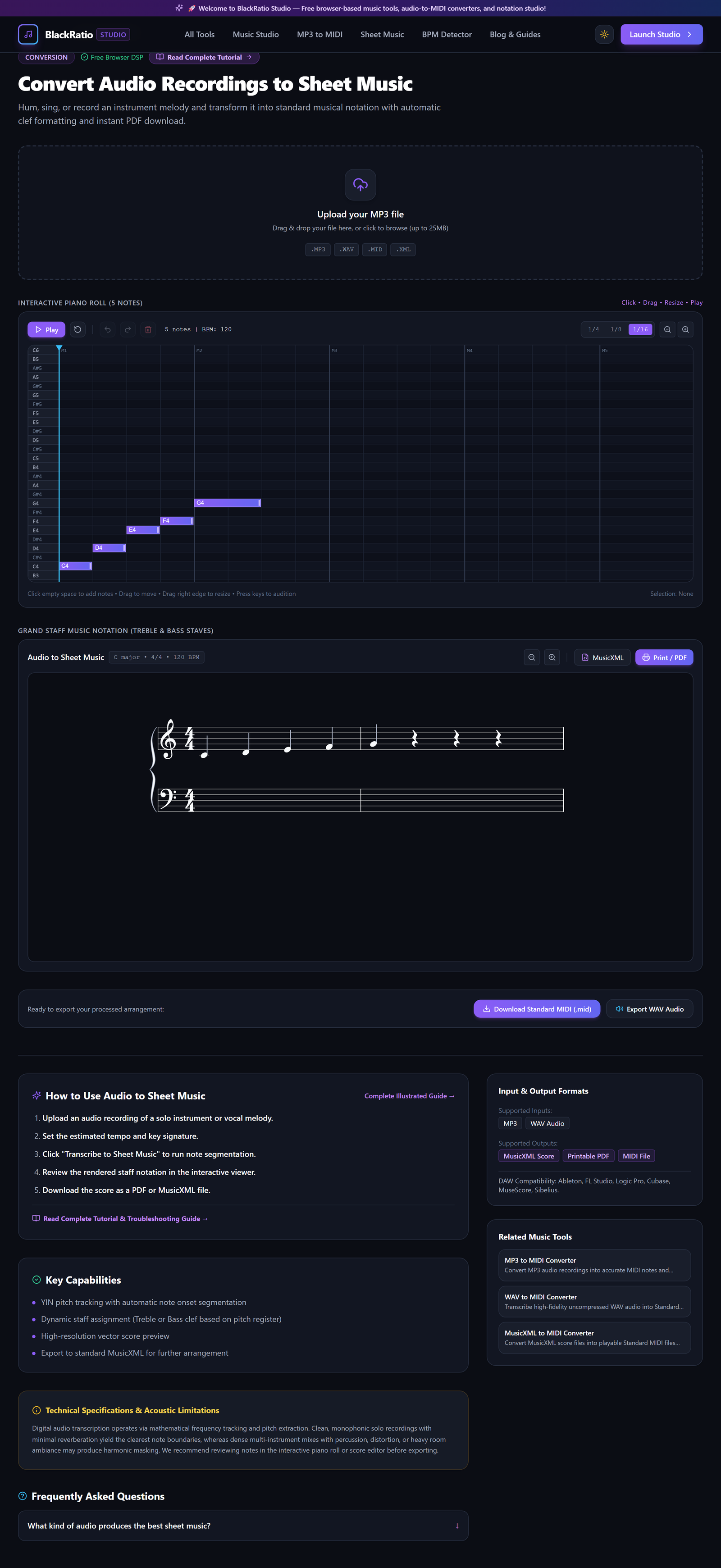
Figure 3: Perform Pitch Tracking & Rhythm Quantization in the Audio to Sheet Music workspace.
- Primary Control:
Quantization Grid & Treble/Bass Split Thresholds - Expected Visible Result: Continuous pitch curves are discretized into distinct musical notes organized into standard measures.
- Musician's Pro-Tip: If your performance has swing or triplets, select the Triplet quantization setting to prevent dotted eighth/sixteenth note artifacts.
Step 4: Inspect Standard Music Notation Staff
Review the engraved sheet music. Verify noteheads, accidentals, stem directions, and measure barlines. Click the Play button to listen to synchronized audio playback while the playback bar sweeps across the notes.

Figure 4: Inspect Standard Music Notation Staff in the Audio to Sheet Music workspace.
- Primary Control:
Engraved Sheet Music Notation Canvas - Expected Visible Result: Clean, publication-grade sheet music displays across standard 5-line staves with clefs and key signatures.
- Musician's Pro-Tip: Look for accidental consistency: check that notes in sharp keys use sharps and flat keys use flats.
Step 5: Export Sheet Music PDF
Click "Export PDF" to generate a vector-engraved document formatted for standard printing, or click "Download MusicXML" to open the score in MuseScore, Sibelius, or Finale.

Figure 5: Export Sheet Music PDF in the Audio to Sheet Music workspace.
- Primary Control:
Download Engraved Score (PDF / MusicXML) Buttons - Expected Visible Result: A print-ready PDF downloads to your computer with crisp noteheads and standard margins.
- Musician's Pro-Tip: Print the PDF on cardstock or heavy paper for gig binders and music stand use.
Practical Real-World Example
Transcribing a Vocal Melody for a Horn Section Arrangement
- Musical Workflow: A songwriter hummed a brass riff into their phone voice memos. Loading the recording into Audio to Sheet Music with 1/8-note quantization generated a crisp 4-bar melody in Treble clef.
- Verified Outcome: The songwriter exported the MusicXML file, imported it into MuseScore, and instantly assigned parts to Trumpet, Alto Sax, and Trombone.
How to Verify Your Results
- Audition the transcribed notation using the score playback transport alongside your original audio.
- Verify that measure barlines align with musical downbeats without drifting.
- Inspect note durations to confirm rhythmic quantization correctly interpreted swing or straight eighths.
- Export the sheet music score to PDF or MusicXML for rehearsal and performance printing.
Troubleshooting Common Issues
Notes in the score are littered with 32nd-note rests and tied fragments.
- Underlying Cause: The performance had loose timing and natural vocal pitch bends before settling on the note.
- Recommended Solution: Increase quantization to 1/8 note and increase the pitch onset threshold slider.
Technical Boundaries & Limitations
Designed primarily for solo melodic or clean polyphonic acoustic recordings. Dense multi-instrument commercial tracks with loud drums and bass cannot be transcribed directly onto a single staff without stem separation.
Frequently Asked Questions
Q: Can I transcribe vocals with lyrics? A: The engine transcribes the musical pitches and rhythms onto the staff. You can add lyric text in any notation software via the exported MusicXML file.
Launch the Tool
Ready to begin? Access the free, browser-based Audio to Sheet Music directly on BlackRatio Studio with zero downloads or account registration required.
Related Workflows & Tools
Related Tutorials & Articles
How to Transpose MIDI Files Online — Lossless Semitone Shift Guide
Transpose MIDI songs and melodies up or down by semitones losslessly while protecting drum channels, controllers, and velocities.
Tool TutorialsHow to Calculate Song BPM with Tap Tempo — Accurate Live Tempo Guide
Calculate the exact tempo of live songs, DJ tracks, and musical ideas by tapping to the rhythm with zero latency and statistical smoothing.