How to Convert MIDI Files to MP3 & WAV Audio in Your Browser
Render standard MIDI files into pristine audio recordings using browser-synthesized SoundFonts with studio instrument presets.
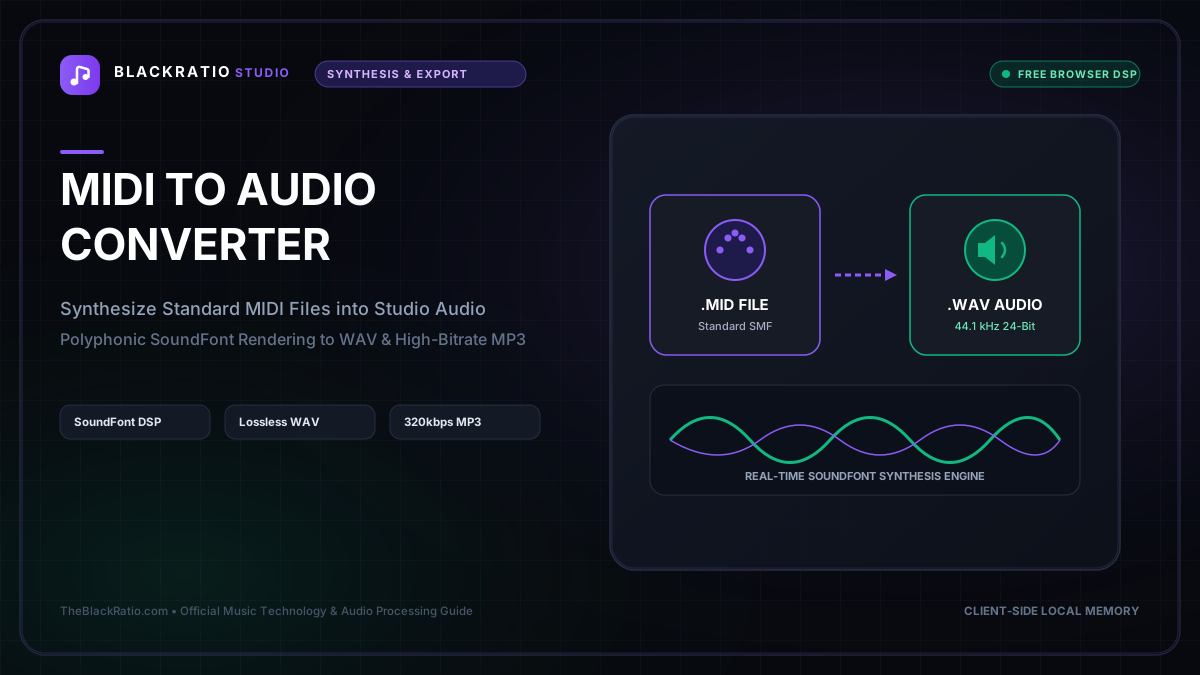
The MIDI to Audio Converter synthesizes Standard MIDI Files (.mid) into studio-grade WAV and MP3 audio recordings using high-fidelity in-browser SoundFont sample libraries. It allows producers to render synthetic orchestral, piano, and synth audio directly without external DAW rendering.
Quick Start Guide
- Open MIDI to Audio at
/tools/midi-to-audio. - Upload any Standard MIDI File (.mid, .midi).
- Select an instrument SoundFont preset (Grand Piano, Strings, Synth, Guitar, etc.).
- Render the digital audio buffer in real time.
- Download the finalized WAV or MP3 audio master.
Before You Begin
- Supported Inputs: Standard MIDI Files (.mid, .midi), Type 0 or Type 1.
- System Requirements: Modern web browser with Web Audio API support.
- Important Practical Considerations: MIDI files do not contain actual sound; they contain performance instructions (which note was struck, when, for how long, and with what velocity). The synthesizer uses acoustic SoundFont samples to render those instructions into audible sound waves.
Step-by-Step Instructions
Step 1: Open MIDI to Audio Rendering Engine
Open the MIDI to Audio converter. The workspace features an audio rendering console, SoundFont sound bank selector, and digital audio export controls.
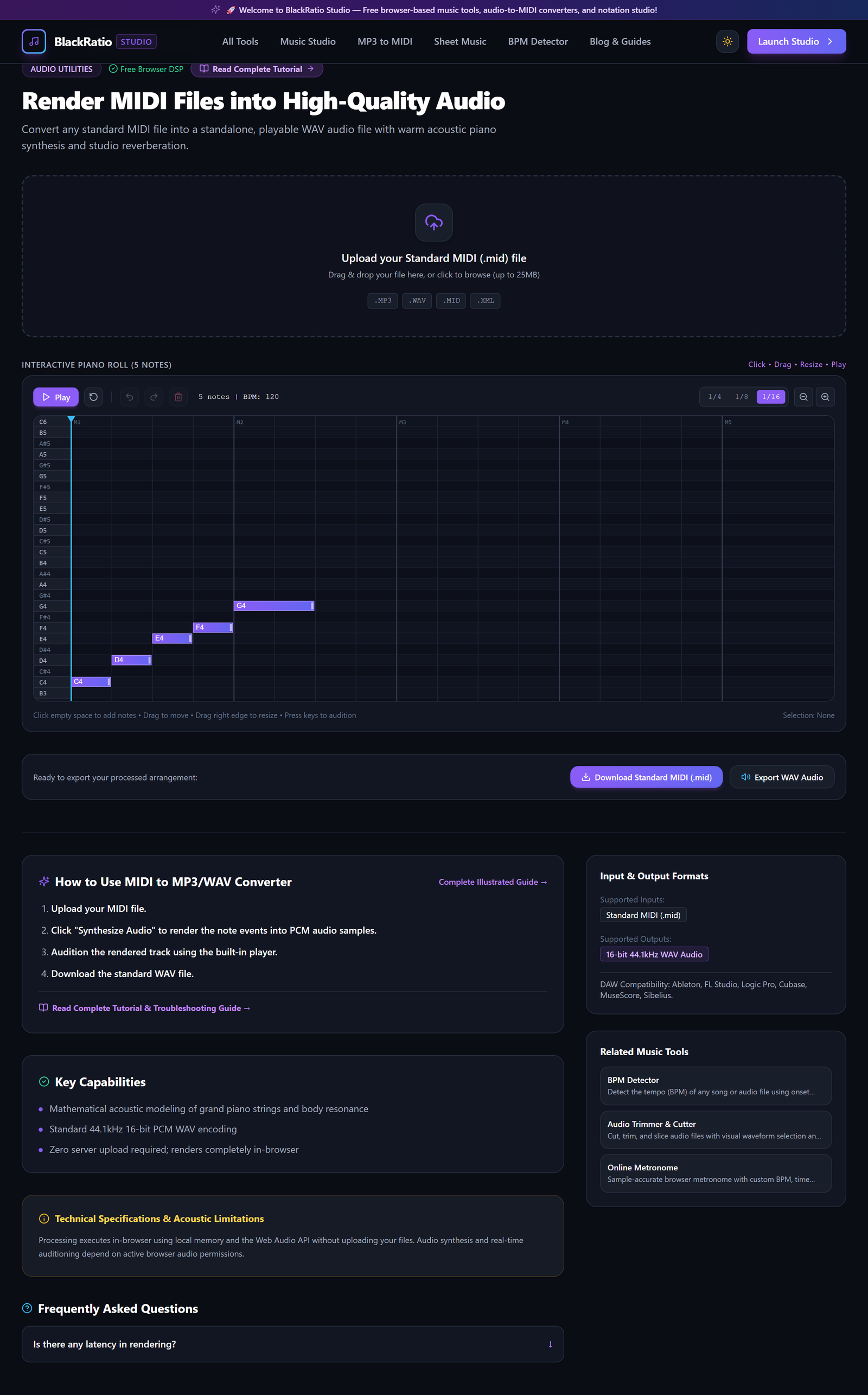
Figure 1: Open MIDI to Audio Rendering Engine in the MIDI to MP3/WAV Converter workspace.
- Primary Control:
Tool Navigation Bar / Launch MIDI to Audio Workspace - Expected Visible Result: The workspace loads with a MIDI dropzone and instrument library dropdown.
- Musician's Pro-Tip: Use this tool to quickly share audible demos of your MIDI arrangements with clients who don't own music software.
Step 2: Load Standard MIDI File
Drop your .mid file into the upload area. The parser reads all tracks, channel assignments, program change numbers, and tempo meta-events.
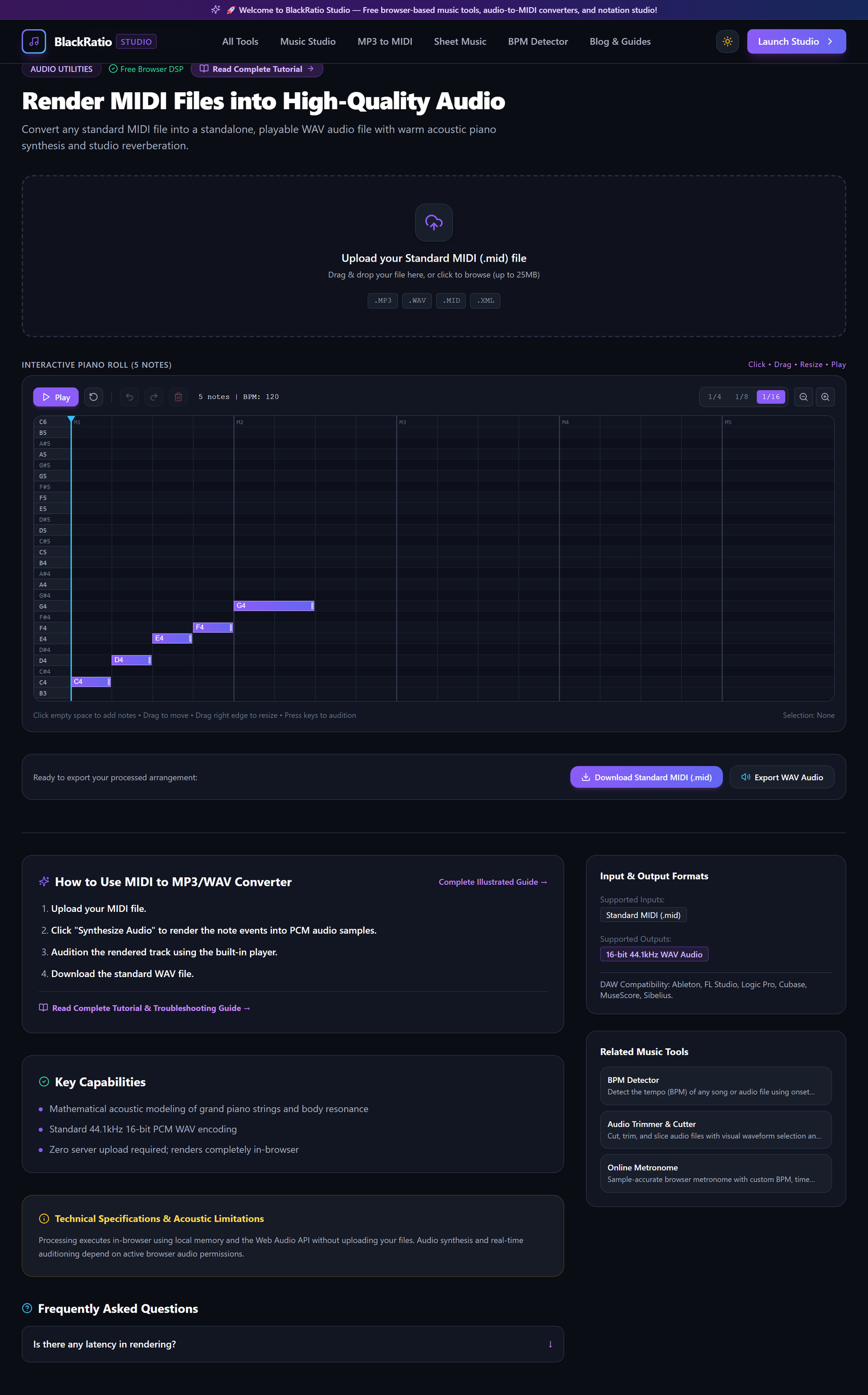
Figure 2: Load Standard MIDI File in the MIDI to MP3/WAV Converter workspace.
- Primary Control:
Standard MIDI File Upload Dropzone (.mid) - Expected Visible Result: The file details appear: duration in minutes/seconds, total note count, active MIDI channels, and BPM.
- Musician's Pro-Tip: If your MIDI file has multiple instruments on different channels, the engine assigns General MIDI sound patches to each channel automatically.
Step 3: Select Synthetic SoundFont Instrument
Choose your desired instrument sound bank from the SoundFont dropdown. Options include Concert Grand Piano, Electric Piano (Rhodes), Acoustic Nylon Guitar, Orchestral String Ensemble, and Analog Synth Lead.
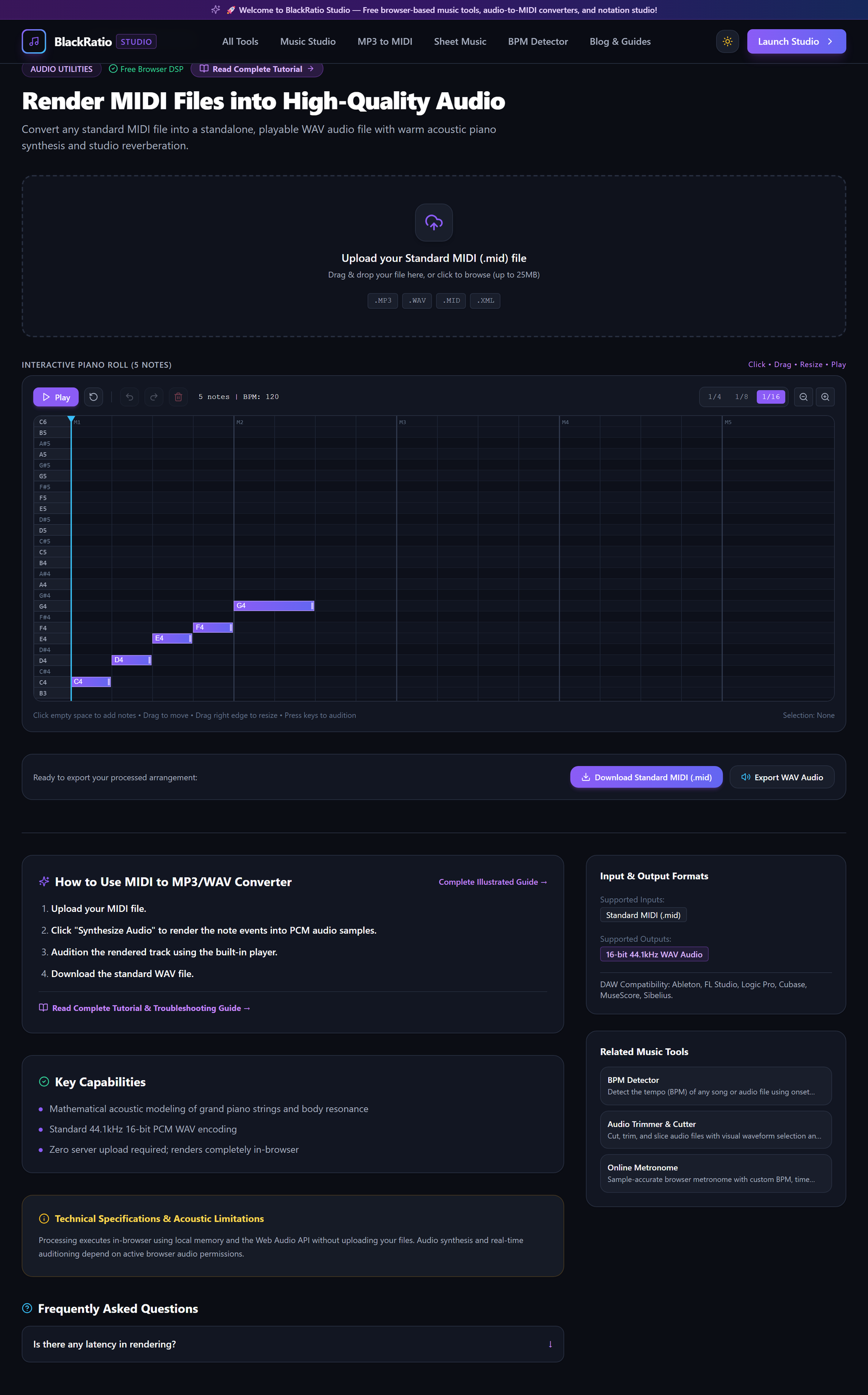
Figure 3: Select Synthetic SoundFont Instrument in the MIDI to MP3/WAV Converter workspace.
- Primary Control:
SoundFont Instrument Preset Selector & Reverb Slider - Expected Visible Result: The SoundFont sample bank loads into browser memory, ready for real-time sample playback.
- Musician's Pro-Tip: For classical or jazz piano pieces, the Concert Grand preset provides rich resonance and authentic pedal sustain modeling.
Step 4: Render Digital Audio Waveform
Click the Render button. The Web Audio synthesizer triggers sample playback for every Note-On event, processing polyphony, velocity curves, and note decays into an internal audio buffer.
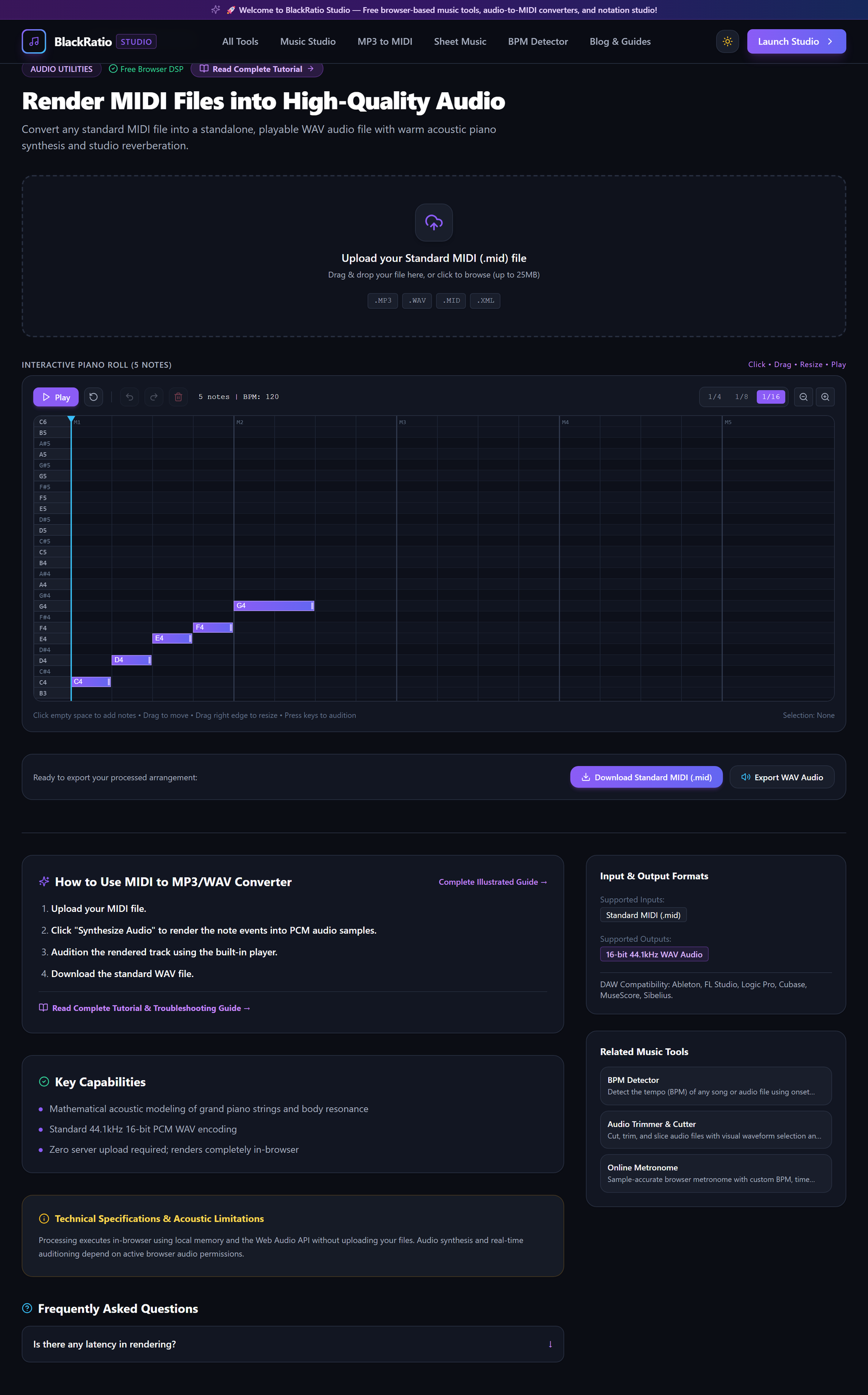
Figure 4: Render Digital Audio Waveform in the MIDI to MP3/WAV Converter workspace.
- Primary Control:
Audio Synthesis Progress Bar & Waveform Preview - Expected Visible Result: A rendered stereo audio waveform generates in the preview player with interactive playhead scrubbing.
- Musician's Pro-Tip: Audition the audio preview with headphones to verify that note velocities and stereo panning sound natural.
Step 5: Download Master WAV Audio File
Click "Download WAV" for uncompressed 16-bit 44.1kHz audio, or "Download MP3" for compact file sharing. The browser compiles the buffer and downloads the file instantly.
Figure 5: Download Master WAV Audio File in the MIDI to MP3/WAV Converter workspace.
- Primary Control:
Download Rendered Audio (WAV / MP3) Buttons - Expected Visible Result: A clean, high-fidelity audio file downloads directly to your device with zero server upload latency.
- Musician's Pro-Tip: Choose WAV format if you plan to import the rendered audio into a video editor or DAW session for further mixing.
Practical Real-World Example
Rendering a Choral Sheet Music MIDI Export into an Audio Practice Track
- Musical Workflow: A community choir director exported a 4-part MIDI file from Sibelius. Uploading it into BlackRatio MIDI to Audio, they selected the "Concert Grand Piano" SoundFont preset and rendered the audio.
- Verified Outcome: The director exported an MP3 file and emailed it to choir singers, giving them an audible piano rehearsal track to practice their vocal parts at home.
How to Verify Your Results
- Audition the rendered audio file in studio monitor headphones to verify frequency response and stereo width.
- Check for smooth note releases and verify polyphony without note voice-stealing artifacts.
- Confirm that volume normalization preserved dynamics without digital clipping.
- Export the audio recording in uncompressed WAV or high-bitrate MP3 format.
Troubleshooting Common Issues
The audio sounds completely silent after rendering.
- Underlying Cause: MIDI tracks were assigned to muted channels or all note velocities were set to 0.
- Recommended Solution: Check the channel volume faders in the tool mixer and confirm velocities are above 20.
Technical Boundaries & Limitations
Browser-based SoundFont synthesis uses sample tables loaded into client RAM. While excellent for standard acoustic and electronic instruments, hyper-realistic orchestral libraries (>5GB) require dedicated desktop sampler plugins.
Frequently Asked Questions
Q: Does it support General MIDI (GM) drum tracks on Channel 10? A: Yes. Standard percussion mappings on Channel 10 trigger authentic acoustic drum kit samples (kick, snare, hi-hat, toms, cymbals).
Launch the Tool
Ready to begin? Access the free, browser-based MIDI to MP3/WAV Converter directly on BlackRatio Studio with zero downloads or account registration required.
Related Workflows & Tools
Related Tutorials & Articles
How to Transpose MIDI Files Online — Lossless Semitone Shift Guide
Transpose MIDI songs and melodies up or down by semitones losslessly while protecting drum channels, controllers, and velocities.
Tool TutorialsHow to Calculate Song BPM with Tap Tempo — Accurate Live Tempo Guide
Calculate the exact tempo of live songs, DJ tracks, and musical ideas by tapping to the rhythm with zero latency and statistical smoothing.