How to Convert MIDI Files into Standard Notation Sheet Music
Transform standard MIDI files into beautifully engraved sheet music scores with automatic clef split, measure bars, and printable PDF export.

The MIDI to Sheet Music Converter parses Standard MIDI Files (.mid) into engraved musical notation scores with automatic clef splitting and rhythmic quantization. It turns digital sequences into readable sheet music directly in your web browser with zero server latency.
Quick Start Guide
- Open MIDI to Sheet Music at
/tools/midi-to-sheet-music. - Import your Standard MIDI file (.mid, .midi).
- Select a quantization grid (1/4, 1/8, or 1/16 notes) to clean up live performance timings.
- Review the rendered treble and bass staves, key signatures, and accidentals.
- Print directly or export as a vector-engraved PDF score.
Before You Begin
- Supported Inputs: Standard MIDI Files (.mid, .midi), Type 0 (single track) or Type 1 (multi-track).
- System Requirements: Modern browser with HTML5 Canvas and SVG rendering capabilities.
- Important Practical Considerations: Human live MIDI performances contain timing variations and rubato. Applying rhythmic quantization before engraving is essential to produce readable, professional musical notation rather than cluttered tuplets and tied rests.
Step-by-Step Instructions
Step 1: Open MIDI to Sheet Music Converter
Access the MIDI to Sheet Music converter. The tool provides vector notation engraving engines that translate numeric MIDI note numbers into standard musical notation symbols.
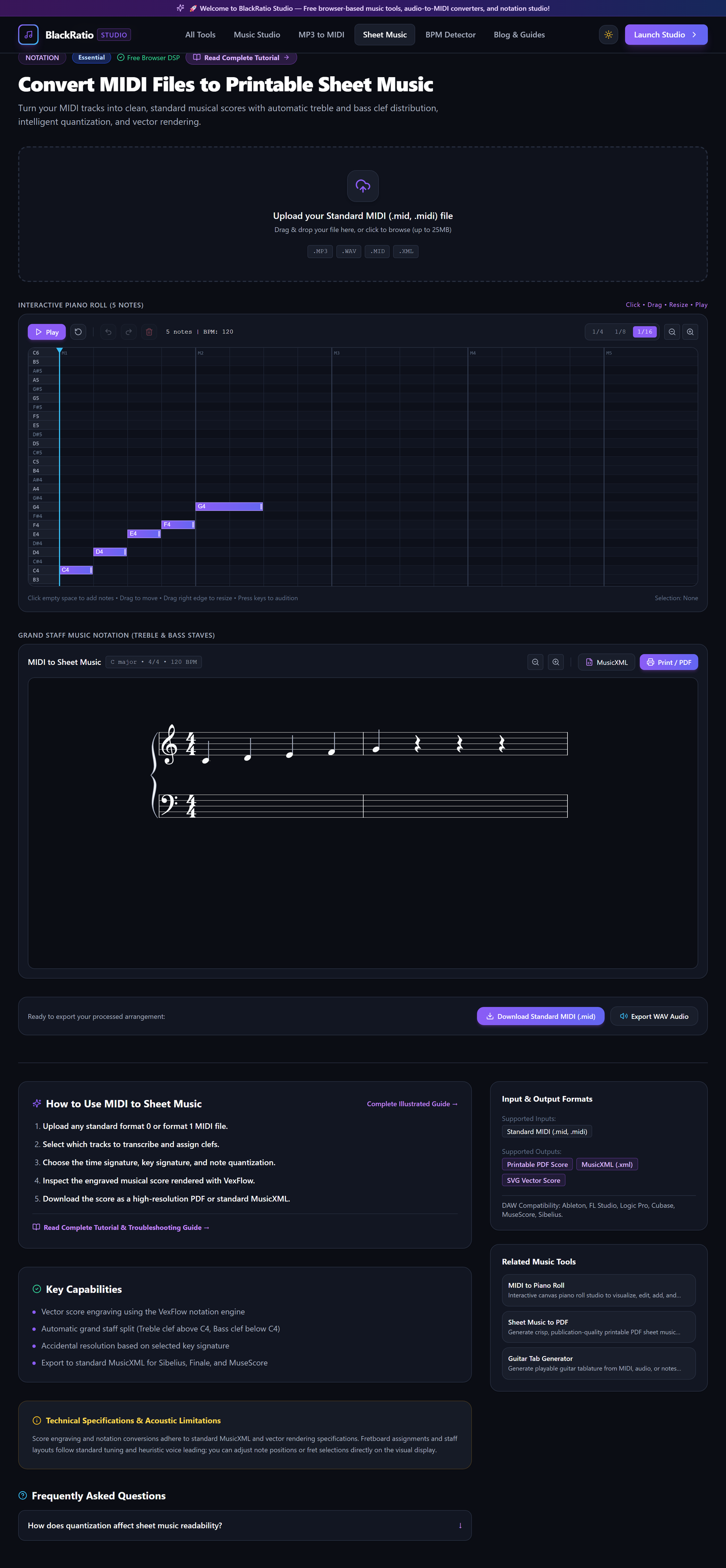
Figure 1: Open MIDI to Sheet Music Converter in the MIDI to Sheet Music workspace.
- Primary Control:
Tool Navigation Bar / Launch MIDI to Sheet Music Workspace - Expected Visible Result: The workspace loads showing a blank musical staff canvas with clef, key signature, and time signature selectors.
- Musician's Pro-Tip: For keyboard music, ensure Grand Staff (Treble + Bass clef) is selected before importing.
Step 2: Import MIDI File
Drag your .mid file into the file importer. The engine parses the MIDI header chunk, calculates tempo maps (BPM), reads time signature meta-events, and extracts note pitches and tick timestamps.
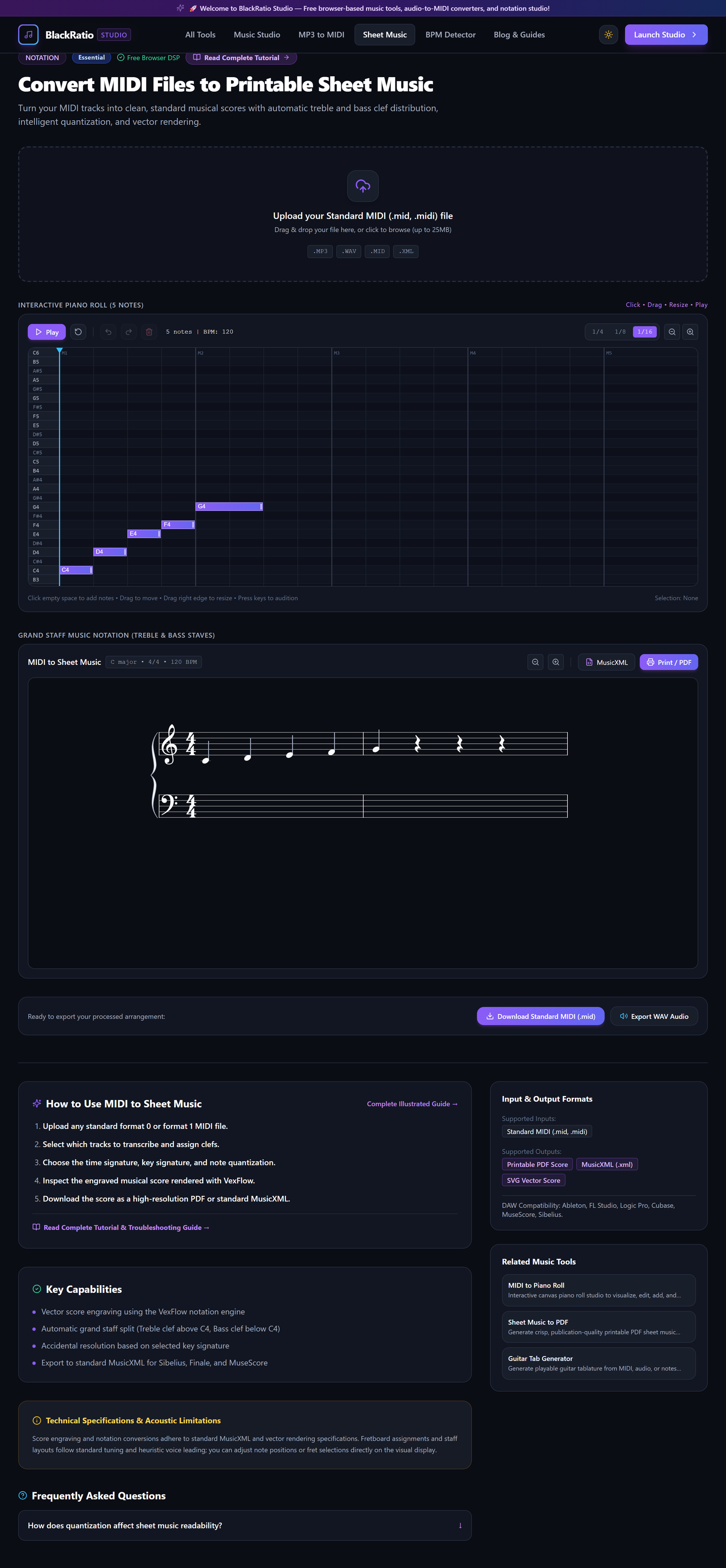
Figure 2: Import MIDI File in the MIDI to Sheet Music workspace.
- Primary Control:
Standard MIDI File Dropzone (.mid) - Expected Visible Result: The notation canvas displays the initial musical measures with standard noteheads, stems, and measure bar lines.
- Musician's Pro-Tip: If your MIDI file has multiple tracks (e.g. Piano Right Hand on Track 1, Left Hand on Track 2), the tool automatically organizes them into upper and lower staves.
Step 3: Choose Quantization Grid (1/4, 1/8, 1/16)
Select your Quantization Grid resolution. If your piece consists mainly of eighth-note melodies, select "1/8 Note" quantization. This snaps note starts and endings to standard musical note values, replacing cluttered complex rests with clean notation.
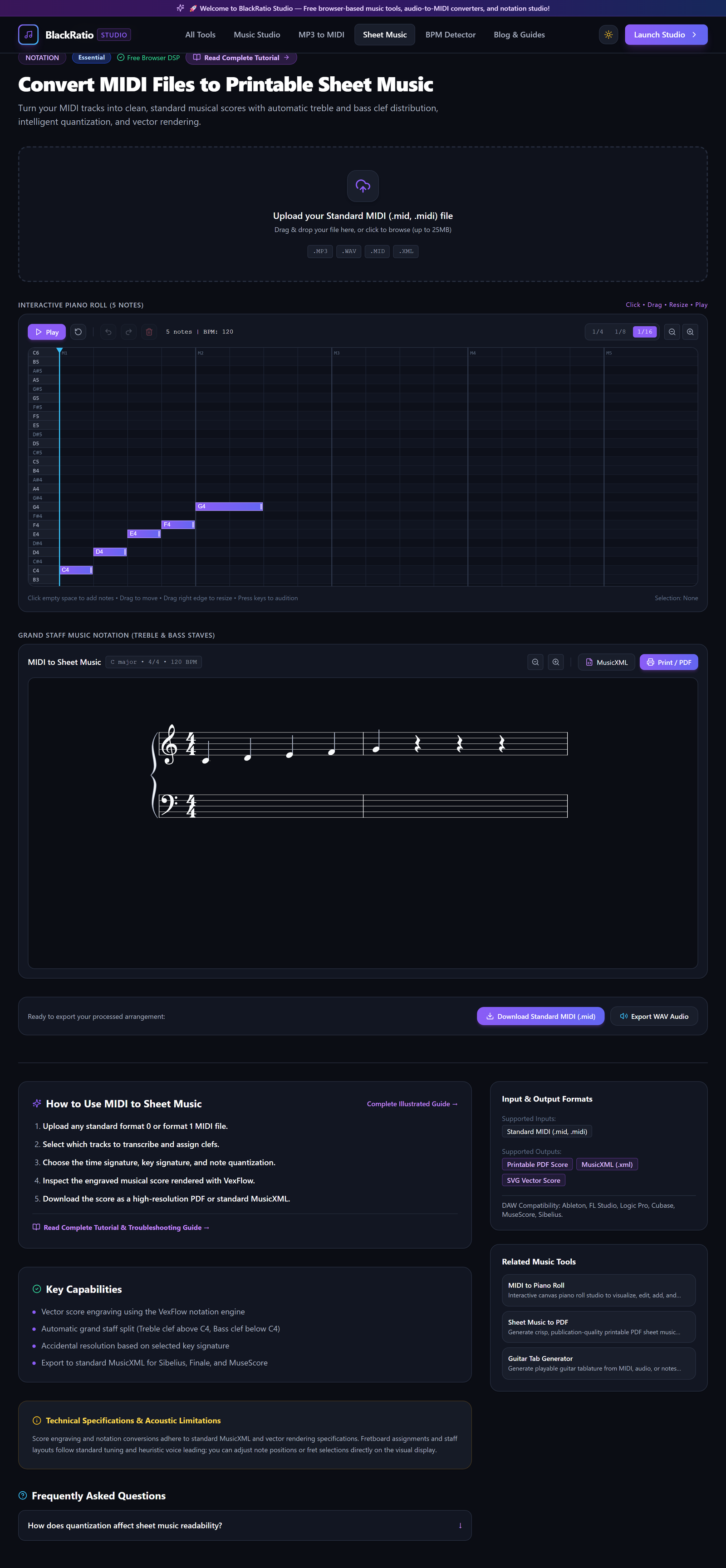
Figure 3: Choose Quantization Grid (1/4, 1/8, 1/16) in the MIDI to Sheet Music workspace.
- Primary Control:
Quantization Resolution & Key Signature Selectors - Expected Visible Result: The sheet music re-engraves instantly: tied fractional notes disappear, and clean eighth or sixteenth note groupings appear.
- Musician's Pro-Tip: Never over-quantize: if your piece has triplets, select Triplet quantization or 1/16 note resolution to preserve rhythmic subdivisions.
Step 4: Preview Notation Score
Examine the engraved score. Check clef assignments, accidental spellings (sharps vs flats according to the key signature), and tie symbols across measure bar lines. Click Play to listen to the score while a playback cursor tracks note by note.
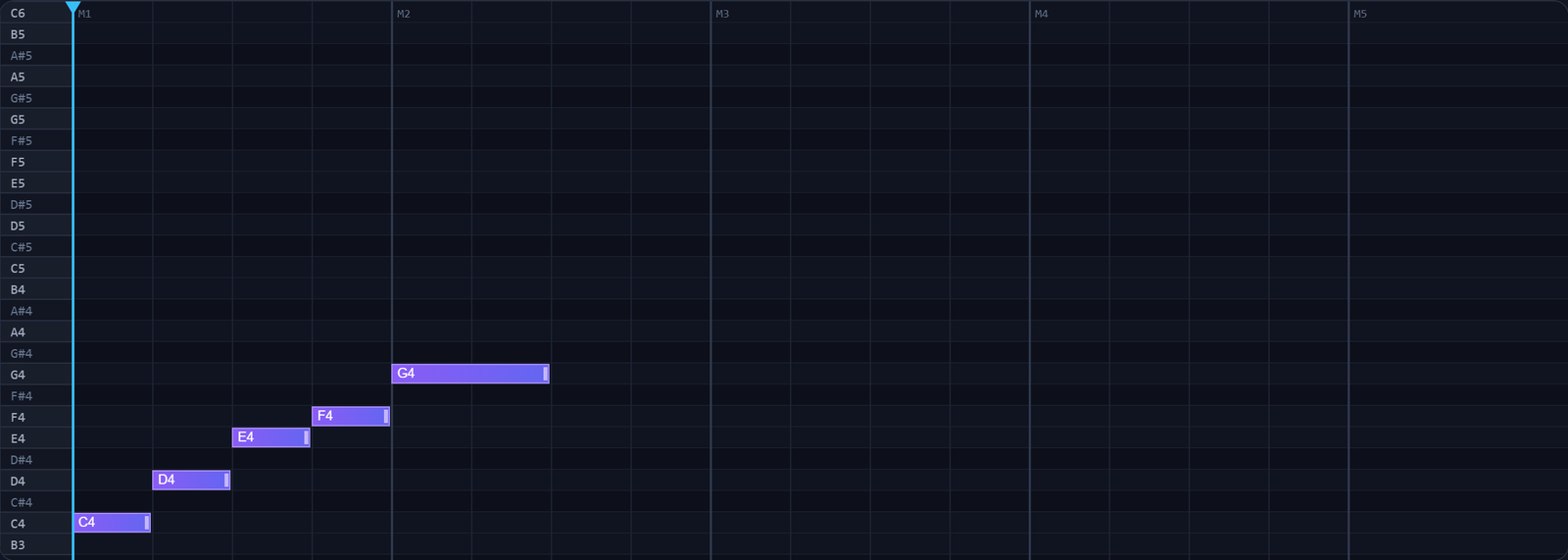
Figure 4: Preview Notation Score in the MIDI to Sheet Music workspace.
- Primary Control:
Interactive Sheet Music Notation Canvas - Expected Visible Result: The score displays clean, vector-rendered sheet music matching professional engraving standards.
- Musician's Pro-Tip: If low notes are appearing on ledger lines below the treble staff, adjust the Clef Split Point (default: Middle C / C4) to shift them down to the bass staff.
Step 5: Print or Export Sheet Music PDF
Click the "Print / Export PDF" button. The tool compiles the vector SVG score into a print-ready document formatted with standard page margins, title headers, and page numbers.

Figure 5: Print or Export Sheet Music PDF in the MIDI to Sheet Music workspace.
- Primary Control:
Export Score (PDF / MusicXML) Buttons - Expected Visible Result: Your browser opens the print dialog or downloads a crisp, vector-engraved PDF suitable for printing on standard paper.
- Musician's Pro-Tip: Select A4 or US Letter format matching your home or studio printer paper size to avoid unwanted margin clipping.
Practical Real-World Example
Converting a DAW Piano Improvisation into Printable Sheet Music for a Student
- Musical Workflow: A piano instructor recorded an original etude in Logic Pro and exported the MIDI file. Loading it into BlackRatio MIDI to Sheet Music, they selected 1/8-note quantization and set Middle C as the staff split point.
- Verified Outcome: The tool generated clean two-handed grand staff sheet music, which the teacher printed directly as a 2-page PDF for their student.
How to Verify Your Results
- Inspect measure boundaries in the score viewer to confirm beat divisions match the MIDI meter.
- Verify that the treble and bass clef split point at Middle C (C4) cleanly separates hands.
- Confirm that accidentals (sharps and flats) adhere to the selected key signature.
- Audition synthetic playback to ensure engraved notation mirrors your original performance.
Troubleshooting Common Issues
Notes in the score have complex ties and weird rests instead of clean quarter notes.
- Underlying Cause: The source MIDI performance was played without a metronome with human timing drift.
- Recommended Solution: Enable Rhythmic Quantization and set the grid to 1/8 or 1/16 notes to align note durations to clean musical beats.
All notes are appearing in the Treble clef, making the Bass clef empty.
- Underlying Cause: The MIDI file was saved as Type 0 with all channels routed to a single track without a split marker.
- Recommended Solution: Set the Clef Split Point slider to Note 60 (Middle C). All notes below Middle C will automatically move to the Bass clef.
Technical Boundaries & Limitations
MIDI to Sheet Music converts MIDI note and pitch-wheel events. It does not automatically infer expressive performance dynamics (e.g. crescendo hairpins, staccato dots, or lyric text) unless encoded in score meta-events.
Frequently Asked Questions
Q: Can I export MusicXML to open the score in MuseScore or Sibelius? A: Yes. In addition to printable PDF export, you can download standard MusicXML (.xml) files for advanced editing in notation programs.
Launch the Tool
Ready to begin? Access the free, browser-based MIDI to Sheet Music directly on BlackRatio Studio with zero downloads or account registration required.
Related Workflows & Tools
Related Tutorials & Articles
How to Transpose MIDI Files Online — Lossless Semitone Shift Guide
Transpose MIDI songs and melodies up or down by semitones losslessly while protecting drum channels, controllers, and velocities.
Tool TutorialsHow to Calculate Song BPM with Tap Tempo — Accurate Live Tempo Guide
Calculate the exact tempo of live songs, DJ tracks, and musical ideas by tapping to the rhythm with zero latency and statistical smoothing.