How to Convert MusicXML Notation Scores to Standard MIDI Files
Convert digital sheet music scores (.musicxml, .xml) into standard MIDI sequences with tempo, dynamics, and part voicing preserved.
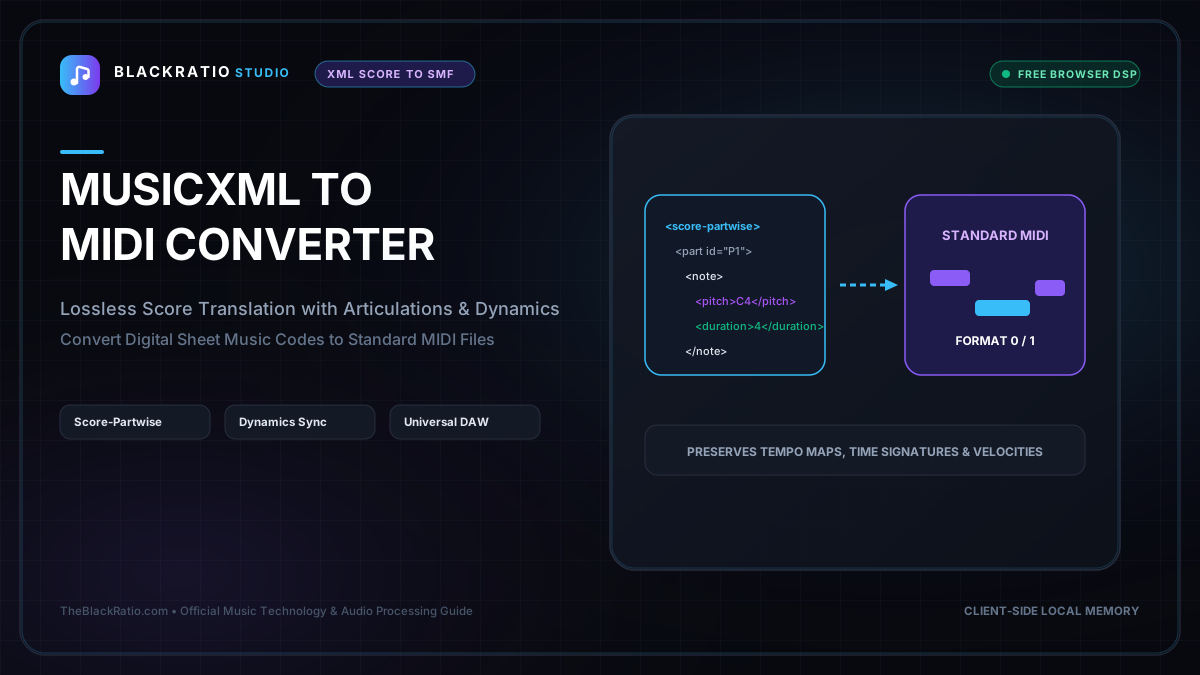
The MusicXML to MIDI Converter translates structured digital sheet music (MusicXML) into Standard MIDI Type 1 files. It converts score note pitches, rhythmic durations, key signatures, and expressive tempo markings into standard MIDI messages compatible with all DAWs.
Quick Start Guide
- Open MusicXML to MIDI at
/tools/musicxml-to-midi. - Upload a MusicXML score file (.xml, .musicxml, or .mxl).
- Review parsed score parts, time signatures, and tempo markings.
- Audition playback using the integrated multi-voice synthesizer.
- Download the synthesized Standard MIDI File (.mid).
Before You Begin
- Supported Inputs: MusicXML files conforming to the MusicXML 3.0 or 4.0 specification (uncompressed .xml/.musicxml or compressed .mxl).
- System Requirements: Any modern desktop or mobile browser.
- Important Practical Considerations: MusicXML encodes detailed score layout, dynamics (p, f, ff), articulations (staccato, accent), and part structures. Converting to MIDI translates these graphical notation symbols into audible MIDI velocity, duration, and channel messages.
Step-by-Step Instructions
Step 1: Open MusicXML Converter Workspace
Open the MusicXML to MIDI Converter. The tool features an XML schema parser designed to interpret complex polyphonic scores, multi-part orchestrations, and rhythmic tuplets.
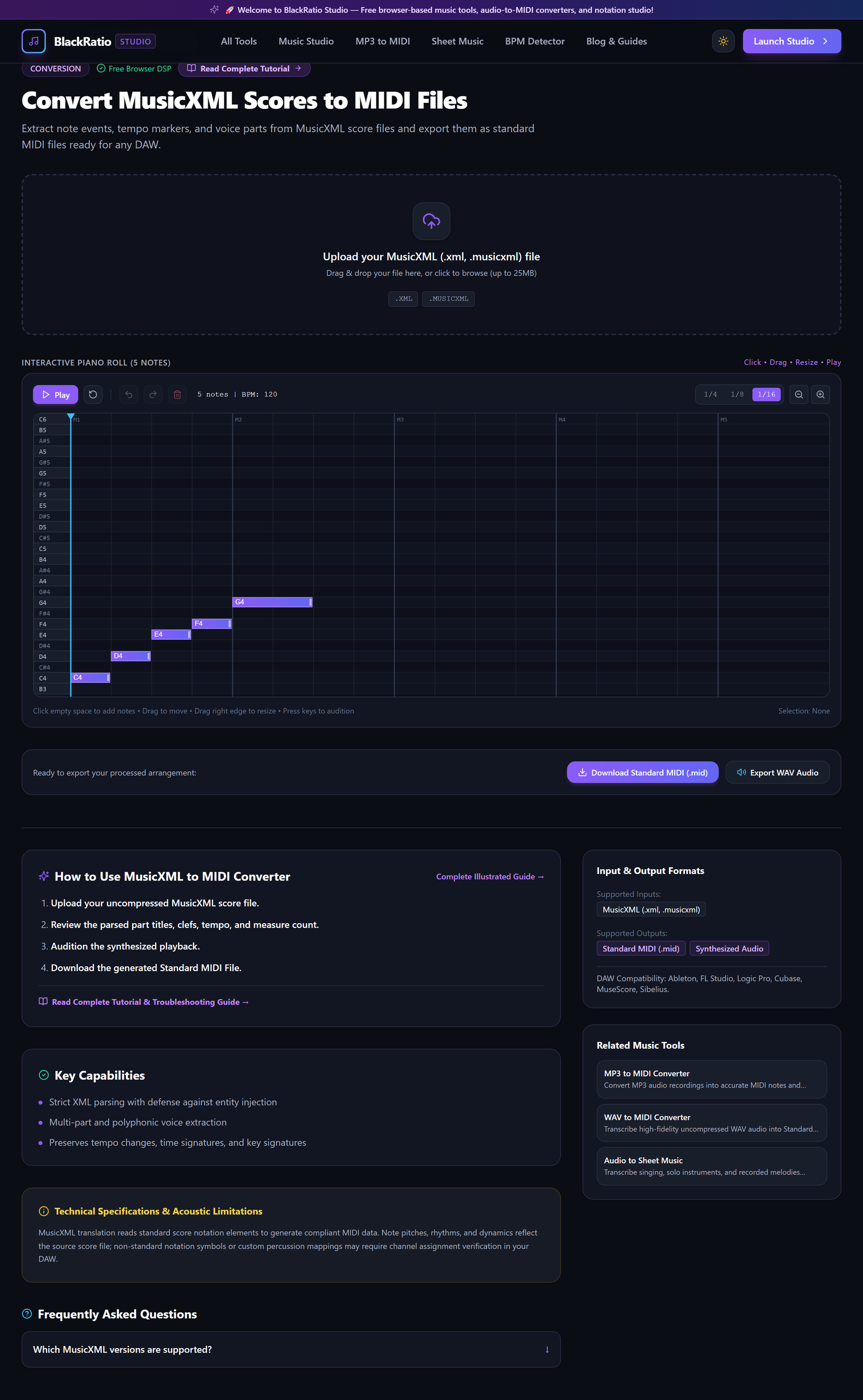
Figure 1: Open MusicXML Converter Workspace in the MusicXML to MIDI Converter workspace.
- Primary Control:
Tool Navigation Bar / Launch MusicXML to MIDI Workspace - Expected Visible Result: The workspace loads with an XML dropzone and playback preview panel.
- Musician's Pro-Tip: Export your score from MuseScore, Sibelius, or Finale using standard uncompressed MusicXML (.musicxml) for maximum compatibility.
Step 2: Upload Score File (.musicxml, .xml)
Drop your MusicXML score into the upload box. The parser reads XML elements: <part-list>, <measure>, <note>, <pitch>, and <duration>, assembling an internal musical object tree.
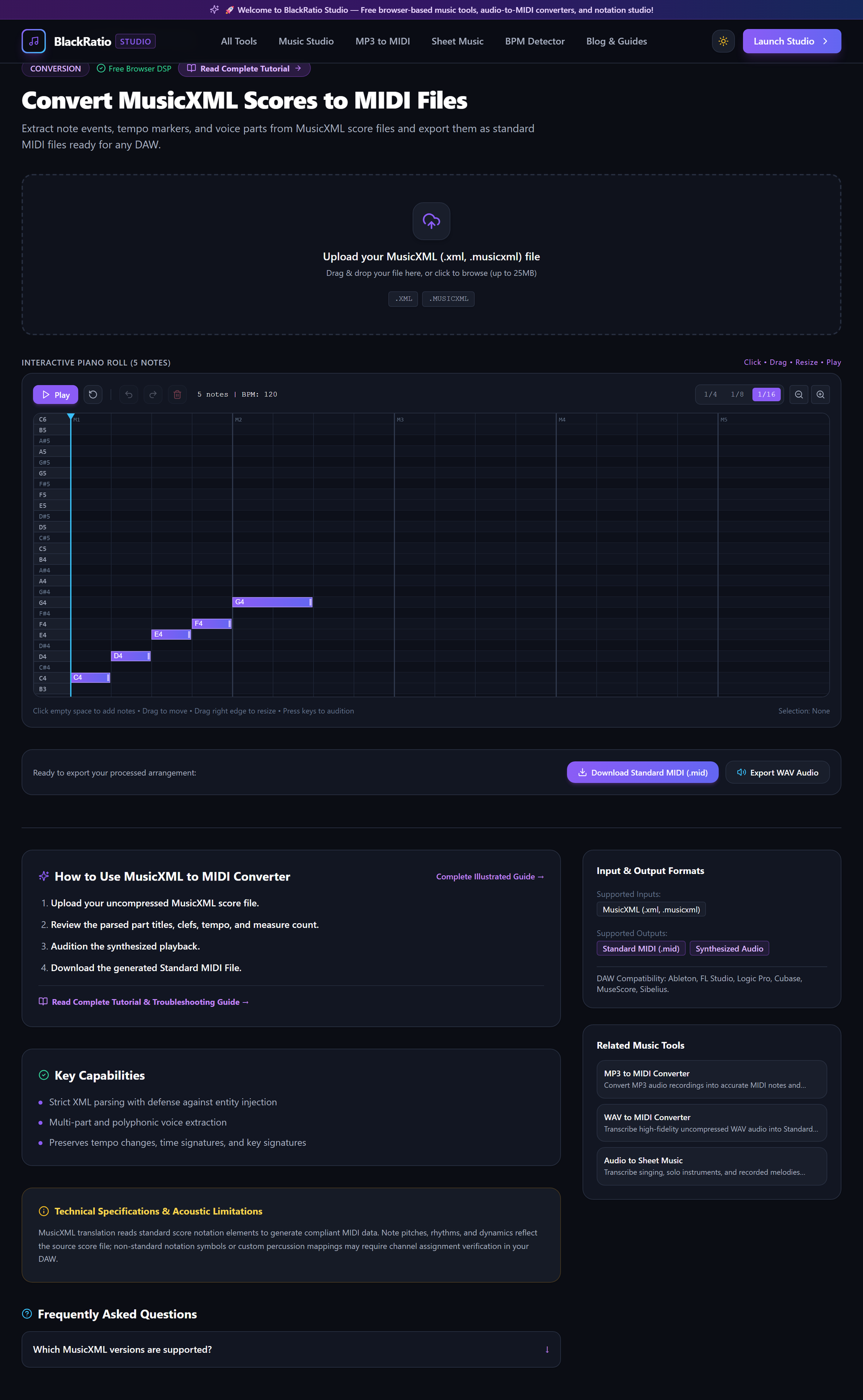
Figure 2: Upload Score File (.musicxml, .xml) in the MusicXML to MIDI Converter workspace.
- Primary Control:
MusicXML File Upload Dropzone (.xml, .musicxml) - Expected Visible Result: The tool displays the piece title, composer metadata, part list (e.g. Flute, Violin, Piano), and total measure count.
- Musician's Pro-Tip: If your score contains multiple instrumental parts, the converter maps each part to its own distinct MIDI track in the exported file.
Step 3: Parse Measure Dynamics and Tempo
Inspect the parsed dynamics and tempo settings. The converter automatically converts Italian dynamic markings (pianissimo to fortissimo) into MIDI velocity curves, and honors metronome tempo markings (<sound tempo="..."/>).
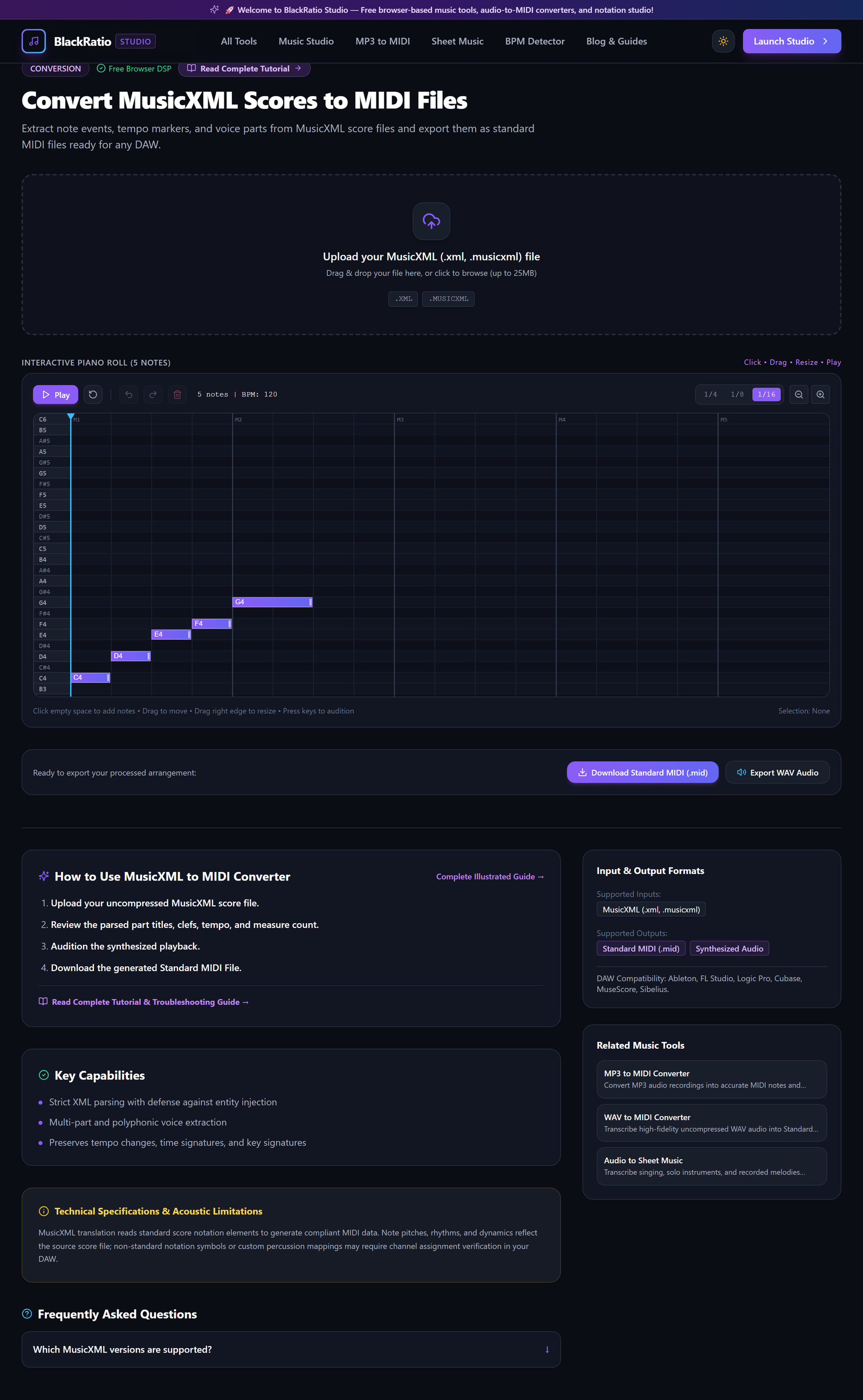
Figure 3: Parse Measure Dynamics and Tempo in the MusicXML to MIDI Converter workspace.
- Primary Control:
Tempo Interpretation & Articulation Playback Selectors - Expected Visible Result: Tempo maps, key signatures, and dynamic curves appear in the score inspector.
- Musician's Pro-Tip: Ensure your original score has an explicit tempo marking on Measure 1 (e.g. Quarter Note = 120); otherwise, standard 120 BPM is applied.
Step 4: Preview MIDI Sequence
Click the Play button in the preview transport to listen to the synthesized score. All polyphonic voices, ties across barlines, and repeats are performed with sample-accurate timing.

Figure 4: Preview MIDI Sequence in the MusicXML to MIDI Converter workspace.
- Primary Control:
Decoded Score Preview Canvas & Playback Bar - Expected Visible Result: Audio synthesizes in your browser, allowing you to audit note pitches and rhythmic accuracy before downloading.
- Musician's Pro-Tip: Listen carefully to tied notes across measure boundaries to confirm that ties were correctly sustained rather than re-struck.
Step 5: Download Converted MIDI (.mid)
Click "Download MIDI (.mid)". The engine compiles the score into a Type 1 Standard MIDI file with separate tracks for each instrument part.

Figure 5: Download Converted MIDI (.mid) in the MusicXML to MIDI Converter workspace.
- Primary Control:
Download Standard MIDI (.mid) Button - Expected Visible Result: A
.midfile downloads to your local disk, fully compatible with all DAWs and MIDI hardware synthesizers. - Musician's Pro-Tip: Import the MIDI file into your DAW and assign virtual orchestral instruments to each track to hear the full arrangement come to life.
Practical Real-World Example
Converting a MuseScore Choral Arrangement for Virtual Choir Production
- Musical Workflow: A choir director composed a 4-part SATB choral piece in MuseScore and exported it as a MusicXML file. Uploading it to BlackRatio MusicXML to MIDI, the tool extracted Soprano, Alto, Tenor, and Bass onto Tracks 1-4 with exact dynamics.
- Verified Outcome: The director imported the MIDI into Logic Pro, assigned vocal choir libraries, and produced realistic rehearsal tracks for choir members.
How to Verify Your Results
- Import the generated .mid file into your DAW and verify project tempo matches score markings.
- Check that tied notes across barlines render as single sustained MIDI events rather than repeated notes.
- Confirm that multi-staff parts (e.g. piano grand staff) import as synchronized tracks.
- Audit volume dynamics and velocity levels against original score expression markings.
Troubleshooting Common Issues
The exported MIDI plays at 120 BPM instead of the score tempo.
- Underlying Cause: The MusicXML file lacked a
<sound tempo="..."/>tag in Measure 1. - Recommended Solution: Add an explicit tempo marking (e.g. Andante = 84) in your notation software before exporting to MusicXML.
Repeated sections and first/second endings are only played once.
- Underlying Cause: Some notation programs do not expand repeats in the XML structure.
- Recommended Solution: Enable "Expand Repeats" in the tool playback settings or duplicate the measures in your notation software.
Technical Boundaries & Limitations
MusicXML to MIDI translates notation into performance data. Complex microtonal accidentals (quarter-tones) and non-standard graphic notation symbols are mapped to the nearest standard MIDI semitone.
Frequently Asked Questions
Q: Does it support compressed (.mxl) files? A: Yes. The converter automatically decompresses .mxl archive containers in browser memory.
Launch the Tool
Ready to begin? Access the free, browser-based MusicXML to MIDI Converter directly on BlackRatio Studio with zero downloads or account registration required.
Related Workflows & Tools
Related Tutorials & Articles
How to Transpose MIDI Files Online — Lossless Semitone Shift Guide
Transpose MIDI songs and melodies up or down by semitones losslessly while protecting drum channels, controllers, and velocities.
Tool TutorialsHow to Calculate Song BPM with Tap Tempo — Accurate Live Tempo Guide
Calculate the exact tempo of live songs, DJ tracks, and musical ideas by tapping to the rhythm with zero latency and statistical smoothing.