How to Format and Export Vector Sheet Music Scores to PDF
Turn digital sheet music and MusicXML scores into high-resolution, vector-engraved PDF documents formatted for standard A4 and US Letter printing.
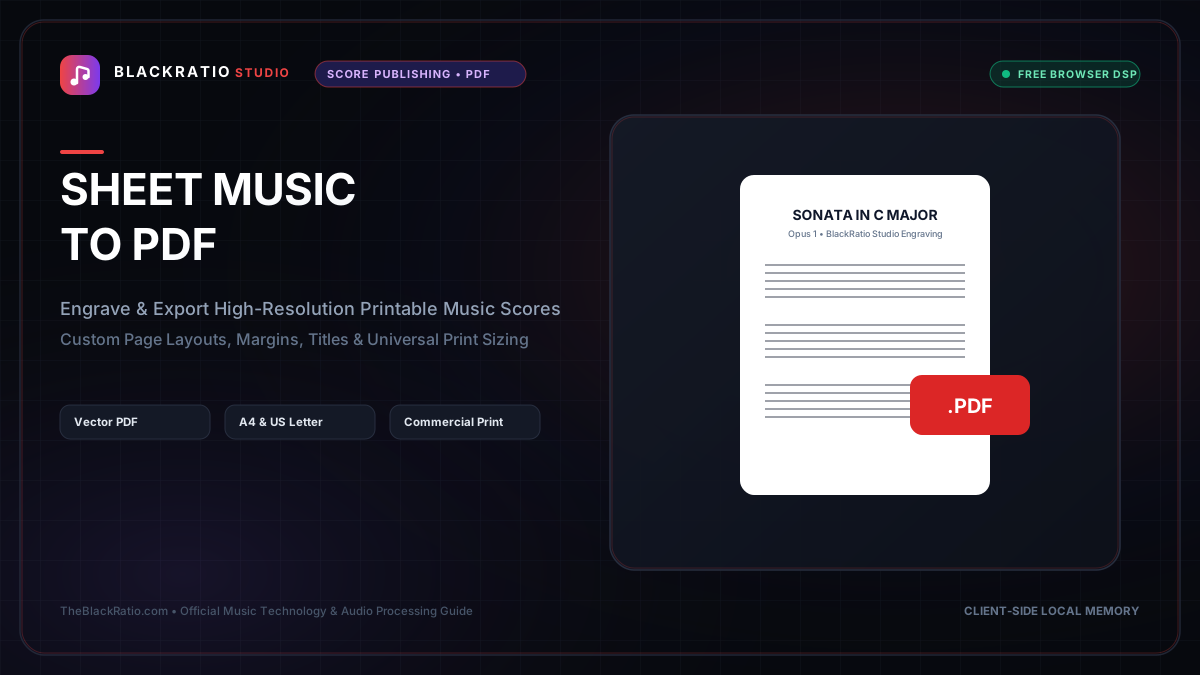
The Sheet Music to PDF tool formats digital musical notation into print-ready, high-resolution vector PDF scores. It organizes staves, measure barlines, page breaks, and titles according to international engraving standards for professional printing and digital performance.
Quick Start Guide
- Open Sheet Music to PDF at
/tools/sheet-music-to-pdf. - Import your score file (.musicxml, .xml, or MIDI).
- Configure paper size (A4 or US Letter), margins, and staff sizing.
- Inspect the crisp vector-rendered sheet music canvas.
- Click Export Printable PDF to download the formatted score.
Before You Begin
- Supported Inputs: MusicXML (.musicxml, .xml, .mxl) or Standard MIDI (.mid).
- System Requirements: Updated desktop or tablet browser with vector PDF printing capabilities.
- Important Practical Considerations: Vector PDF scores maintain microscopic sharpness at any zoom level, ensuring crisp noteheads, razor-sharp staff lines, and clear text when printed on physical paper.
Step-by-Step Instructions
Step 1: Open Sheet Music to PDF Tool
Open the Sheet Music to PDF tool. The interface provides a professional score layout engine that formats music staves according to standard publishing guidelines.
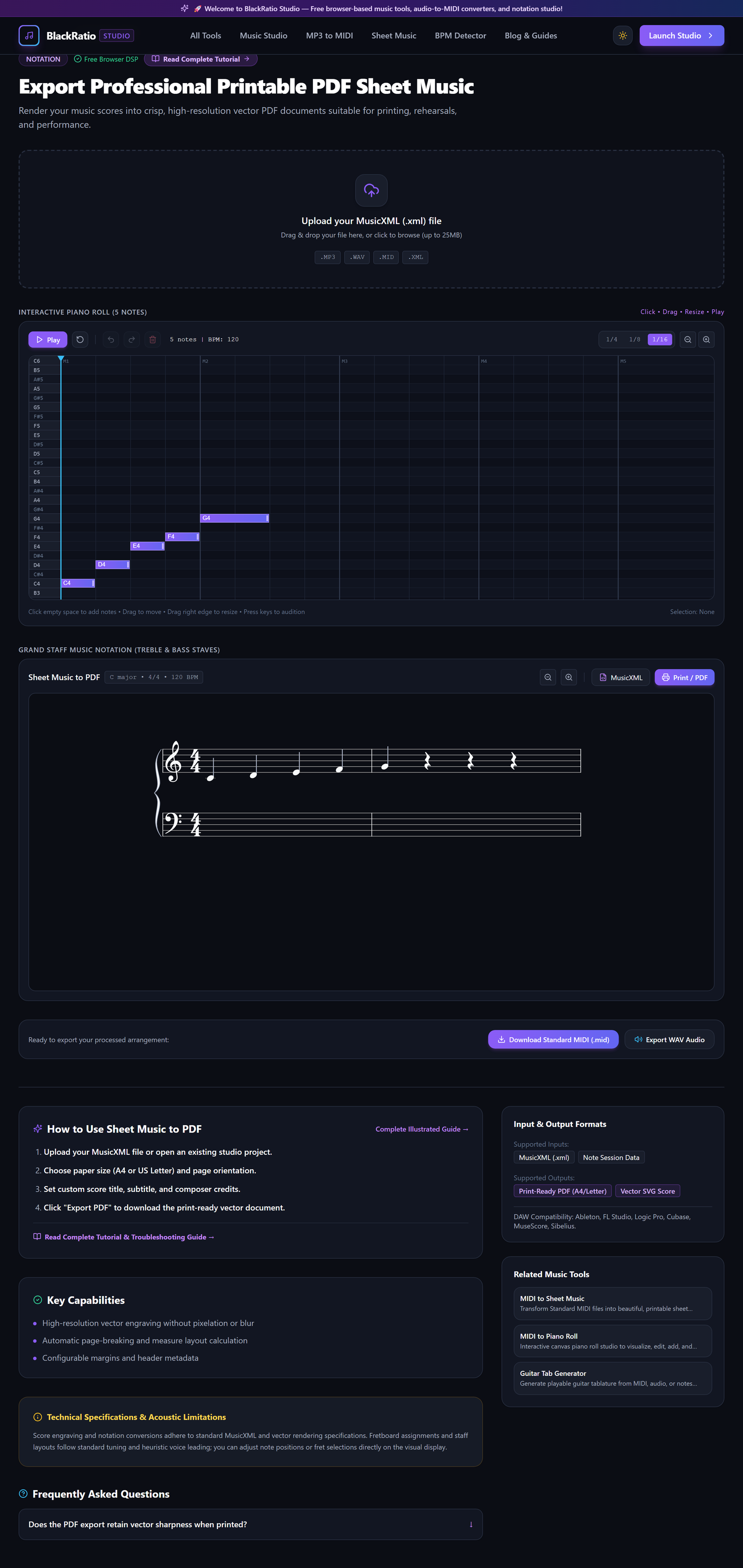
Figure 1: Open Sheet Music to PDF Tool in the Sheet Music to PDF workspace.
- Primary Control:
Tool Navigation Bar / Launch Sheet Music to PDF Workspace - Expected Visible Result: The workspace displays page setup options, margin rulers, and a score preview viewport.
- Musician's Pro-Tip: Use full-screen mode on your browser for the best view of multi-page score pagination.
Step 2: Import Score Notation
Upload your MusicXML or MIDI file into the score importer. The layout engine calculates measure widths, system breaks, and page distributions.
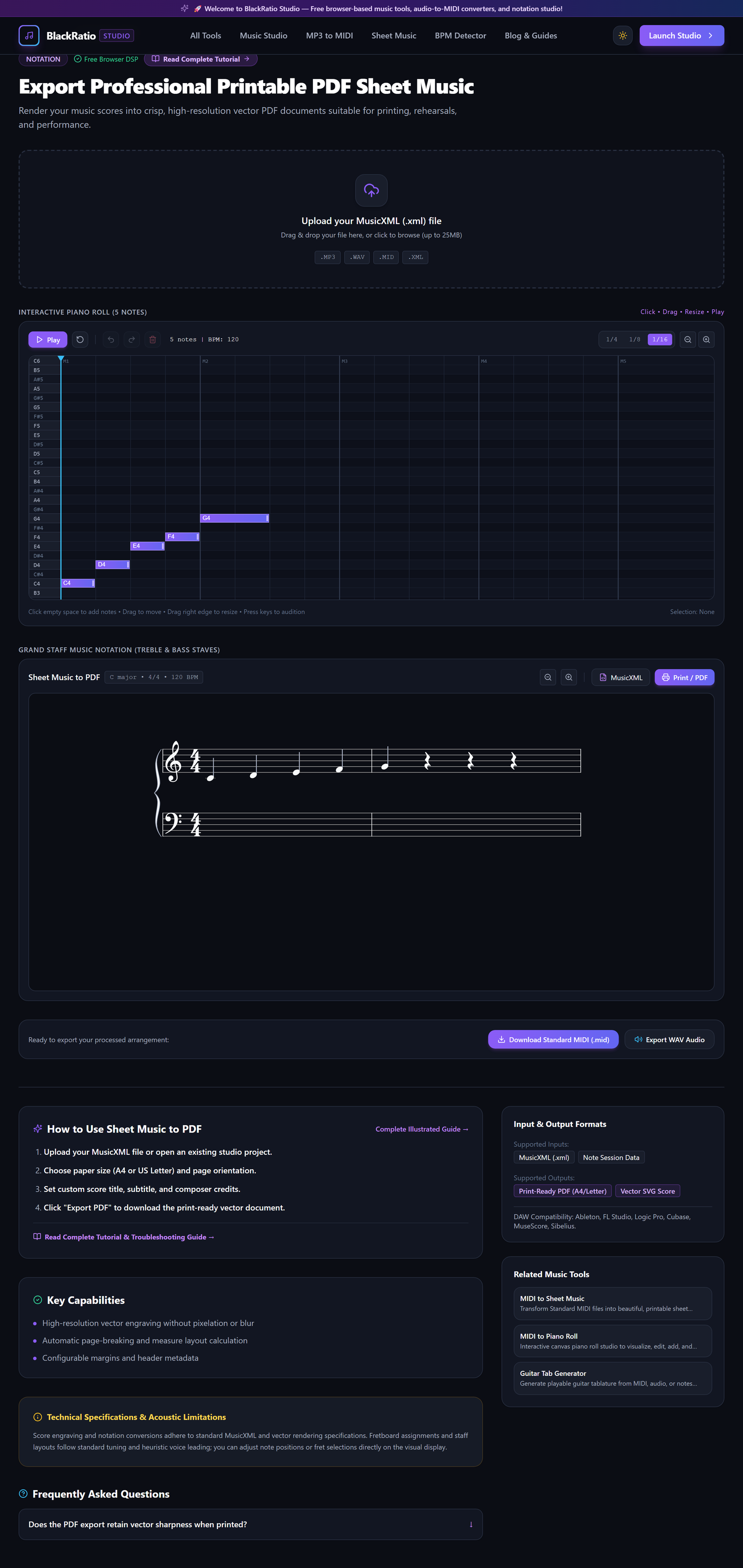
Figure 2: Import Score Notation in the Sheet Music to PDF workspace.
- Primary Control:
Score Upload Dropzone (MusicXML / MIDI) - Expected Visible Result: The score renders onto the page preview with clefs, key signatures, notes, and lyrics positioned on the staff.
- Musician's Pro-Tip: If your score includes lyrics, ensure the lyric font size is set to at least 11pt for comfortable reading from a music stand.
Step 3: Configure Page Layout and Notation
Select your target Paper Size: A4 (210 x 297mm for Europe/Asia) or US Letter (8.5 x 11 inches for North America). Adjust Staff Size (Spatium) to fit more systems per page or enlarge notes for young students.
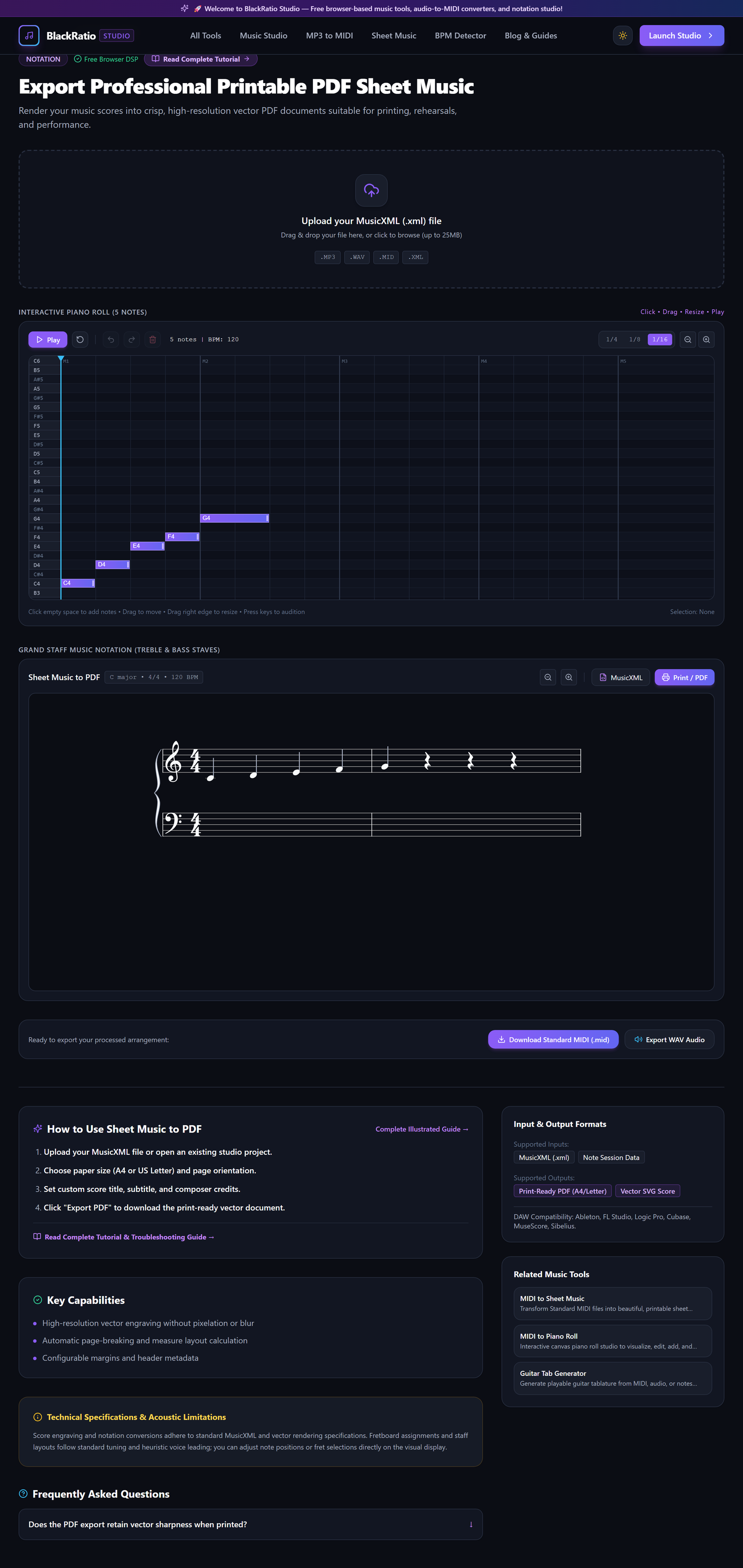
Figure 3: Configure Page Layout and Notation in the Sheet Music to PDF workspace.
- Primary Control:
Page Orientation (Portrait/Landscape) & Staff Size Sliders - Expected Visible Result: The score dynamically reflows across pages: measures wrap cleanly, avoiding orphaned single bars on the final page.
- Musician's Pro-Tip: Aim for 4 to 6 systems per page on solo piano scores for optimal visual balance and easy page turns.
Step 4: Render High-Resolution Score Canvas
Review each page in the multi-page previewer. Verify title placement, composer attribution, page numbers, and system spacing between grand staves.
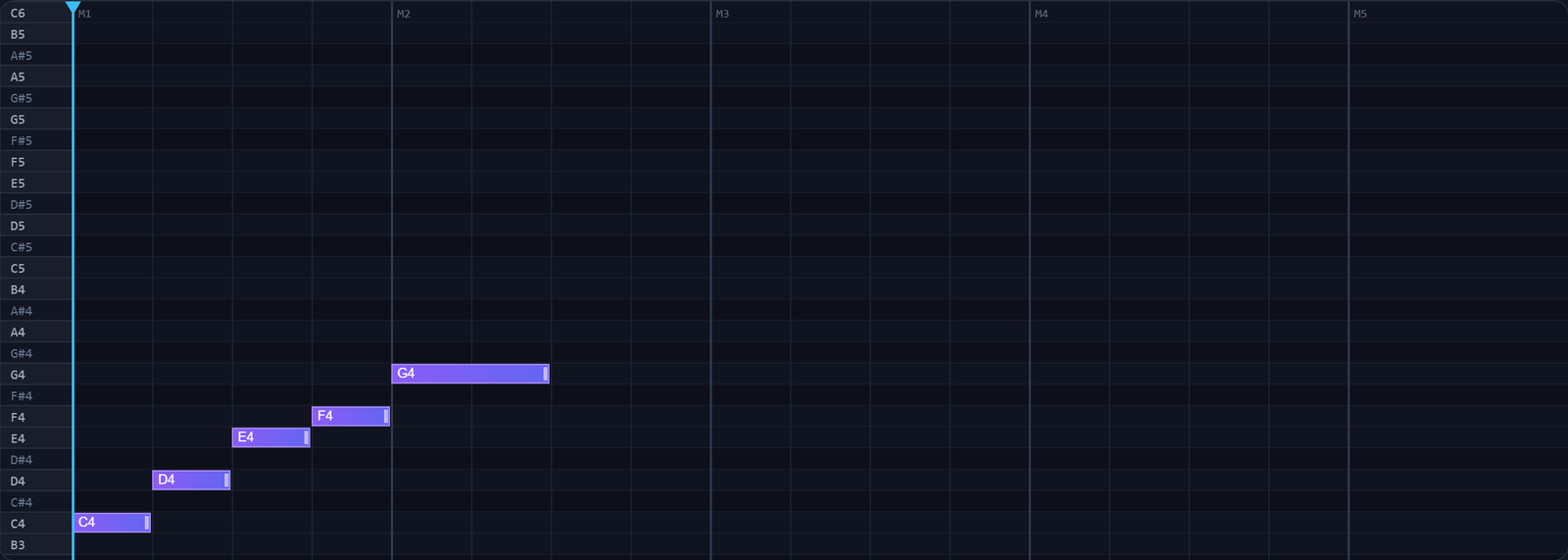
Figure 4: Render High-Resolution Score Canvas in the Sheet Music to PDF workspace.
- Primary Control:
Multi-Page Score Layout Preview Canvas - Expected Visible Result: Each page renders with vector-smooth lines, dark crisp noteheads, and standard musical fonts.
- Musician's Pro-Tip: Check that system spacing leaves enough room for ledger lines and high accidentals without colliding with the staff above.
Step 5: Export Printable Document
Click the purple "Export Printable PDF" button. The vector engine embeds all music fonts, glyphs, and line coordinates into an ISO-standard PDF document and triggers download.

Figure 5: Export Printable Document in the Sheet Music to PDF workspace.
- Primary Control:
Download Vector Score PDF Button - Expected Visible Result: A high-resolution, vector-engraved PDF downloads instantly to your computer, ready to print or load onto an iPad or tablet.
- Musician's Pro-Tip: When printing from Adobe Acrobat or Preview, select "Actual Size" (100% scale) rather than "Fit to Page" to preserve standard musical dimensions.
Practical Real-World Example
Formatting a Lead Sheet for a Studio Session Recording
- Musical Workflow: A songwriter needed lead sheets for a recording session with a live bassist and pianist. They uploaded their MusicXML score, set the paper size to US Letter with comfortable 15mm margins, and enlarged the staff size to 7.5mm for easy reading.
- Verified Outcome: The tool exported a crystal-clear 2-page PDF lead sheet that was printed and handed directly to session musicians.
How to Verify Your Results
- Open the exported PDF score in a document viewer and zoom to 400% to confirm sharp vector staves.
- Verify that page margins and system spacing prevent collisions between notes and lyrics.
- Check measure numbering at the beginning of each system for rehearsal reference.
- Print a test page on standard A4 or US Letter paper to verify physical readability on a music stand.
Troubleshooting Common Issues
The last measure of the piece is stretched awkwardly across an entire system.
- Underlying Cause: The layout engine has an extra system break on the final bar.
- Recommended Solution: Slightly reduce the Staff Size slider (e.g. from 7.0mm to 6.7mm) to fit that final measure onto the previous system.
Technical Boundaries & Limitations
Sheet Music to PDF creates vector-engraved scores up to 50 pages. For orchestral full scores with more than 24 simultaneous staves, review system spacing to avoid overlapping staves.
Frequently Asked Questions
Q: Will the PDF have blurry noteheads when printed? A: No. The engine outputs resolution-independent vector graphics (PDF paths), guaranteeing 1200+ DPI print sharpness on any printer.
Launch the Tool
Ready to begin? Access the free, browser-based Sheet Music to PDF directly on BlackRatio Studio with zero downloads or account registration required.
Related Workflows & Tools
Related Tutorials & Articles
How to Transpose MIDI Files Online — Lossless Semitone Shift Guide
Transpose MIDI songs and melodies up or down by semitones losslessly while protecting drum channels, controllers, and velocities.
Tool TutorialsHow to Calculate Song BPM with Tap Tempo — Accurate Live Tempo Guide
Calculate the exact tempo of live songs, DJ tracks, and musical ideas by tapping to the rhythm with zero latency and statistical smoothing.