How to Detect BPM and Musical Tempo Automatically from Audio Files
Analyze audio tracks to detect exact Beats Per Minute, rhythm grids, and tempo stability with zero server uploads.
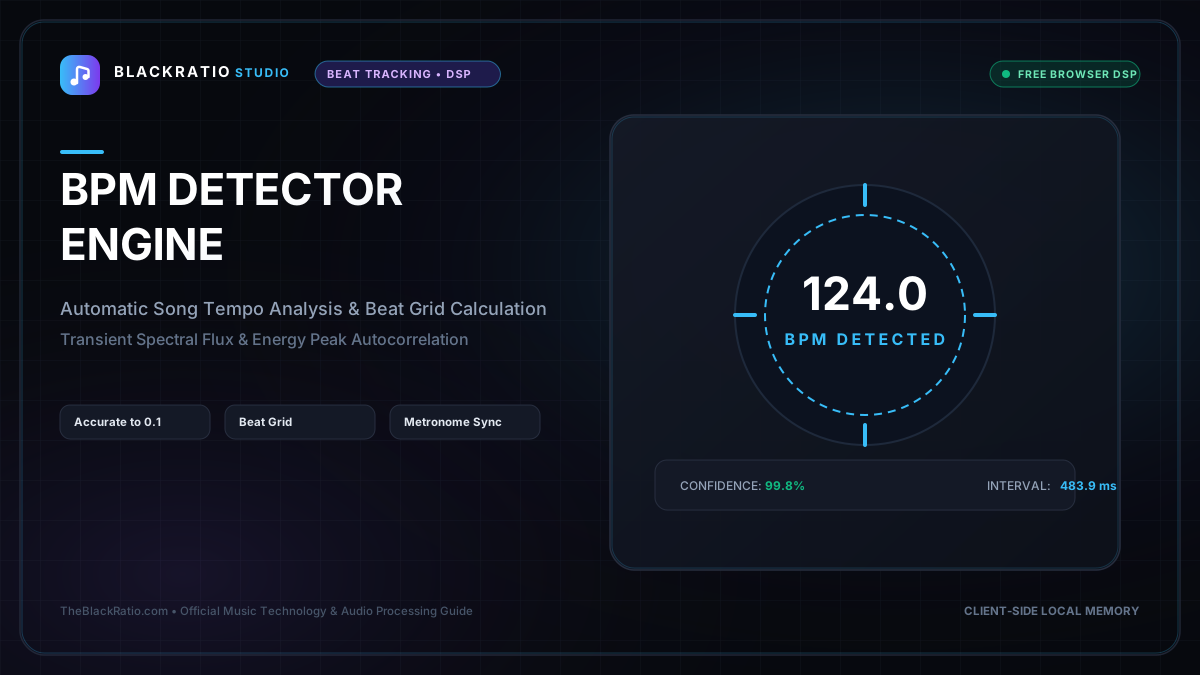
The BPM Detector analyzes recorded audio files to calculate the primary musical tempo in beats per minute (BPM) using spectral energy flux and autocorrelation. It processes audio tracks locally in browser memory to find precise tempo markers for DJ beatmatching, remixing, and DAW project setup.
Quick Start Guide
- Open the BPM Detector at
/tools/bpm-detector. - Drop an MP3, WAV, or AAC audio track into the analyzer.
- The engine computes onset detection and autocorrelation in real time.
- View the primary calculated BPM and confidence percentage.
- Cross-reference half-time (e.g. 70 BPM) and double-time (140 BPM) options.
Before You Begin
- Supported Inputs: Audio files (MP3, WAV, AAC, OGG, FLAC up to 50MB).
- System Requirements: Any modern browser with Web Audio API support.
- Important Practical Considerations: Tracks with prominent rhythmic percussion (kick drum, snare, hi-hats) provide the fastest, most decisive tempo detection. Ambient soundscapes or free-form classical music with shifting tempos require manual tap verification.
Step-by-Step Instructions
Step 1: Open BPM Detector Workspace
Navigate to the BPM Detector tool on BlackRatio Studio. The workspace features an audio dropzone, real-time waveform display, and an algorithmic tempo calculation module.
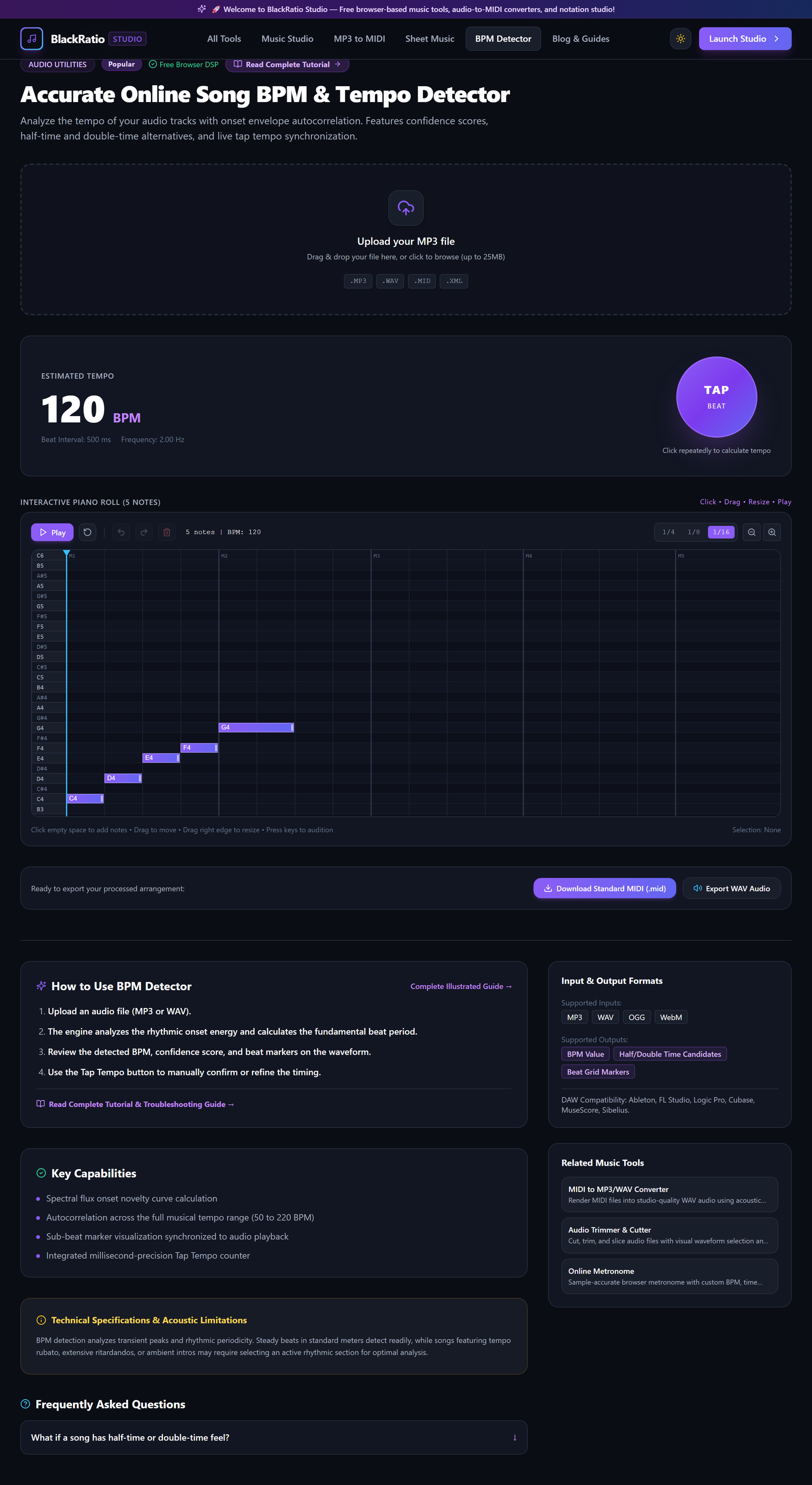
Figure 1: Open BPM Detector Workspace in the BPM Detector workspace.
- Primary Control:
Tool Navigation Bar / Launch BPM Detector Workspace - Expected Visible Result: The analyzer interface loads with an active dropzone ready for audio file input.
- Musician's Pro-Tip: Use this tool before starting a remix to set your DAW project tempo to match the source acapella or sample.
Step 2: Drop Audio Track for Analysis
Drag your song or beat file into the analysis box. The browser decodes the audio into PCM floating-point samples and applies an energy onset detection algorithm across rhythmic frequency bands.
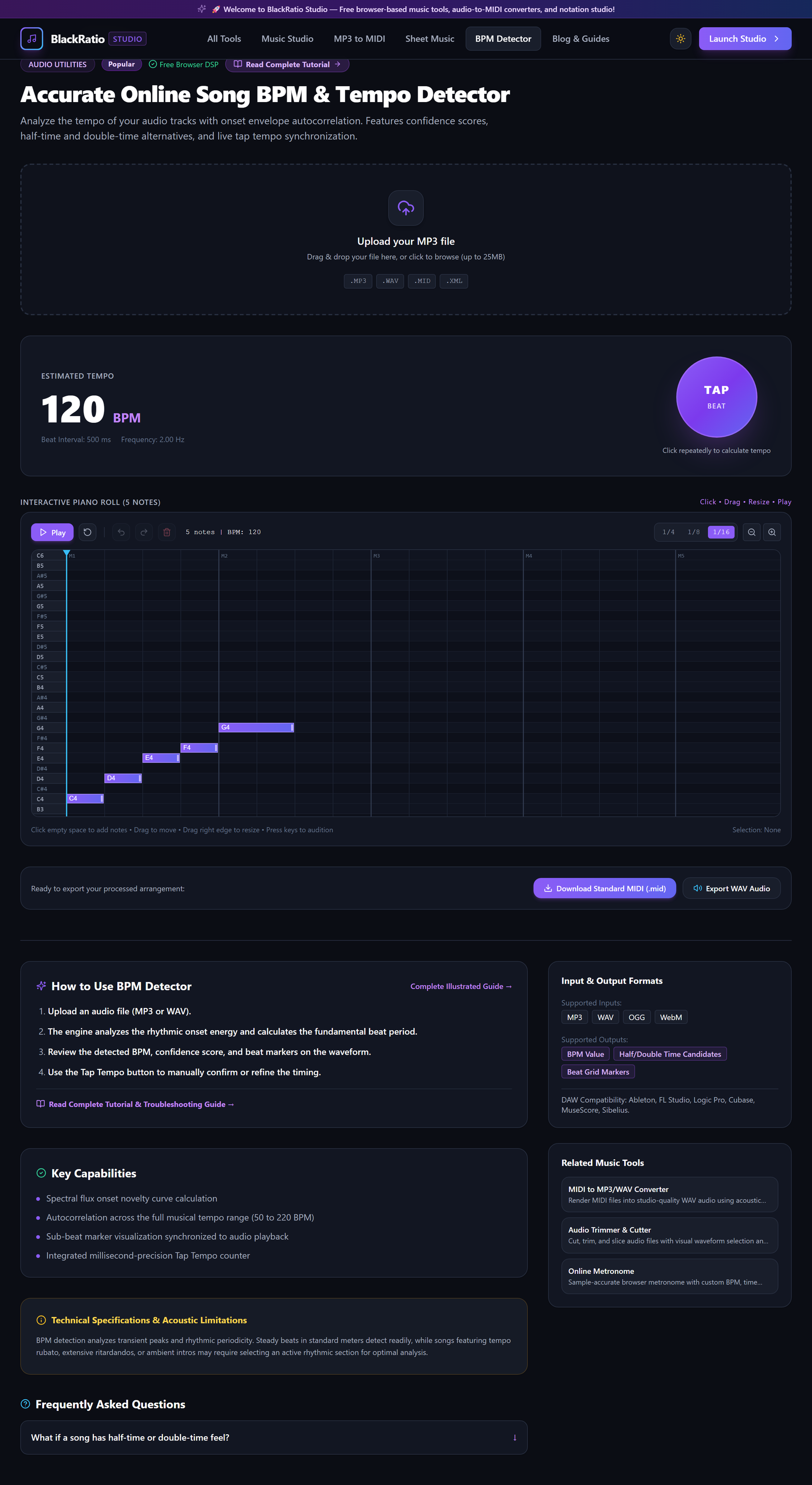
Figure 2: Drop Audio Track for Analysis in the BPM Detector workspace.
- Primary Control:
Audio File Upload Dropzone (.mp3, .wav) - Expected Visible Result: The file details appear with a loaded waveform view, and the progress bar indicates signal processing.
- Musician's Pro-Tip: If your song has a slow acoustic intro followed by a beat drop, the detector analyzes the entire track to identify the dominant groove tempo.
Step 3: Real-Time Onset Detection & Beat Tracking
Watch the onset detection graph as spectral flux algorithms measure rhythmic energy peaks. The algorithm computes autocorrelation across potential tempo candidates between 60 BPM and 200 BPM.
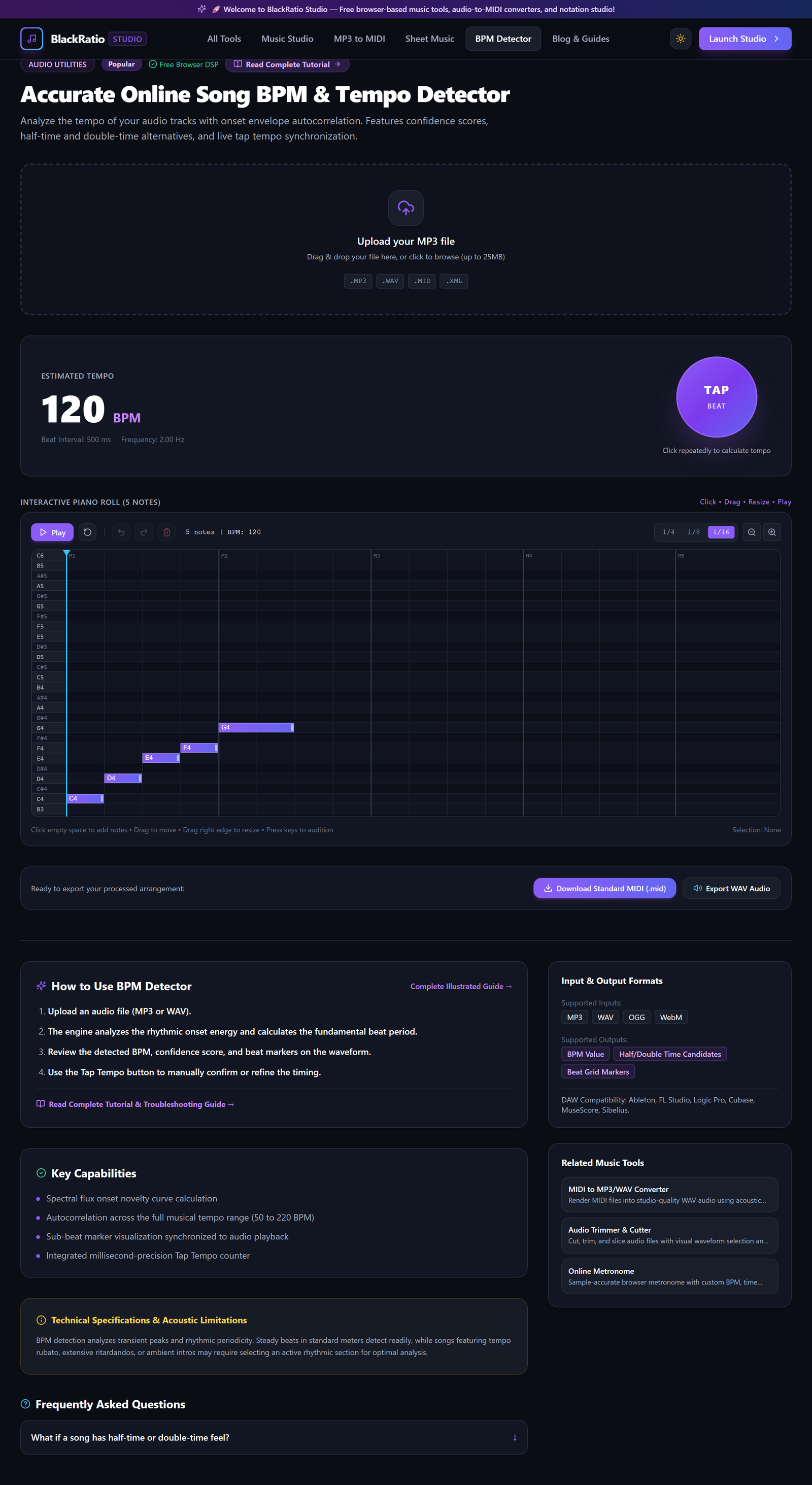
Figure 3: Real-Time Onset Detection & Beat Tracking in the BPM Detector workspace.
- Primary Control:
Frequency Range Bandpass Filter Sliders - Expected Visible Result: Detected transient spikes highlight along the audio waveform in sync with drum hits.
- Musician's Pro-Tip: High confidence ratings (>90%) indicate a rock-solid steady tempo produced with a digital drum machine or click track.
Step 4: View Calculated Tempo & Confidence
Read the primary calculated BPM displayed in bold numerals (e.g. "124.0 BPM"). The confidence indicator displays the statistical consistency of beat intervals throughout the song.
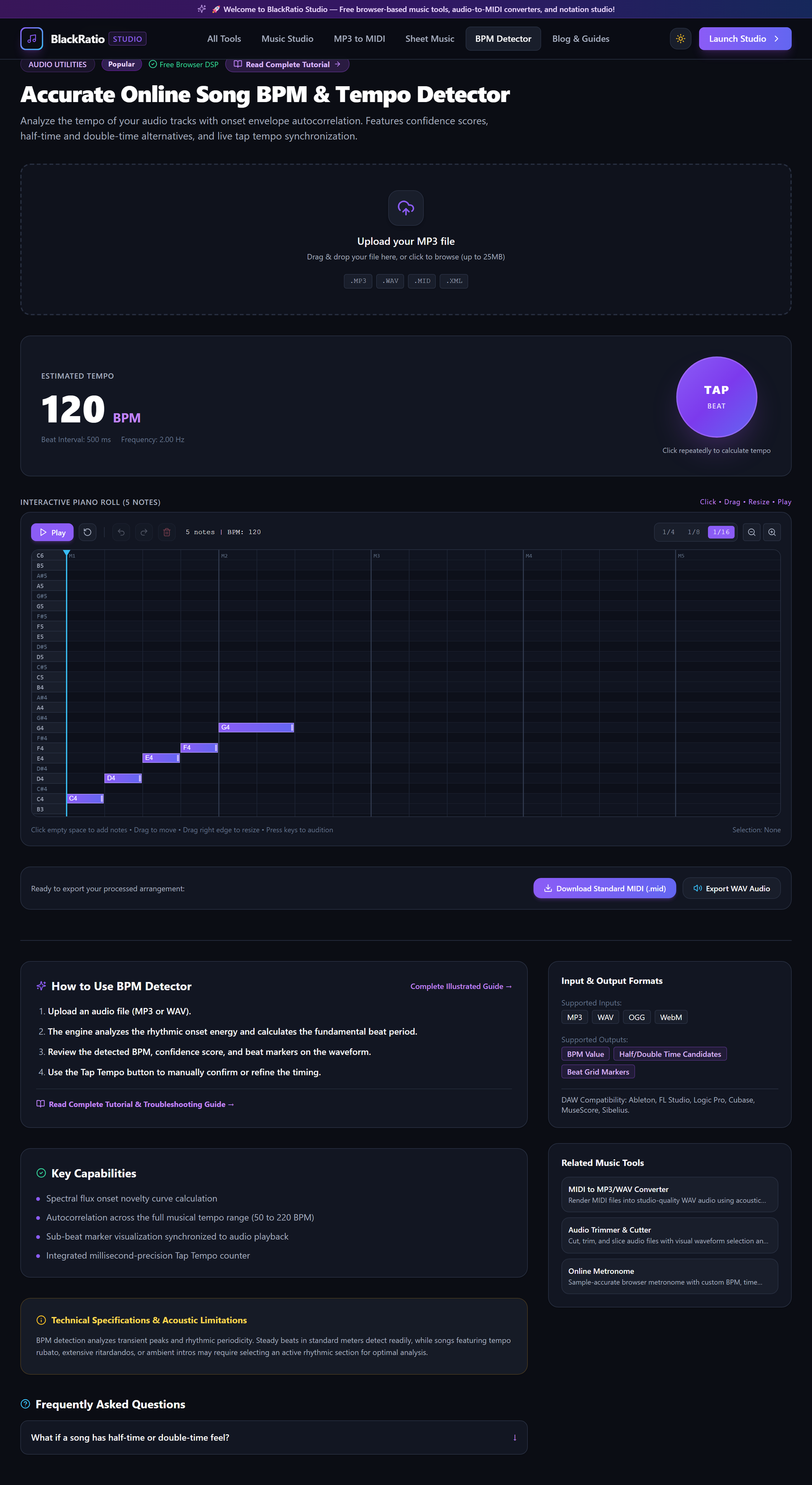
Figure 4: View Calculated Tempo & Confidence in the BPM Detector workspace.
- Primary Control:
Calculated BPM Readout & Confidence Indicator - Expected Visible Result: The exact tempo is presented alongside musical tempo terms (e.g. Allegro, Moderato).
- Musician's Pro-Tip: Click the "Tap to Verify" button while listening to the audio preview to manually confirm the detected tempo matches your perception.
Step 5: Cross-Reference Half-Time and Double-Time
Review the alternative tempo suggestions below the primary reading. In modern genres like Trap, Drum & Bass, or Dubstep, beats can be interpreted in either half-time or double-time (e.g. 70 BPM vs 140 BPM).
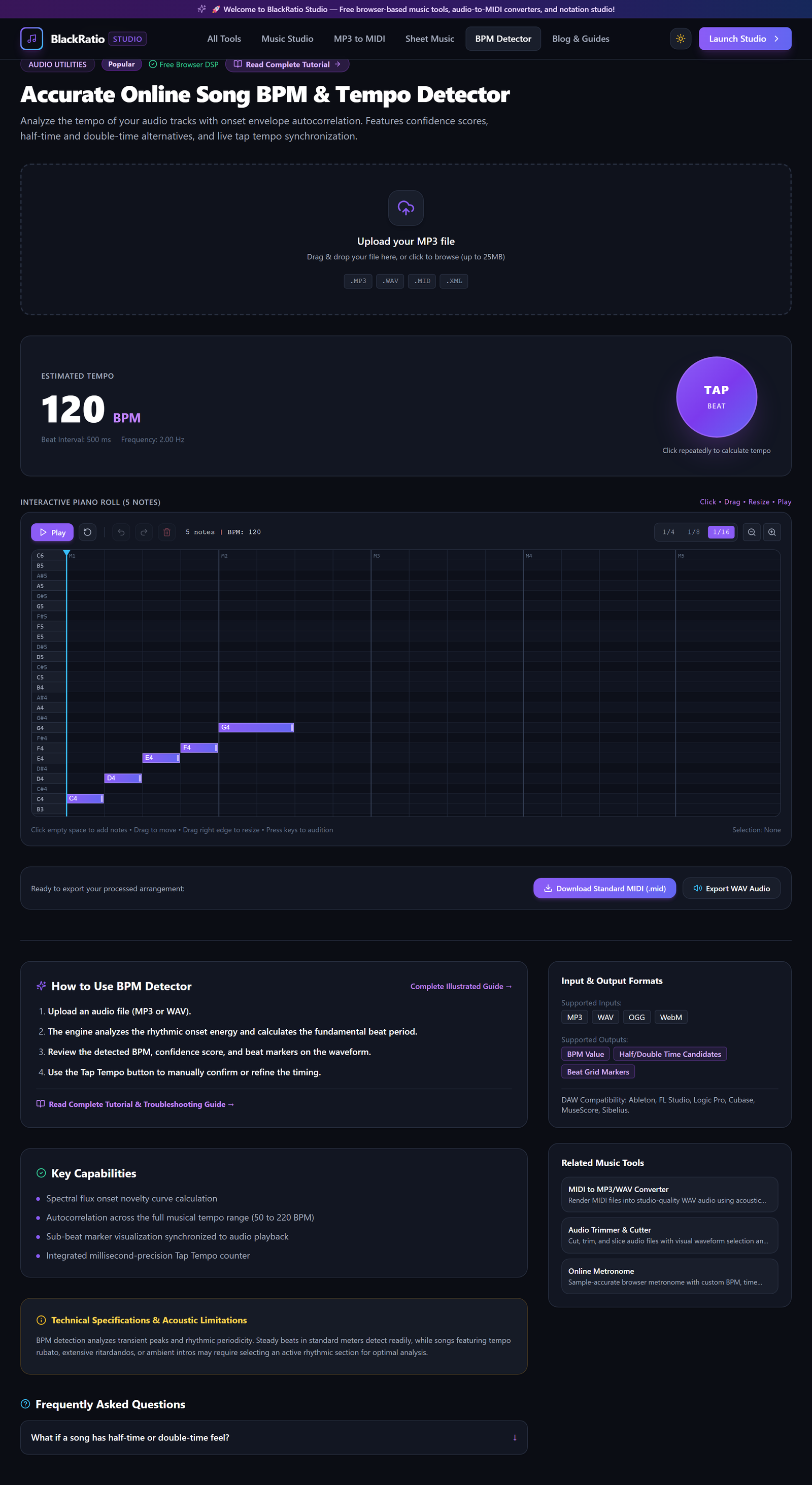
Figure 5: Cross-Reference Half-Time and Double-Time in the BPM Detector workspace.
- Primary Control:
Copy BPM Value / Synchronize DAW Grid Button - Expected Visible Result: Alternative tempo buttons (1/2x and 2x) allow you to copy the exact grid value needed for your DAW session.
- Musician's Pro-Tip: For Trap and Hip-Hop productions, most producers set their DAW grid to double-time (e.g. 140 BPM) for easier hi-hat roll sequencing.
Practical Real-World Example
Setting DAW Project Tempo for a Vocal Remix Project
- Musical Workflow: An electronic music producer received a vocal stem from an overseas singer without tempo metadata. Dropping the audio into BlackRatio BPM Detector revealed a steady tempo of 128.0 BPM with 98% confidence.
- Verified Outcome: The producer set their Ableton Live project to 128.0 BPM, imported the vocal, and all downbeats snapped perfectly to the session grid without manual time-stretching.
How to Verify Your Results
- Set your DAW or DJ software project tempo to the calculated BPM value and load the audio track.
- Check that the audio downbeats align precisely with the DAW grid lines after 16, 32, and 64 bars.
- Verify the tempo classification to ensure the algorithm did not identify a half-time or double-time harmonic.
- Test looping an 8-bar section to confirm seamless, jitter-free repetition.
Troubleshooting Common Issues
The detector reports 75 BPM, but the track feels like 150 BPM.
- Underlying Cause: Rhythm has strong accents on the 3rd beat rather than 2nd and 4th beats (common in Trap and Dubstep).
- Recommended Solution: Click the "2x (Double-Time)" button to select 150 BPM for your project.
Calculated BPM fluctuates or has low confidence on a live jazz track.
- Underlying Cause: The performance was tracked live without a click track, featuring natural human tempo fluctuations.
- Recommended Solution: Use the Tap Tempo BPM tool at
/tools/tap-tempoto measure average tempo across specific 8-bar sections.
Technical Boundaries & Limitations
BPM Detector assumes a consistent tempo throughout the track. Songs with dramatic structural tempo changes (e.g. accelerando, metric modulation) report the dominant average tempo.
Frequently Asked Questions
Q: Does it calculate decimal tempo values like 123.45 BPM? A: Yes. The autocorrelation engine resolves tempo to one decimal place (e.g. 124.3 BPM) for precise loop synchronization.
Launch the Tool
Ready to begin? Access the free, browser-based BPM Detector directly on BlackRatio Studio with zero downloads or account registration required.
Related Workflows & Tools
Related Tutorials & Articles
How to Transpose MIDI Files Online — Lossless Semitone Shift Guide
Transpose MIDI songs and melodies up or down by semitones losslessly while protecting drum channels, controllers, and velocities.
Tool TutorialsHow to Calculate Song BPM with Tap Tempo — Accurate Live Tempo Guide
Calculate the exact tempo of live songs, DJ tracks, and musical ideas by tapping to the rhythm with zero latency and statistical smoothing.