How to Edit, Transpose, and Re-engrave Sheet Music Online
Edit notation scores with AI-assisted commands: re-engrave staves, fix rhythmic errors, adjust dynamics, and export clean MusicXML.
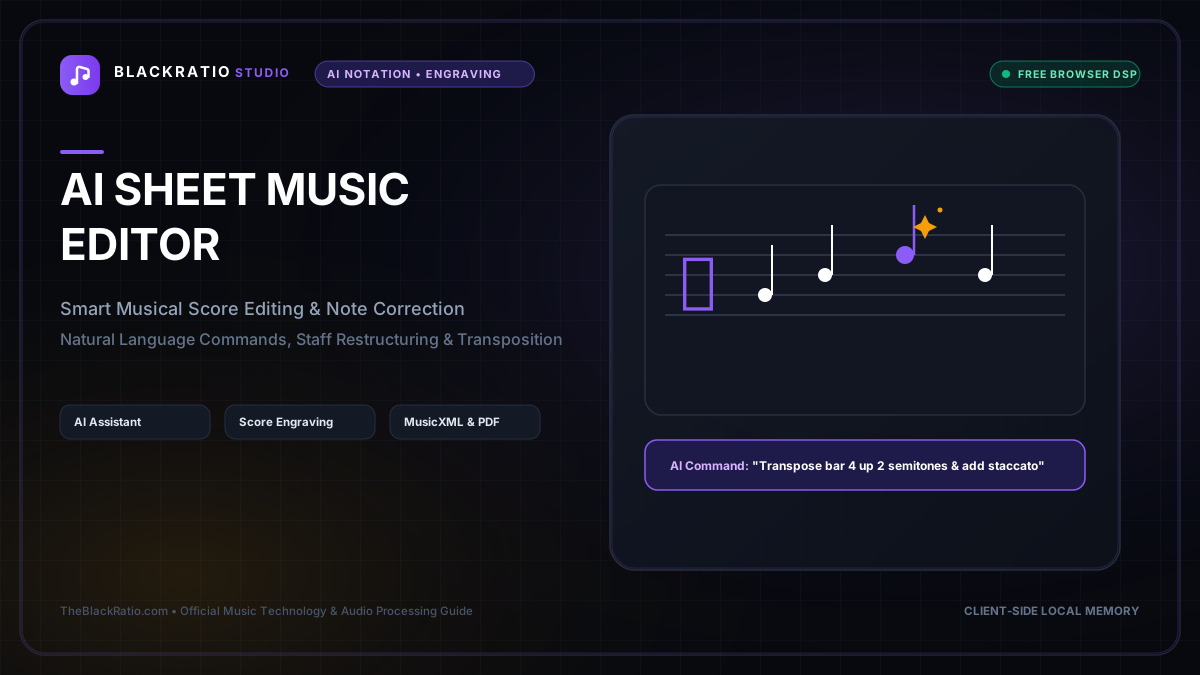
The Sheet Music Editor is an in-browser notation engraving application for composing, editing, and formatting musical scores. Featuring interactive note placement, articulation palettes, and instant playback, it allows musicians to craft publication-ready scores without installing desktop notation software.
Quick Start Guide
- Open the Sheet Music Editor at
/tools/sheet-music-editor. - Upload a MusicXML score file or import a digital notation file.
- Type natural language editing instructions (e.g. "Transpose up a minor 3rd").
- Preview real-time score modifications on the interactive engraving canvas.
- Export the revised score as MusicXML or a print-ready PDF.
Before You Begin
- Supported Inputs: MusicXML files (.xml, .musicxml, .mxl).
- System Requirements: Modern desktop web browser with keyboard input.
- Important Practical Considerations: The AI Sheet Music Editor allows musicians to make complex batch adjustments (transposition, voice cleanup, rhythm quantization, accidental respelling) using intuitive plain-English commands rather than tedious note-by-note clicking.
Step-by-Step Instructions
Step 1: Open Sheet Music Editor Workspace
Open the Sheet Music Editor. The workspace features an interactive score viewport, a natural language command console, and a toolbar with traditional notation tools.
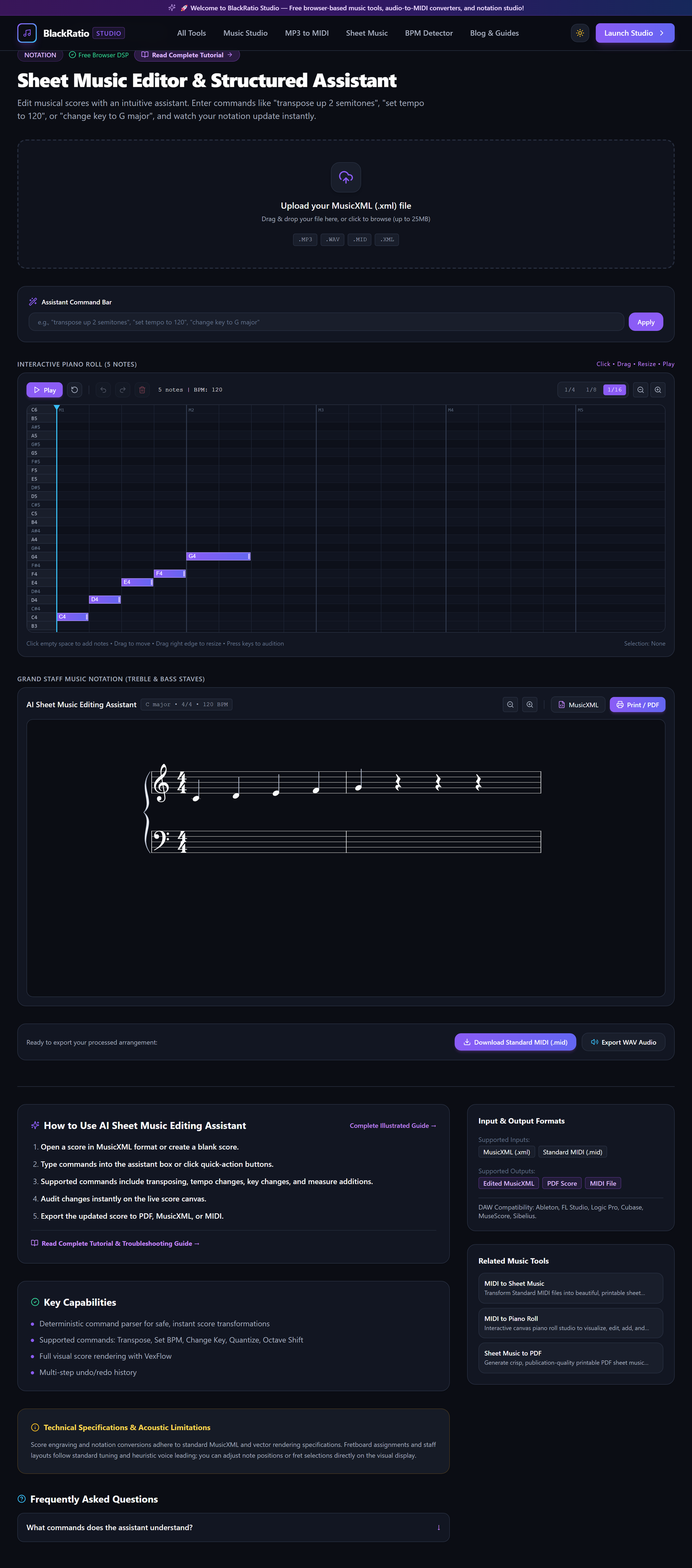
Figure 1: Open Sheet Music Editor Workspace in the AI Sheet Music Editing Assistant workspace.
- Primary Control:
Tool Navigation Bar / Launch Sheet Music Editor Workspace - Expected Visible Result: The workspace displays an active notation canvas with zoom controls and an AI command prompt bar.
- Musician's Pro-Tip: You can use both natural language commands and mouse-click edits interchangeably.
Step 2: Load MusicXML or Score File
Drag your score file into the editor. The engine parses parts, clefs, measure bars, note durations, and dynamic markings into an editable DOM tree.
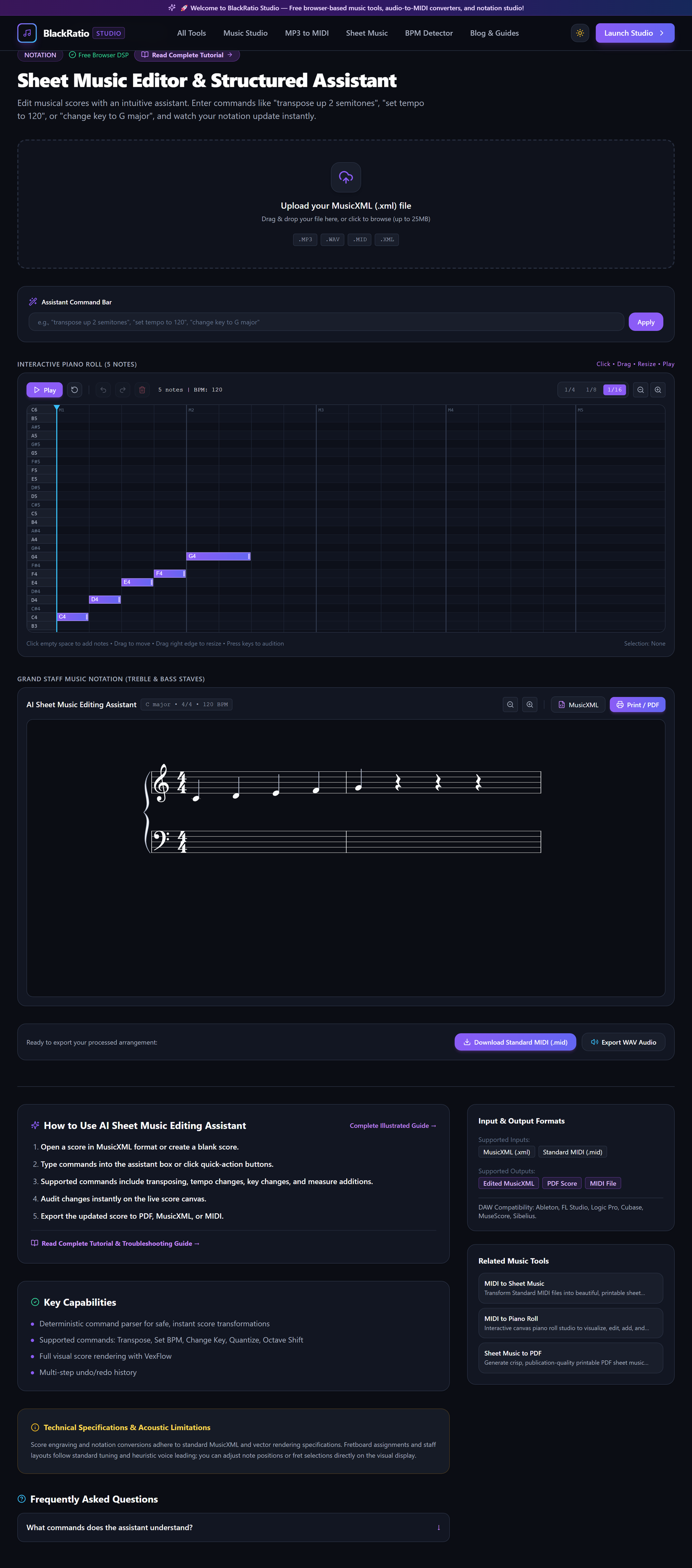
Figure 2: Load MusicXML or Score File in the AI Sheet Music Editing Assistant workspace.
- Primary Control:
Notation Palette (Note Durations, Rests, Accidentals) - Expected Visible Result: The score displays in vector notation with editable note elements and system barlines.
- Musician's Pro-Tip: If your score has lyrics, they are preserved and realigned automatically during all editing operations.
Step 3: Enter Natural Language Editing Command
Type an editing instruction into the command box. Examples: "Transpose to F Major", "Change time signature to 3/4 from bar 12", "Quantize 16th notes", "Add crescendo in bars 4 to 8".
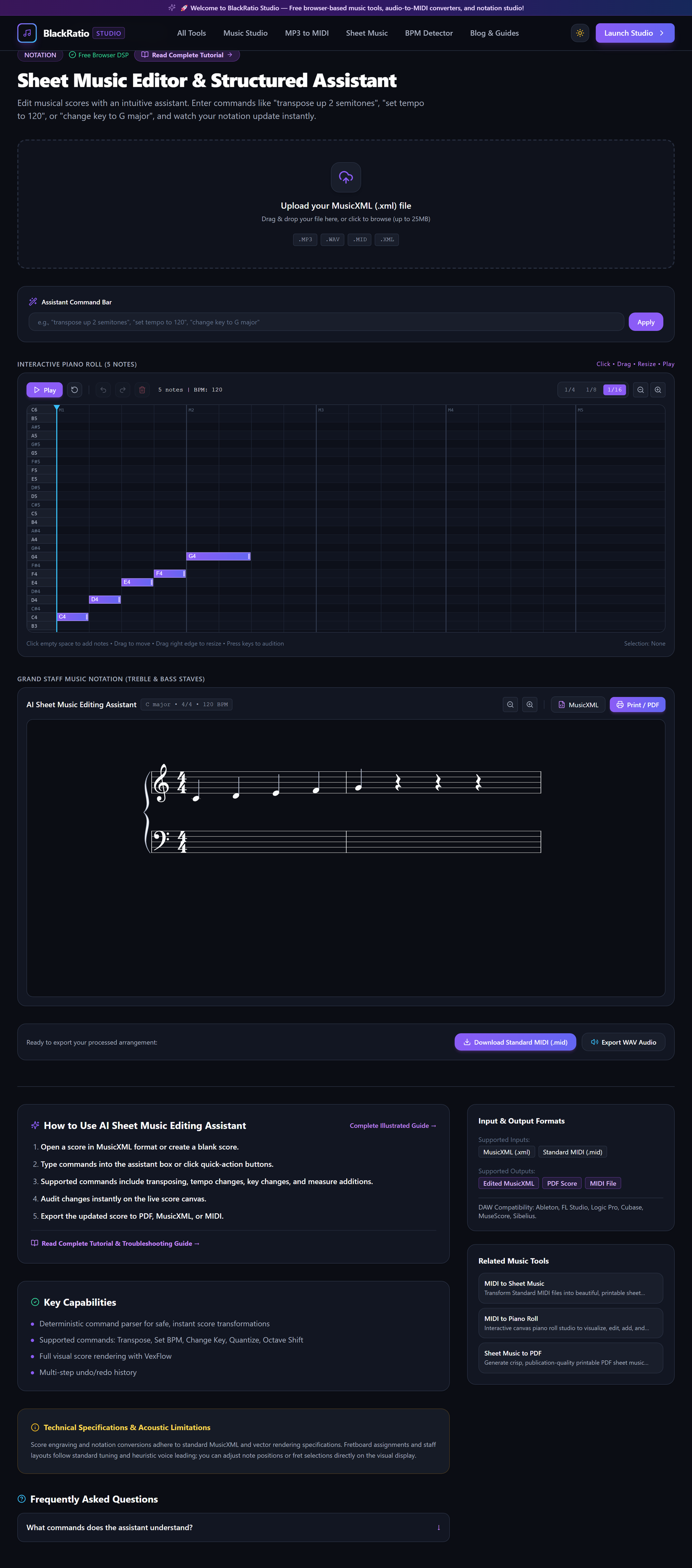
Figure 3: Enter Natural Language Editing Command in the AI Sheet Music Editing Assistant workspace.
- Primary Control:
Interactive Staff Note Placement & Edit Cursor - Expected Visible Result: The command parser interprets your musical intent and highlights the targeted measures in blue.
- Musician's Pro-Tip: Be specific with measure numbers (e.g. "Transpose bars 1-8 up 2 semitones") for targeted section edits.
Step 4: Preview Dynamic Score Transformations
Click Execute or press Enter. The notation engine applies the transformations and re-engraves the score layout in real time. Click Play to audition the audible changes.
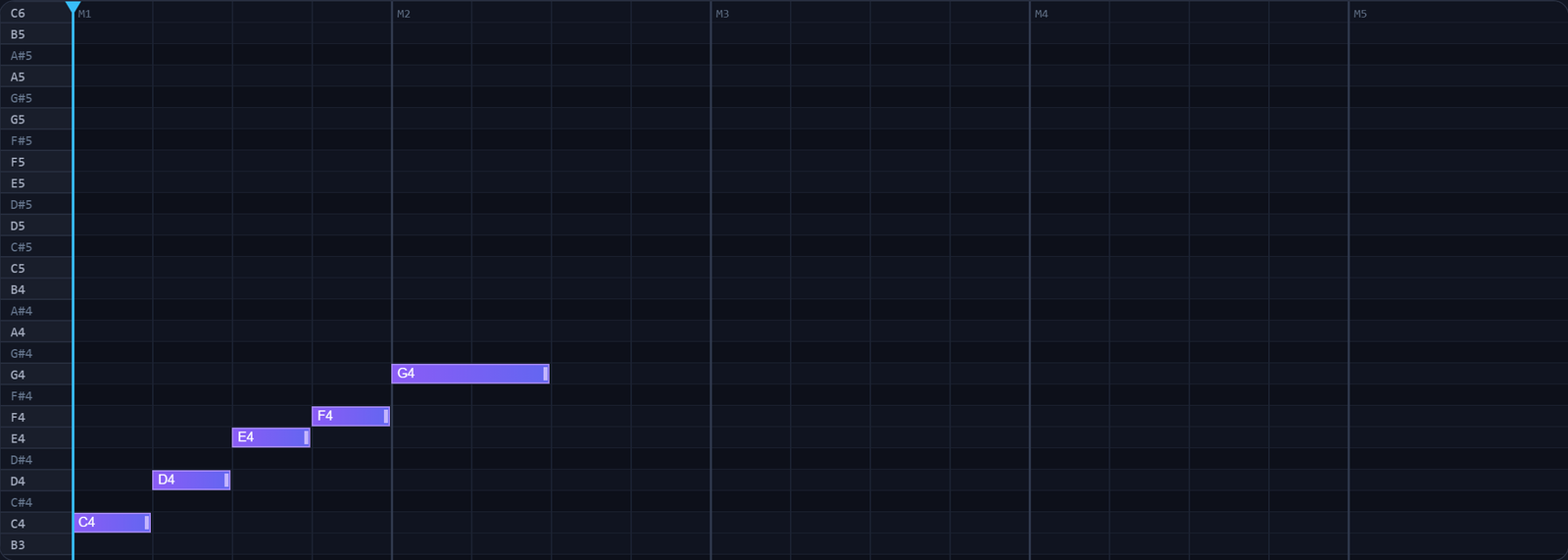
Figure 4: Preview Dynamic Score Transformations in the AI Sheet Music Editing Assistant workspace.
- Primary Control:
Playback Transport Controls (Play / Pause / Tempo) - Expected Visible Result: The score canvas updates immediately, showing revised pitches, new key signatures, or updated dynamics.
- Musician's Pro-Tip: Press Ctrl+Z (Cmd+Z on Mac) at any time to undo the last edit and restore the previous score state.
Step 5: Export Clean Revised Score
Click "Export Score". Choose MusicXML (.musicxml) to retain editable data for your notation software, or PDF for immediate printing and sheet distribution.

Figure 5: Export Clean Revised Score in the AI Sheet Music Editing Assistant workspace.
- Primary Control:
Export Finalized Score (MusicXML / PDF / MIDI) Buttons - Expected Visible Result: Your modified, clean score file downloads directly to your device.
- Musician's Pro-Tip: Keep a copy of both the original and revised MusicXML files for version control.
Practical Real-World Example
Preparing an Orchestral Part for a Guest French Horn Player
- Musical Workflow: An orchestra librarian needed to transpose a French Horn part written in Horn in Eb to modern Horn in F. They uploaded the MusicXML part, typed "Transpose up one whole step (Major 2nd)", and verified that all accidentals respelled correctly.
- Verified Outcome: The librarian exported a pristine PDF score for the musician in under 30 seconds.
How to Verify Your Results
- Play back the edited score with the built-in transport to verify rhythmic timing and note pitches.
- Inspect measure numbers, dynamic expressions, and lyrics formatting across all staves.
- Export the finished composition as MusicXML and open it in MuseScore, Sibelius, or Finale.
- Generate a high-resolution vector PDF to verify physical print quality and layout spacing.
Troubleshooting Common Issues
A command was misinterpreted by the parser.
- Underlying Cause: Vague natural language phrasing.
- Recommended Solution: Use clear musical terms with measure numbers: "Transpose measures 1 through 16 up 2 semitones".
Technical Boundaries & Limitations
Processes standard MusicXML scores up to 32 simultaneous parts. Non-standard graphical notations (e.g. aleatoric score boxes, feather beams) should be finalized in desktop notation programs.
Frequently Asked Questions
Q: Can I edit notes directly by clicking on them? A: Yes. Click on any notehead on the canvas to drag its pitch up or down, change its duration, or toggle accidentals.
Launch the Tool
Ready to begin? Access the free, browser-based AI Sheet Music Editing Assistant directly on BlackRatio Studio with zero downloads or account registration required.
Related Workflows & Tools
Related Tutorials & Articles
How to Transpose MIDI Files Online — Lossless Semitone Shift Guide
Transpose MIDI songs and melodies up or down by semitones losslessly while protecting drum channels, controllers, and velocities.
Tool TutorialsHow to Calculate Song BPM with Tap Tempo — Accurate Live Tempo Guide
Calculate the exact tempo of live songs, DJ tracks, and musical ideas by tapping to the rhythm with zero latency and statistical smoothing.