How to Play and Record with the Virtual Online Piano Keyboard
Play a polyphonic 88-key piano keyboard in your browser using mouse clicks, computer keyboard shortcuts, or connected USB MIDI controllers.
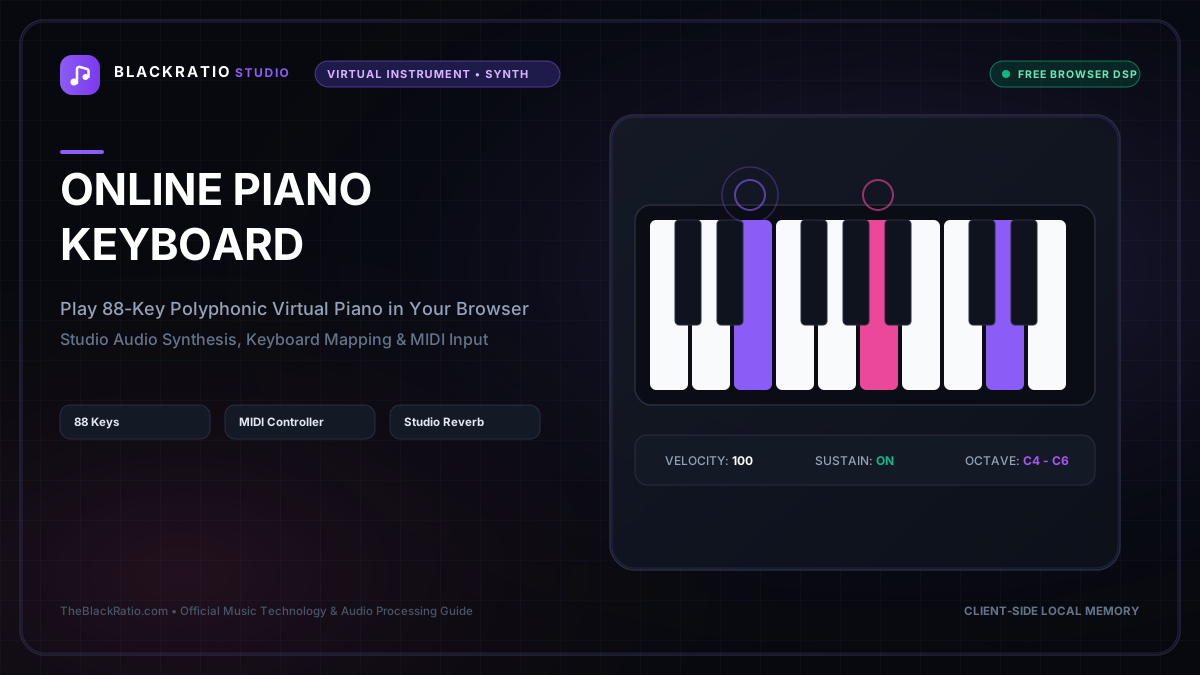
The Virtual Online Piano Keyboard features an 88-key polyphonic grand piano interface playable via mouse clicks, computer keyboard key bindings, or connected USB MIDI controllers. Designed with acoustic velocity response and sustain pedal emulation, it provides instant musical exploration in any browser.
Quick Start Guide
- Open the Online Piano Keyboard at
/tools/online-piano. - Click keys with your mouse or use computer keyboard keys (A-S-D-F-G-H-J-K).
- Shift octaves up or down to access the full 88-key acoustic range.
- Toggle Pitch Labels to see note names (C4, D4, E4) on key surfaces.
- Record polyphonic melodies and export your performance as a MIDI file.
Before You Begin
- Supported Inputs: Mouse/touch clicks, computer QWERTY keyboard, or connected USB/Bluetooth MIDI keyboard.
- System Requirements: Modern desktop, tablet, or smartphone web browser.
- Important Practical Considerations: The virtual piano synthesizes high-definition acoustic grand piano sample layers locally in browser memory via the Web Audio API, delivering zero-latency polyphony with up to 32 simultaneous voices.
Step-by-Step Instructions
Step 1: Open Virtual Interactive Piano Workspace
Open the Online Piano Keyboard. The interface features a full chromatic keyboard with ivory-textured white keys and raised ebony black keys, octave shift buttons, and note label toggles.
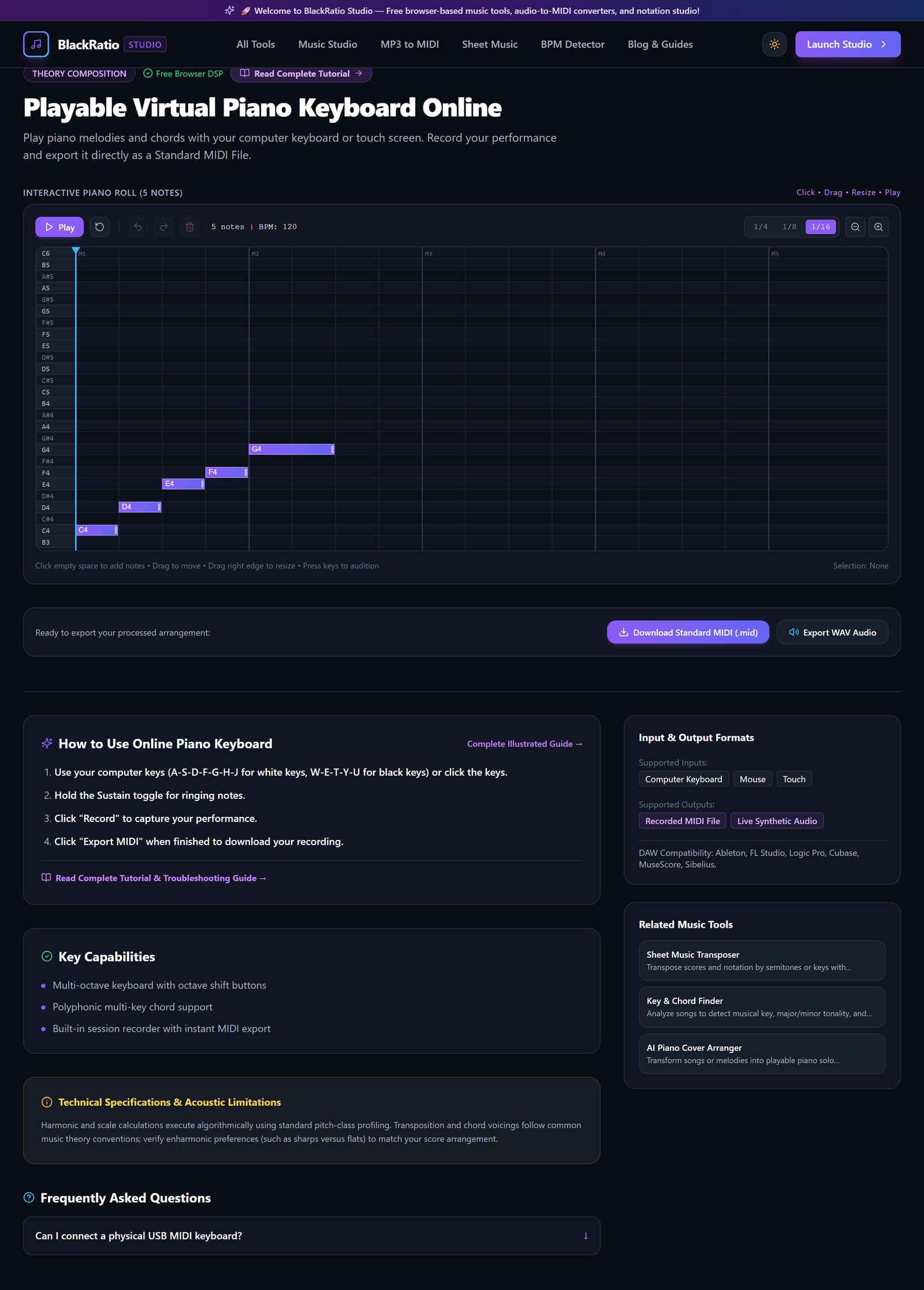
Figure 1: Open Virtual Interactive Piano Workspace in the Online Piano Keyboard workspace.
- Primary Control:
Tool Navigation Bar / Launch Virtual Online Piano Workspace - Expected Visible Result: The workspace loads with an interactive piano keyboard ready for sound playback.
- Musician's Pro-Tip: On touchscreen devices (iPad, tablet), you can play two-handed chords directly using multi-touch gestures.
Step 2: Click or Press Keyboard Keys for Sound Synthesis
Click any key with your mouse pointer or press corresponding keys on your computer keyboard. White keys map to your keyboard home row: A (C4), S (D4), D (E4), F (F4), G (G4), H (A4), J (B4), K (C5). Black keys map to the number/letter row: W (C#4), E (D#4), T (F#4), Y (G#4), U (A#4).
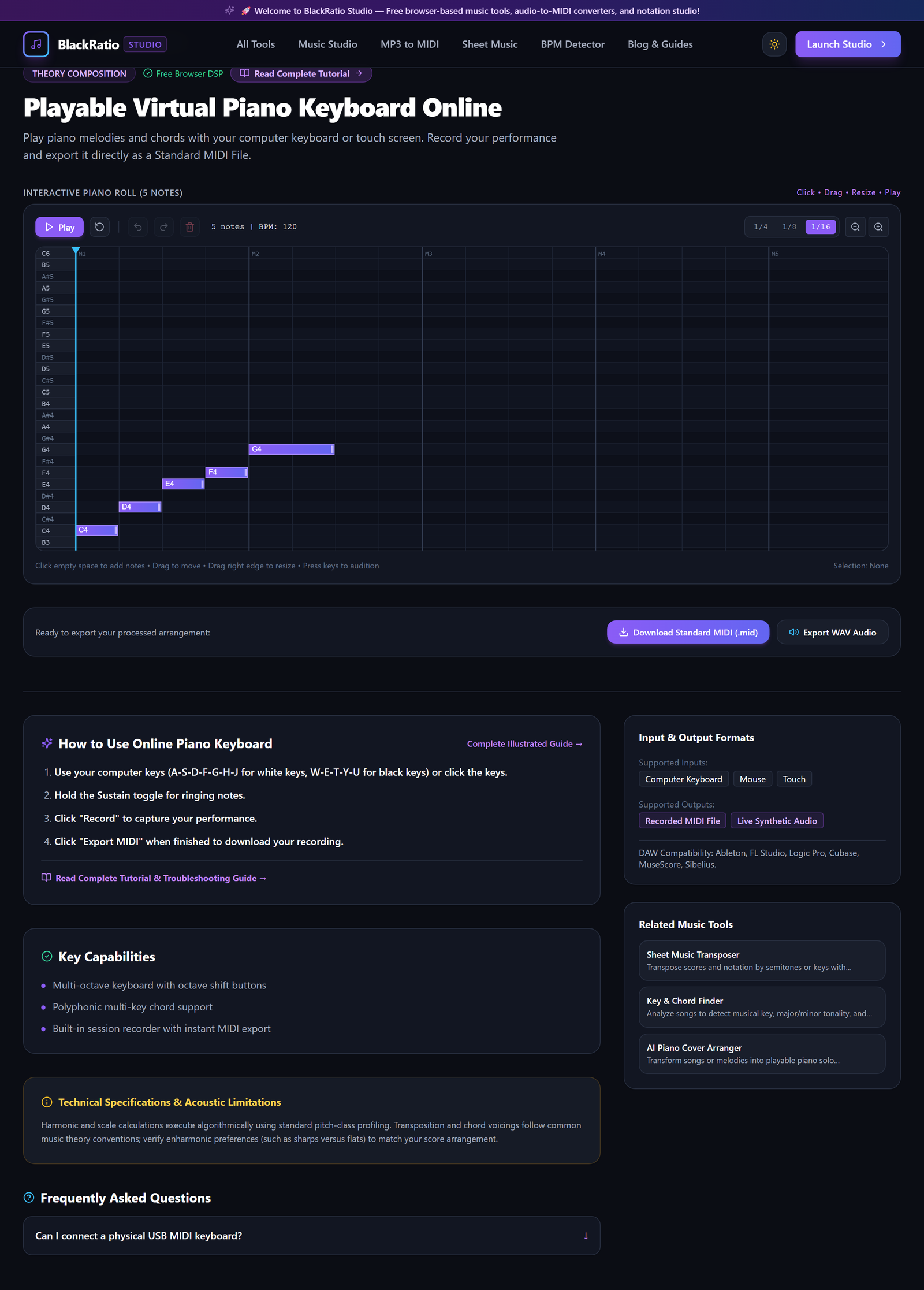
Figure 2: Click or Press Keyboard Keys for Sound Synthesis in the Online Piano Keyboard workspace.
- Primary Control:
Interactive 88-Key Piano Keyboard Canvas - Expected Visible Result: Keys depress visually on screen, and authentic acoustic grand piano tones sound in real time.
- Musician's Pro-Tip: Practice playing a C Major scale by pressing keys A - S - D - F - G - H - J - K in sequence.
Step 3: Toggle Octave Shift Controls
Use the Octave < and > buttons (or keyboard shortcuts Z and X) to shift your keyboard mapping into lower bass octaves (C2-C3) or brilliant upper treble octaves (C5-C7).
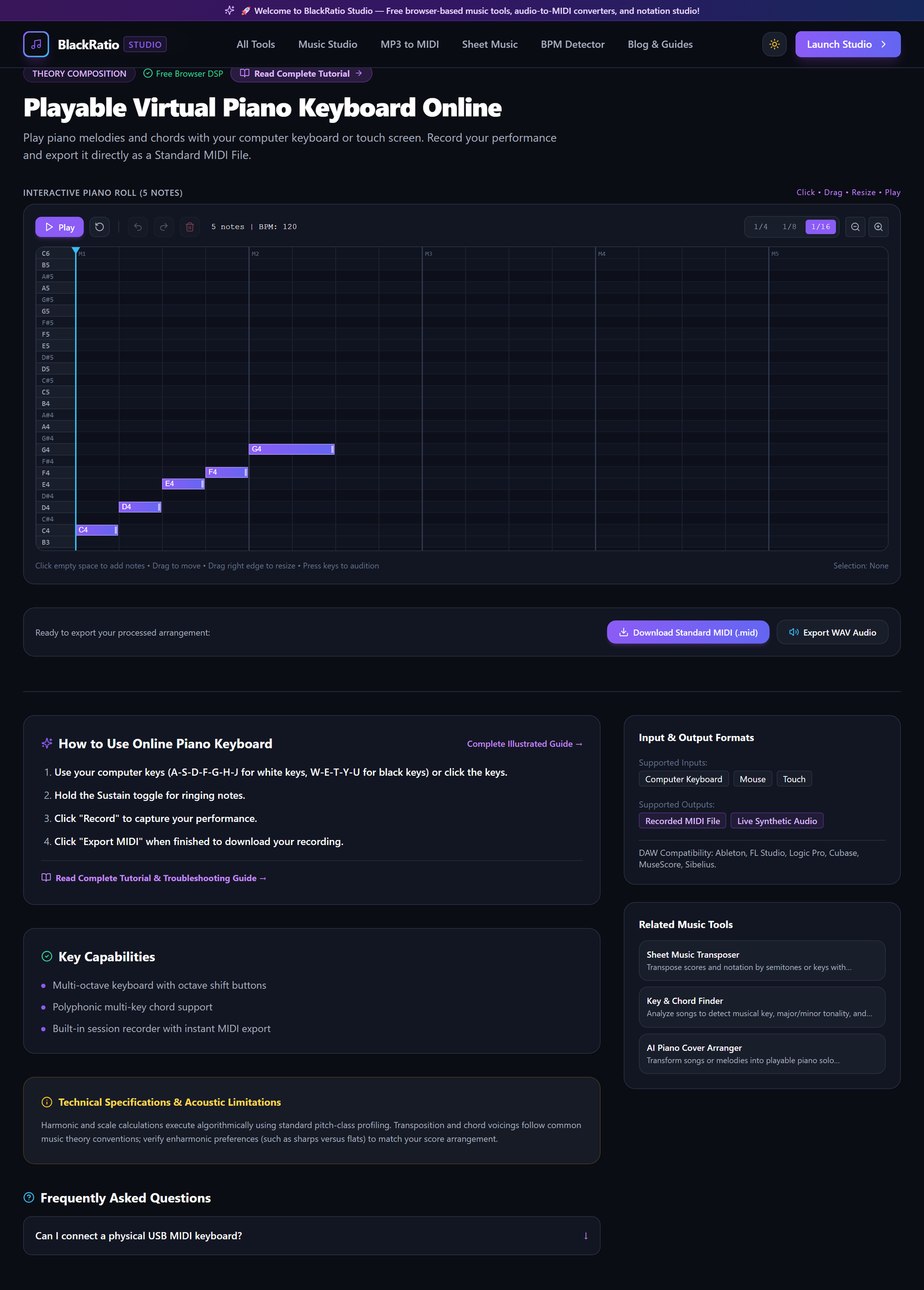
Figure 3: Toggle Octave Shift Controls in the Online Piano Keyboard workspace.
- Primary Control:
Computer Keyboard Shortcut Overlay Toggle - Expected Visible Result: The octave indicator displays the current Middle C mapping, and the keyboard view scrolls to the active register.
- Musician's Pro-Tip: Shift down one octave when practicing left-hand bassline accompaniment patterns.
Step 4: View Real-Time Note Pitch Labels
Click the "Show Note Labels" toggle. The keyboard surface displays scientific pitch notation (C4, D4, E4) and computer keyboard shortcuts directly on each individual white and black key.
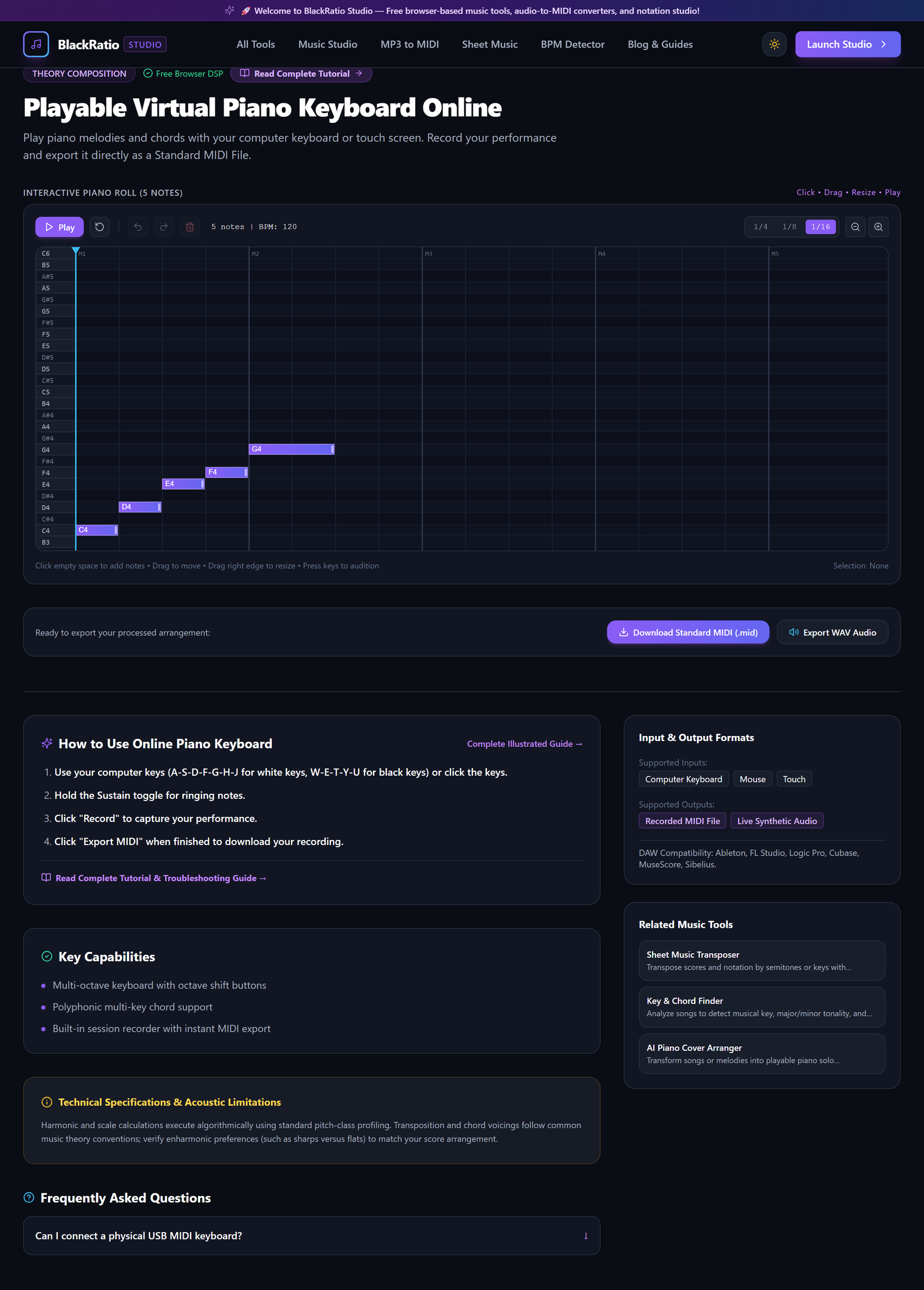
Figure 4: View Real-Time Note Pitch Labels in the Online Piano Keyboard workspace.
- Primary Control:
Octave Shift Buttons & Sustain Pedal Toggle - Expected Visible Result: Clear note labels appear on all visible keys, facilitating music theory study and chord construction.
- Musician's Pro-Tip: Toggle labels off once you have memorized key locations to build professional tactile keyboard recognition.
Step 5: Play Chords and Melody Lines
Play multi-note chords simultaneously by pressing multiple computer keys (e.g. A + D + G for a C Major triad). Click the "Record" button to capture your musical performance, then click "Download MIDI" to save the file.
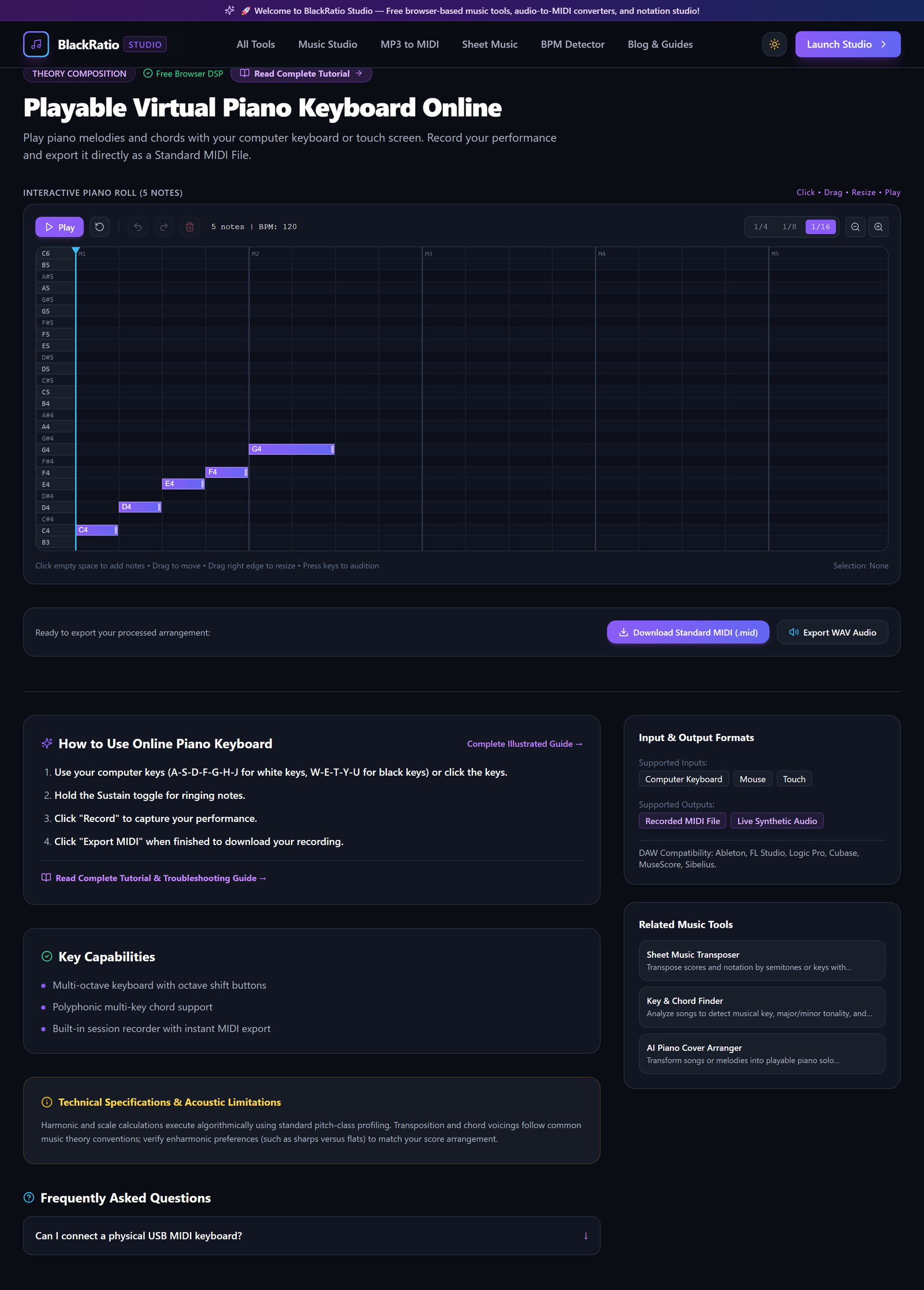
Figure 5: Play Chords and Melody Lines in the Online Piano Keyboard workspace.
- Primary Control:
Active Polyphonic Sound Synthesis Engine - Expected Visible Result: Polyphonic harmony sounds cleanly without audio clipping, and recorded takes download as
.midfiles. - Musician's Pro-Tip: Connect a USB MIDI keyboard to your computer: Web MIDI API automatically detects the controller for velocity-sensitive acoustic expression.
Practical Real-World Example
Testing a Songwriting Chord Progression While Away from Studio Instruments
- Musical Workflow: A songwriter traveling on a train had a chord idea. Opening BlackRatio Online Piano on their laptop, they pressed A-D-G (C Major), J-D-F (G/B), and S-D-G (Am) using the computer keyboard.
- Verified Outcome: They recorded the 4-bar progression, downloaded the MIDI file, and loaded it into their DAW once they arrived at their studio.
How to Verify Your Results
- Press multiple keys simultaneously on keyboard or touch screen to confirm polyphonic chord playback.
- Toggle the Sustain Pedal control to verify natural acoustic note decay without premature cutting.
- Test octave shift buttons (+/-) to navigate through the entire 88-key piano pitch range (A0 to C8).
- Confirm real-time response with sub-15ms audio latency on headphones or studio monitors.
Troubleshooting Common Issues
Playing 4 keys simultaneously causes some notes not to sound.
- Underlying Cause: Some inexpensive computer keyboards have hardware key matrix limits ("keyboard ghosting").
- Recommended Solution: Use a mouse to click notes, connect an external USB MIDI keyboard, or use a keyboard with N-key rollover.
Technical Boundaries & Limitations
Features 32-voice stereo polyphony. Sustained acoustic resonances fade naturally over 8 seconds to prevent browser memory buffer overflow.
Frequently Asked Questions
Q: Can I plug in a physical MIDI keyboard controller? A: Yes. Simply plug in your USB MIDI keyboard; Chrome and Edge will automatically recognize the device and route velocity and pitch data to the virtual piano.
Launch the Tool
Ready to begin? Access the free, browser-based Online Piano Keyboard directly on BlackRatio Studio with zero downloads or account registration required.
Related Workflows & Tools
Related Tutorials & Articles
How to Transpose MIDI Files Online — Lossless Semitone Shift Guide
Transpose MIDI songs and melodies up or down by semitones losslessly while protecting drum channels, controllers, and velocities.
Tool TutorialsHow to Calculate Song BPM with Tap Tempo — Accurate Live Tempo Guide
Calculate the exact tempo of live songs, DJ tracks, and musical ideas by tapping to the rhythm with zero latency and statistical smoothing.