How to Transcribe Multi-Instrument Audio into Separate MIDI Tracks
Separate and transcribe full musical mixes into distinct MIDI channels for bass, lead melody, and harmonic accompaniment.
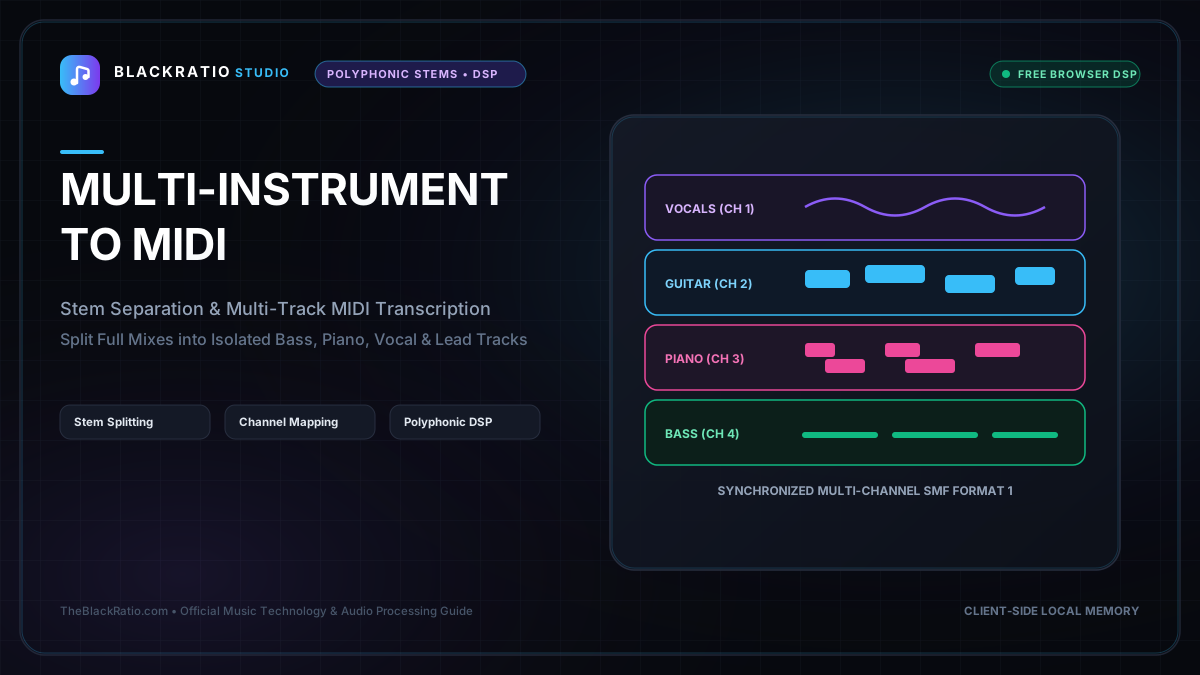
The Multi-Instrument to MIDI tool analyzes complex musical arrangements and separates them into distinct instrumental MIDI tracks across frequency bands. It isolates bass lines, midrange chord harmonies, and top-line lead melodies into separate channels for remixing and production.
Quick Start Guide
- Open Multi-Instrument to MIDI at
/tools/multi-instrument-to-midi. - Upload a full musical mix, instrumental track, or song demo.
- The multi-band spectral engine separates bass, midrange chords, and treble leads.
- Assign distinct MIDI channels and instrument patches to each band.
- Download a multi-track Standard MIDI File (Type 1) for your DAW.
Before You Begin
- Supported Inputs: Full audio mixes or multi-track instrument recordings (MP3, WAV, FLAC).
- System Requirements: Modern web browser with Web Audio API support.
- Important Practical Considerations: Unlike solo transcription tools, multi-instrument transcription partitions the audio spectrum into discrete harmonic registers (Sub/Bass 20-250Hz, Midrange Chords 250-2500Hz, Treble Lead 2500Hz+) to extract separate instrument parts simultaneously.
Step-by-Step Instructions
Step 1: Open Multi-Instrument Transcription Tool
Open the Multi-Instrument to MIDI workspace. The tool provides a multi-band spectral visualizer, harmonic frequency splitter, and multi-channel MIDI sequencer.
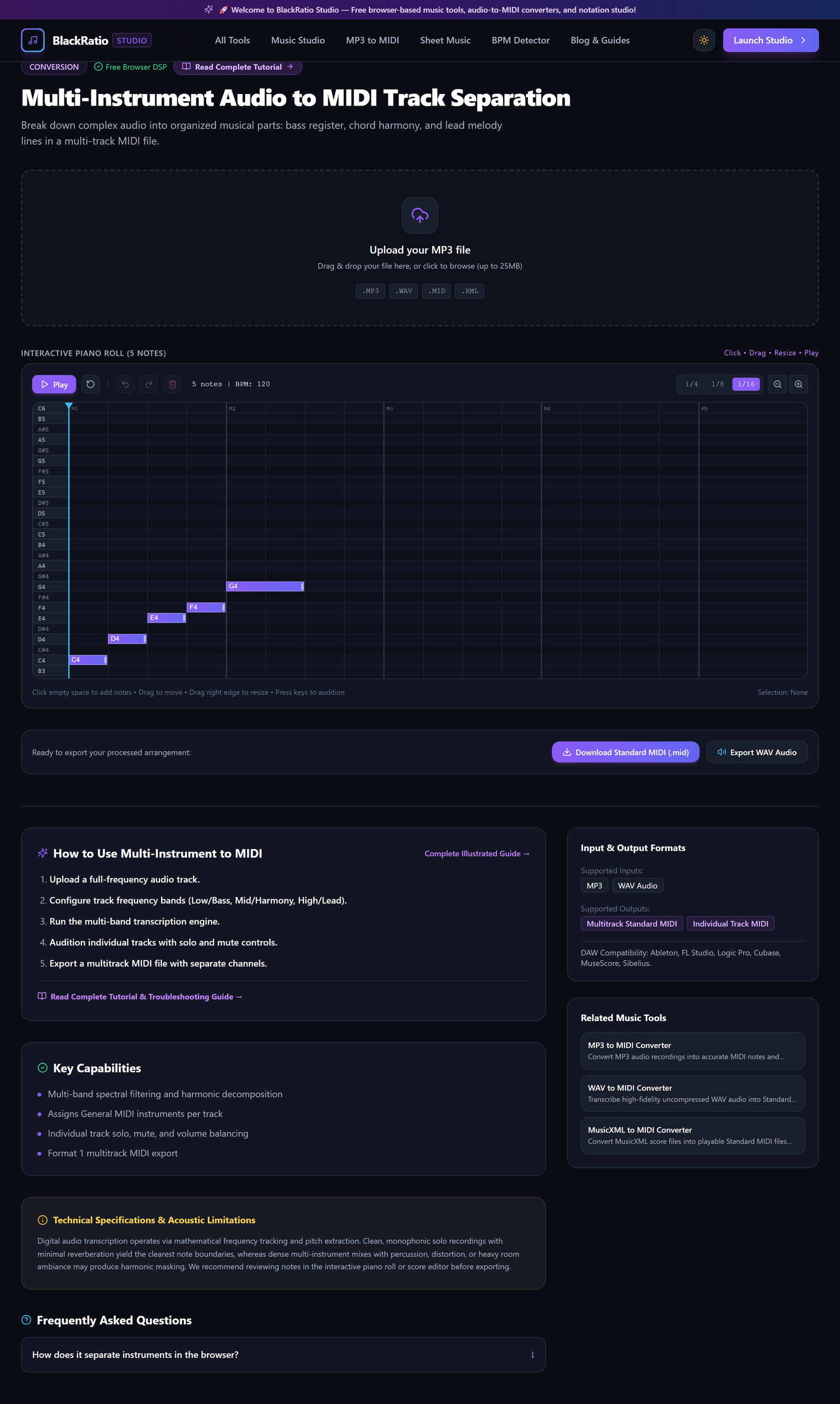
Figure 1: Open Multi-Instrument Transcription Tool in the Multi-Instrument to MIDI workspace.
- Primary Control:
Tool Navigation Bar / Launch Multi-Instrument to MIDI Workspace - Expected Visible Result: The workspace loads with an audio file importer and three-band frequency lane controls.
- Musician's Pro-Tip: Instrumental mixes without lead vocals yield cleaner chord and lead separation than tracks with dense vocal layering.
Step 2: Upload Mixed Multi-Track Audio
Drag your audio file into the upload dropzone. The engine analyzes the full audio buffer, calculating frequency distribution and stereo channel separation.
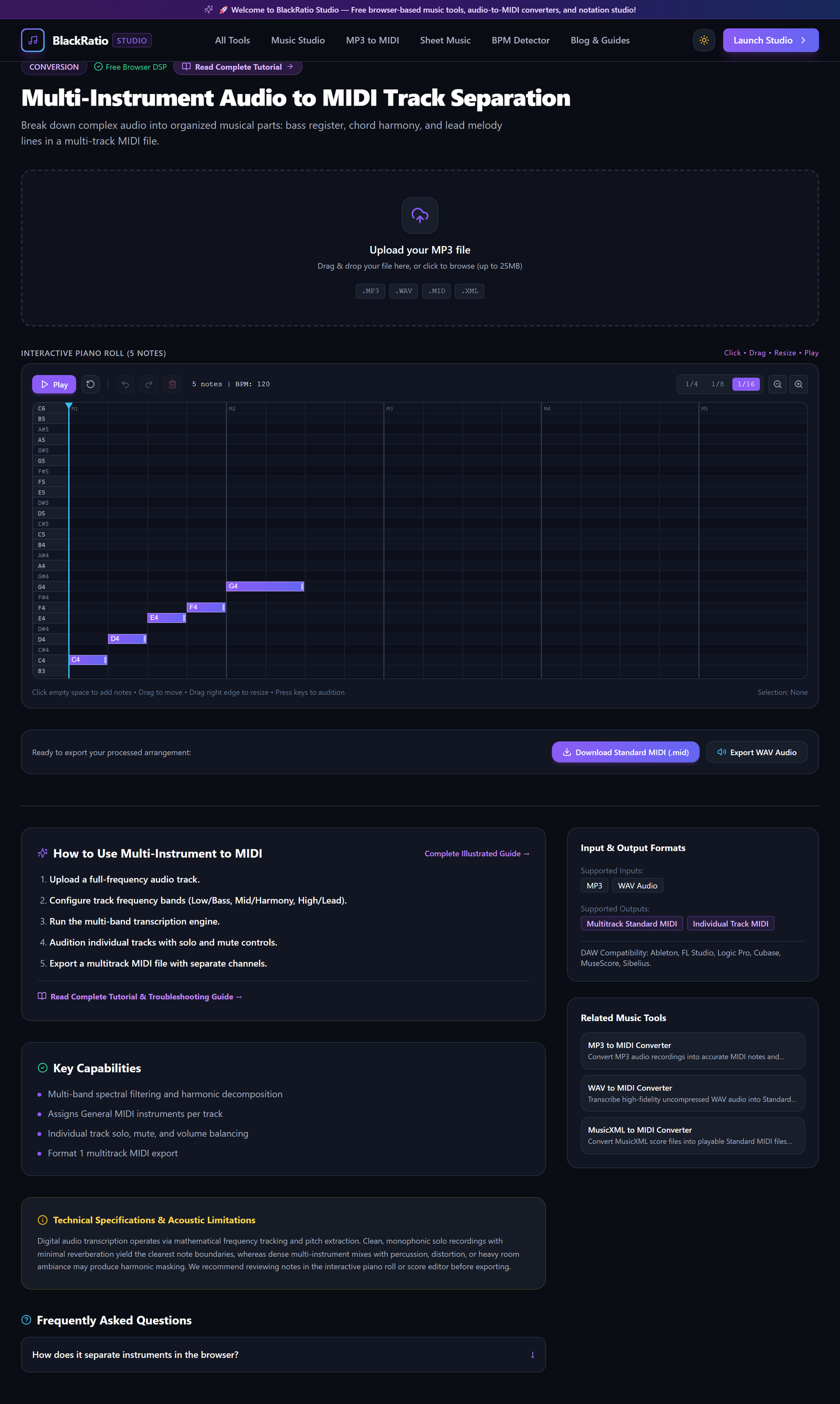
Figure 2: Upload Mixed Multi-Track Audio in the Multi-Instrument to MIDI workspace.
- Primary Control:
Multi-Instrument Audio Upload Dropzone (.mp3, .wav) - Expected Visible Result: The waveform view renders with color-coded frequency layers representing bass, mids, and highs.
- Musician's Pro-Tip: For best results, use tracks with balanced mixing where bass and lead instruments don't heavily mask each other.
Step 3: Separate Frequency Bands
Adjust the crossover frequency splitters: set the Bass crossover (e.g. 220 Hz) to isolate bass guitar and synths; set the Mid/High crossover (e.g. 2800 Hz) to separate rhythm chords from high lead lines.
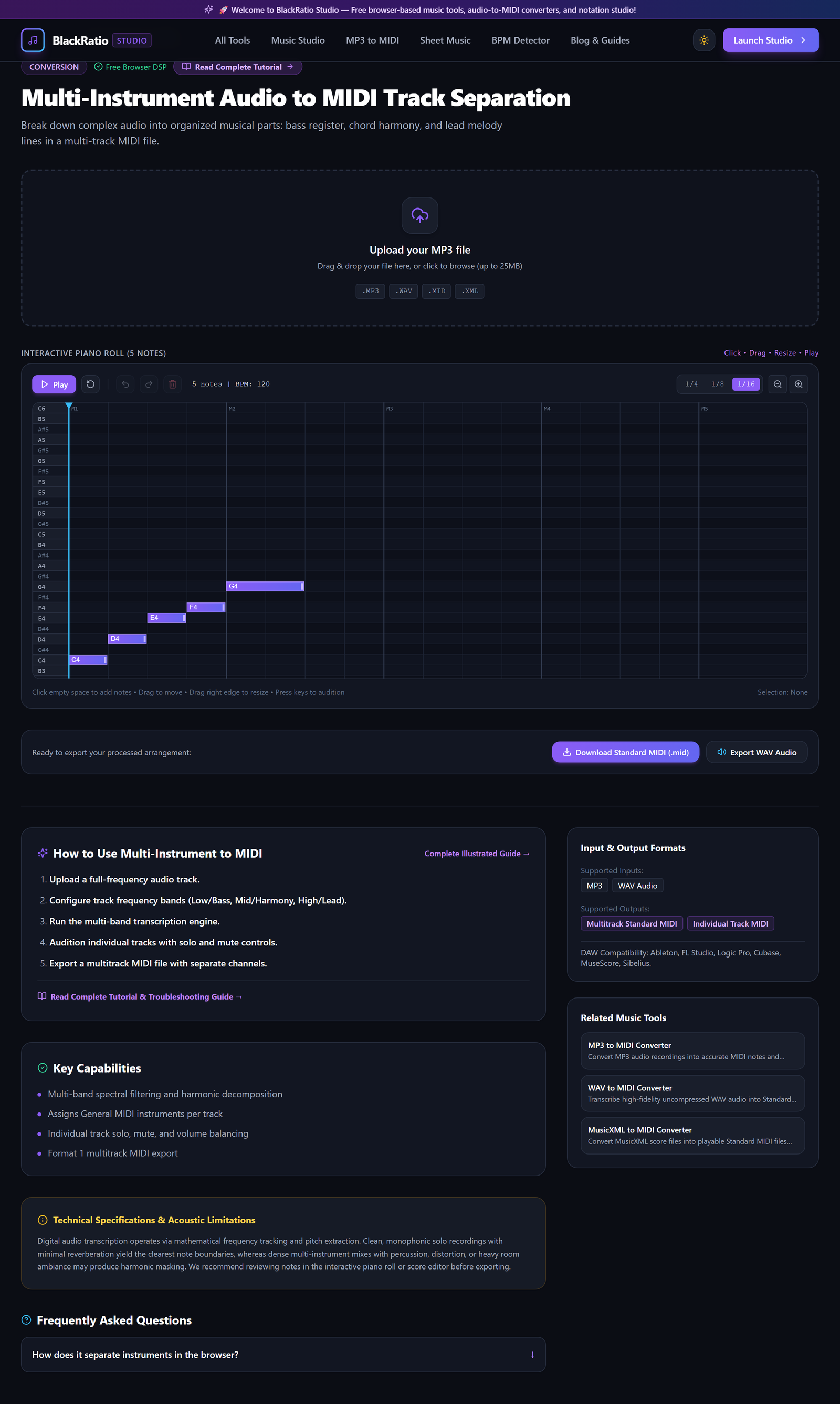
Figure 3: Separate Frequency Bands in the Multi-Instrument to MIDI workspace.
- Primary Control:
Frequency Register Split Sliders (Bass / Mid / Treble) - Expected Visible Result: The three frequency bands display independent waveform profiles and energy meters.
- Musician's Pro-Tip: Solo each band in the previewer to confirm that the bass track contains only bass notes with minimal cymbal or snare bleed.
Step 4: Map Distinct Instrument Channels
Assign each frequency band to a specific MIDI channel and General MIDI instrument: Channel 1 for Lead Synth/Guitar, Channel 2 for Piano/Pad Chords, Channel 3 for Electric/Acoustic Bass.
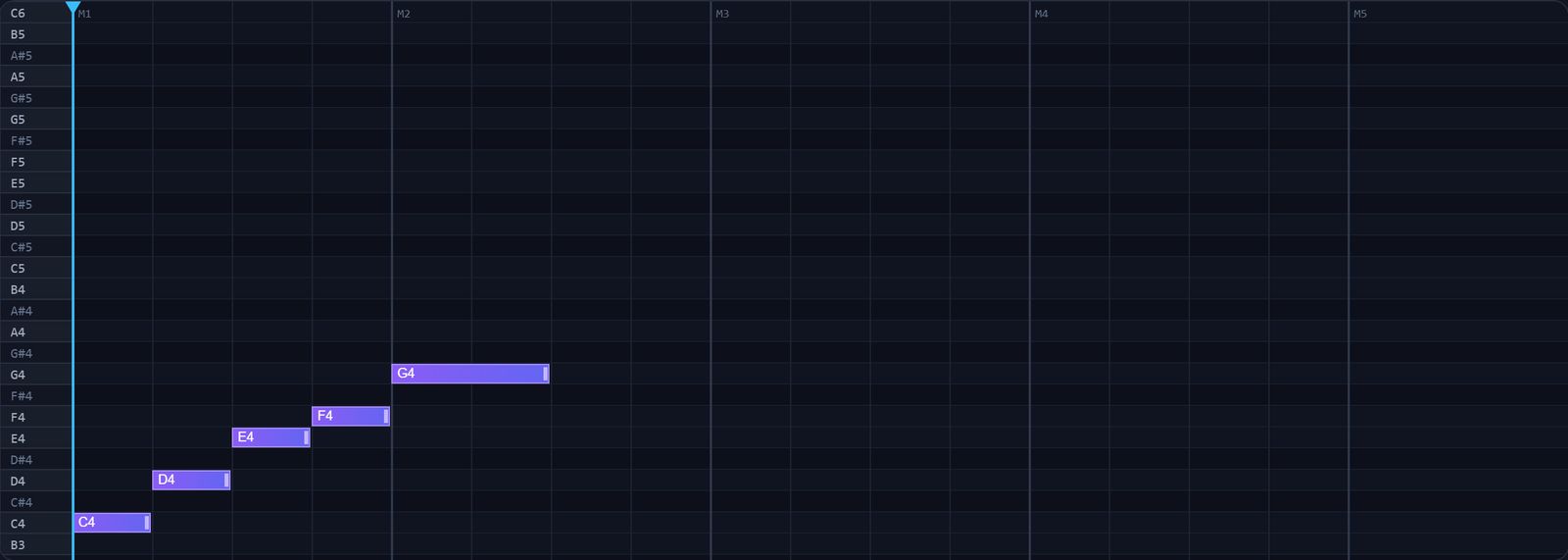
Figure 4: Map Distinct Instrument Channels in the Multi-Instrument to MIDI workspace.
- Primary Control:
Multi-Track Color-Coded Piano Roll Canvas - Expected Visible Result: Three synchronized piano rolls populate simultaneously with color-coded notes.
- Musician's Pro-Tip: Adjust detection sensitivity independently for each band: higher for quiet bass, lower for loud rhythm guitars.
Step 5: Download Multi-Channel MIDI
Click "Download Multi-Track MIDI". The engine exports a Type 1 Standard MIDI file where Bass, Chords, and Lead reside on separate, named tracks.

Figure 5: Download Multi-Channel MIDI in the Multi-Instrument to MIDI workspace.
- Primary Control:
Download Multi-Track Standard MIDI (.mid) Button - Expected Visible Result: A
.midfile downloads. When dragged into your DAW, it automatically expands into 3 independent instrument tracks. - Musician's Pro-Tip: In your DAW, assign a Bass VST to Track 1, a Polyphonic Synth to Track 2, and a Solo Instrument to Track 3 for immediate remixing.
Practical Real-World Example
Deconstructing a Full Instrumental Demo for Remastering and Arrangement
- Musical Workflow: A music producer had a flattened stereo MP3 mix of a song they wrote 5 years ago, but lost the original project stems. Loading the audio into Multi-Instrument to MIDI extracted the bassline, rhythm piano chords, and lead guitar into 3 separate MIDI tracks.
- Verified Outcome: The producer imported the tracks into Ableton Live, updated the synth sounds with modern plugins, and created a commercially viable 2026 remaster.
How to Verify Your Results
- Solo each exported MIDI channel in your DAW to verify clean register separation.
- Check Channel 1 (Bass) to ensure low-frequency energy (below 250Hz) is isolated cleanly.
- Inspect Channel 2 (Harmony) and Channel 3 (Lead) for accurate chord voicing and melodic separation.
- Verify that all tracks share synchronized tempo markers and bar boundaries.
Troubleshooting Common Issues
The bass MIDI track contains high-pitched chirps from snare drum hits.
- Underlying Cause: Snare body resonance bleeding across the 200 Hz crossover point.
- Recommended Solution: Lower the Bass crossover slider to 160 Hz and raise the Bass Note Threshold slider.
Technical Boundaries & Limitations
Multi-Instrument to MIDI separates instruments based on spectral frequency registers. If a lead synthesizer and rhythm guitar play the exact same pitch in the same octave, their notes will be merged on that register's MIDI track.
Frequently Asked Questions
Q: Can this tool transcribe drums to MIDI? A: The engine focuses on pitched melodic and harmonic instruments. Drum transient audio can be separated and mapped to MIDI percussion notes using our dedicated drum detection workflow.
Launch the Tool
Ready to begin? Access the free, browser-based Multi-Instrument to MIDI directly on BlackRatio Studio with zero downloads or account registration required.
Related Workflows & Tools
Related Tutorials & Articles
How to Transpose MIDI Files Online — Lossless Semitone Shift Guide
Transpose MIDI songs and melodies up or down by semitones losslessly while protecting drum channels, controllers, and velocities.
Tool TutorialsHow to Calculate Song BPM with Tap Tempo — Accurate Live Tempo Guide
Calculate the exact tempo of live songs, DJ tracks, and musical ideas by tapping to the rhythm with zero latency and statistical smoothing.