How to Inspect, Edit, and Quantize Notes in the MIDI Piano Roll
Visualize, audition, and edit MIDI note events, velocities, and note lengths in an interactive browser-based piano roll editor.
The MIDI to Piano Roll visualizer maps Standard MIDI Files onto an interactive chromatic piano roll canvas with multi-track color coding, zoomable timeline rulers, and velocity heatmaps. It offers musicians an intuitive visual representation of complex musical arrangements directly in the browser.
Quick Start Guide
- Open the MIDI Piano Roll at
/tools/midi-to-piano-roll. - Load any Standard MIDI file (.mid, .midi).
- Navigate the pitch grid (vertical keyboard) and time ruler (horizontal measures).
- Click or drag notes to edit pitch, timing, and velocity values.
- Export the modified MIDI sequence with preserved controllers.
Before You Begin
- Supported Inputs: Standard MIDI Files (.mid, .midi), Type 0 or Type 1.
- System Requirements: Desktop or tablet browser with mouse/trackpad pointer controls.
- Important Practical Considerations: The piano roll displays musical notes as rectangular blocks on a chromatic pitch-versus-time grid. It provides an intuitive, DAW-style visual representation of music without requiring sheet music reading skills.
Step-by-Step Instructions
Step 1: Open Interactive Piano Roll Editor
Open the MIDI Piano Roll tool. The workspace displays an 88-key vertical piano keyboard on the left margin, a horizontal measure and beat timeline across the top, and an interactive editing grid.

Figure 1: Open Interactive Piano Roll Editor in the MIDI to Piano Roll workspace.
- Primary Control:
Tool Navigation Bar / Launch MIDI Piano Roll Workspace - Expected Visible Result: A DAW-style dark-mode piano roll grid appears with time markers, zoom controls, and velocity lanes.
- Musician's Pro-Tip: Use your mouse wheel with the Alt/Option key to zoom horizontally along the timeline ruler.
Step 2: Load MIDI Sequence
Click "Load MIDI" or drag a .mid file onto the canvas. The parser processes track chunks, tempo events, and note messages, populating the grid with colored note blocks.

Figure 2: Load MIDI Sequence in the MIDI to Piano Roll workspace.
- Primary Control:
Standard MIDI File Dropzone (.mid) - Expected Visible Result: The piano roll grid displays note blocks colored by velocity or track channel, positioned at their exact musical start times.
- Musician's Pro-Tip: Check the track selector dropdown at the top if your MIDI file contains multiple instrument tracks.
Step 3: Inspect Pitch and Time Grid
Scroll through the pitch range to inspect notes. White and black keys correspond to natural and accidental notes. Measure boundaries are demarcated with solid vertical lines, and beat subdivisions with dotted lines.
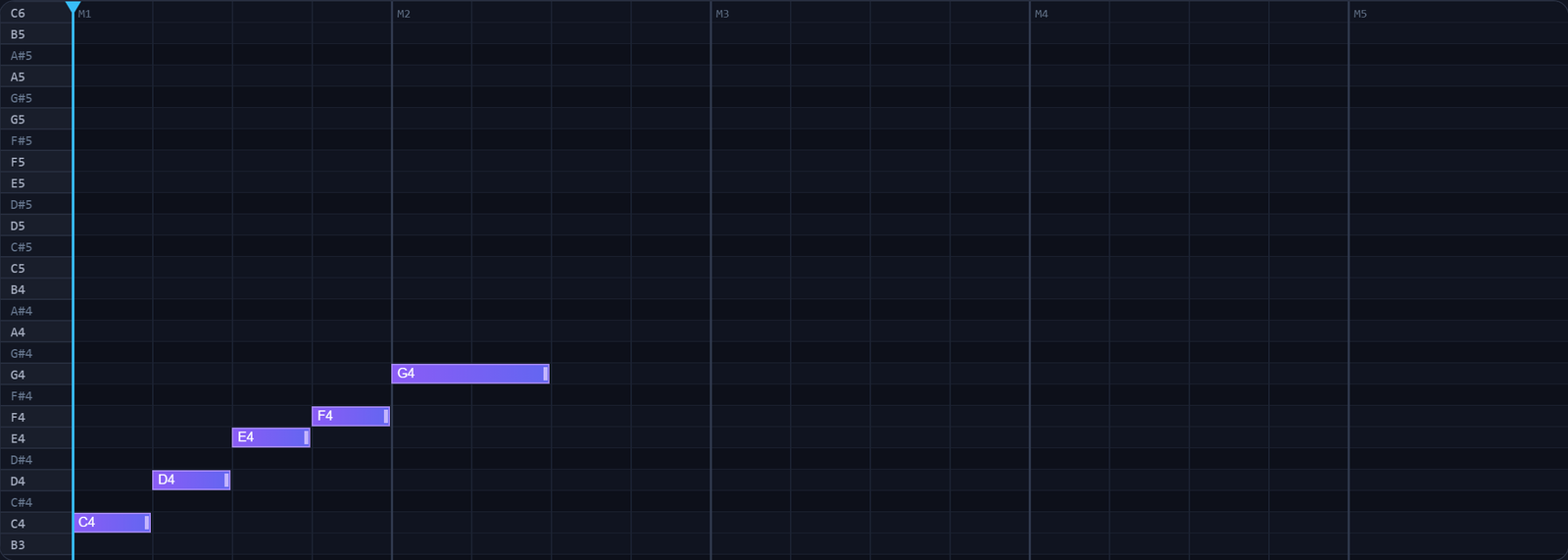
Figure 3: Inspect Pitch and Time Grid in the MIDI to Piano Roll workspace.
- Primary Control:
Horizontal Zoom & Note Velocity Display Sliders - Expected Visible Result: You can clearly identify chord voicings, arpeggio patterns, and basslines on the pitch grid.
- Musician's Pro-Tip: Press Spacebar to start playback: a vertical playhead sweeps across the notes while synthesized audio plays in real time.
Step 4: Audit Note Velocity and Duration
Click on individual note rectangles to view their properties. Drag the right edge of a note to shorten or lengthen its duration. Inspect the velocity lane below the grid to see strike dynamics (1-127).

Figure 4: Audit Note Velocity and Duration in the MIDI to Piano Roll workspace.
- Primary Control:
Chromatic Note Event Canvas & Transport Play Cursor - Expected Visible Result: Selected notes highlight with drag handles, allowing immediate pitch shifts and timing adjustments.
- Musician's Pro-Tip: Select multiple notes to batch-quantize them to the nearest 1/16-note grid line with a single click.
Step 5: Save and Export Modified MIDI
Click "Export MIDI" to save your edits. The updated note positions, edited lengths, and revised velocities are packed into a fresh Standard MIDI File (.mid).

Figure 5: Save and Export Modified MIDI in the MIDI to Piano Roll workspace.
- Primary Control:
Export Visual Score Image / MIDI File - Expected Visible Result: A clean, updated
.midfile downloads instantly to your computer. - Musician's Pro-Tip: Import the updated MIDI file directly back into your production DAW to replace the unedited take.
Practical Real-World Example
Fixing Wrong Notes in a Live MIDI Piano Solo
- Musical Workflow: A keyboardist played a fast jazz solo into a MIDI recorder, but accidentally hit a sour F# instead of G in measure 14. They opened BlackRatio MIDI Piano Roll, zoomed into bar 14, and dragged the note block up one semitone to G4.
- Verified Outcome: The error was corrected in 10 seconds without needing to re-record the entire take.
How to Verify Your Results
- Verify note pitches against the vertical piano keyboard ruler (A0 to C8).
- Confirm horizontal note bars correspond accurately to musical beat lengths and tick durations.
- Inspect note velocity bars at the base of the canvas for dynamic range consistency.
- Audition playback using the transport cursor to verify visual note highlighting synchronization.
Troubleshooting Common Issues
Notes sound in the wrong octave when imported into another DAW.
- Underlying Cause: DAWs use different conventions for Middle C: Yamaha standards set Middle C to C3, while Roland/Logic set Middle C to C4.
- Recommended Solution: Use the Octave Shift (+12 / -12) control in the editor toolbar to match your DAW octave standard before exporting.
Technical Boundaries & Limitations
The browser piano roll supports Standard MIDI Type 0 and Type 1 files up to 16 tracks. Non-standard proprietary DAW project files (.cpr, .als, .flp) must be exported as standard .mid files before opening.
Frequently Asked Questions
Q: Can I add new notes from scratch? A: Yes. Double-click anywhere on the grid to create a new note at that pitch and time location.
Launch the Tool
Ready to begin? Access the free, browser-based MIDI to Piano Roll directly on BlackRatio Studio with zero downloads or account registration required.
Related Workflows & Tools
Related Tutorials & Articles
How to Transpose MIDI Files Online — Lossless Semitone Shift Guide
Transpose MIDI songs and melodies up or down by semitones losslessly while protecting drum channels, controllers, and velocities.
Tool TutorialsHow to Calculate Song BPM with Tap Tempo — Accurate Live Tempo Guide
Calculate the exact tempo of live songs, DJ tracks, and musical ideas by tapping to the rhythm with zero latency and statistical smoothing.