How to Practice with the Online Metronome — Subdivisions & Time Signatures
Master your musical timing with a sample-accurate web metronome featuring custom subdivisions, visual pulse rings, and accent control.
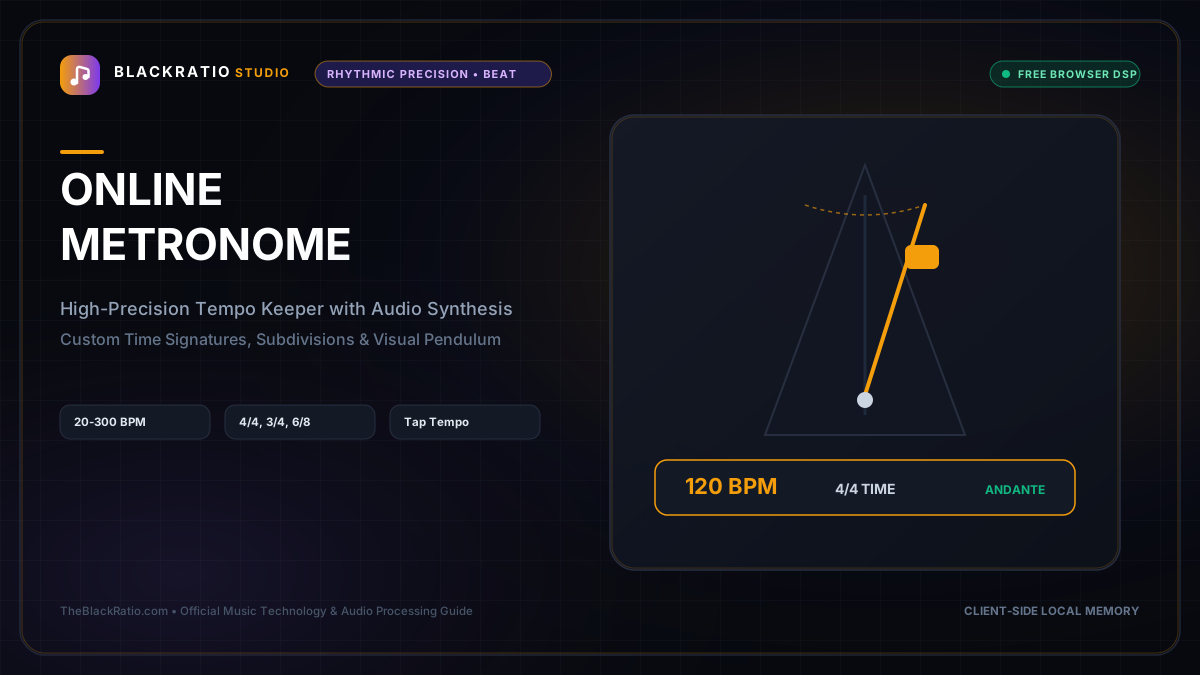
The Online Metronome delivers sample-accurate rhythmic timing directly in your browser using high-precision Web Audio API hardware clock scheduling. With customizable subdivisions, visual beat rings, and accent controls, it serves musicians for practice, recording, and rehearsal.
Quick Start Guide
- Open the Online Metronome at
/tools/metronome. - Set your target tempo using the BPM slider or direct numerical input.
- Choose your Time Signature (4/4, 3/4, 2/4, 6/8, or 5/4).
- Select Beat Subdivisions (Quarter, Eighth, Sixteenth notes, or Triplets).
- Click Start Metronome and follow the audible clicks and visual pulse rings.
Before You Begin
- Supported Inputs: No file upload required; runs on an interactive real-time browser audio synthesis engine.
- System Requirements: Any modern desktop, tablet, or smartphone with audio output.
- Important Practical Considerations: Web Audio API synthesizes clicks directly on the hardware audio clock rather than using JavaScript
setInterval, guaranteeing microsecond-accurate timing that never drifts or lags even under heavy browser loads.
Step-by-Step Instructions
Step 1: Open Sample-Accurate Online Metronome Workspace
Open the Online Metronome on BlackRatio Studio. The workspace displays a large digital BPM readout, an animated circular beat pulse ring, tempo adjustment sliders, and time signature presets.
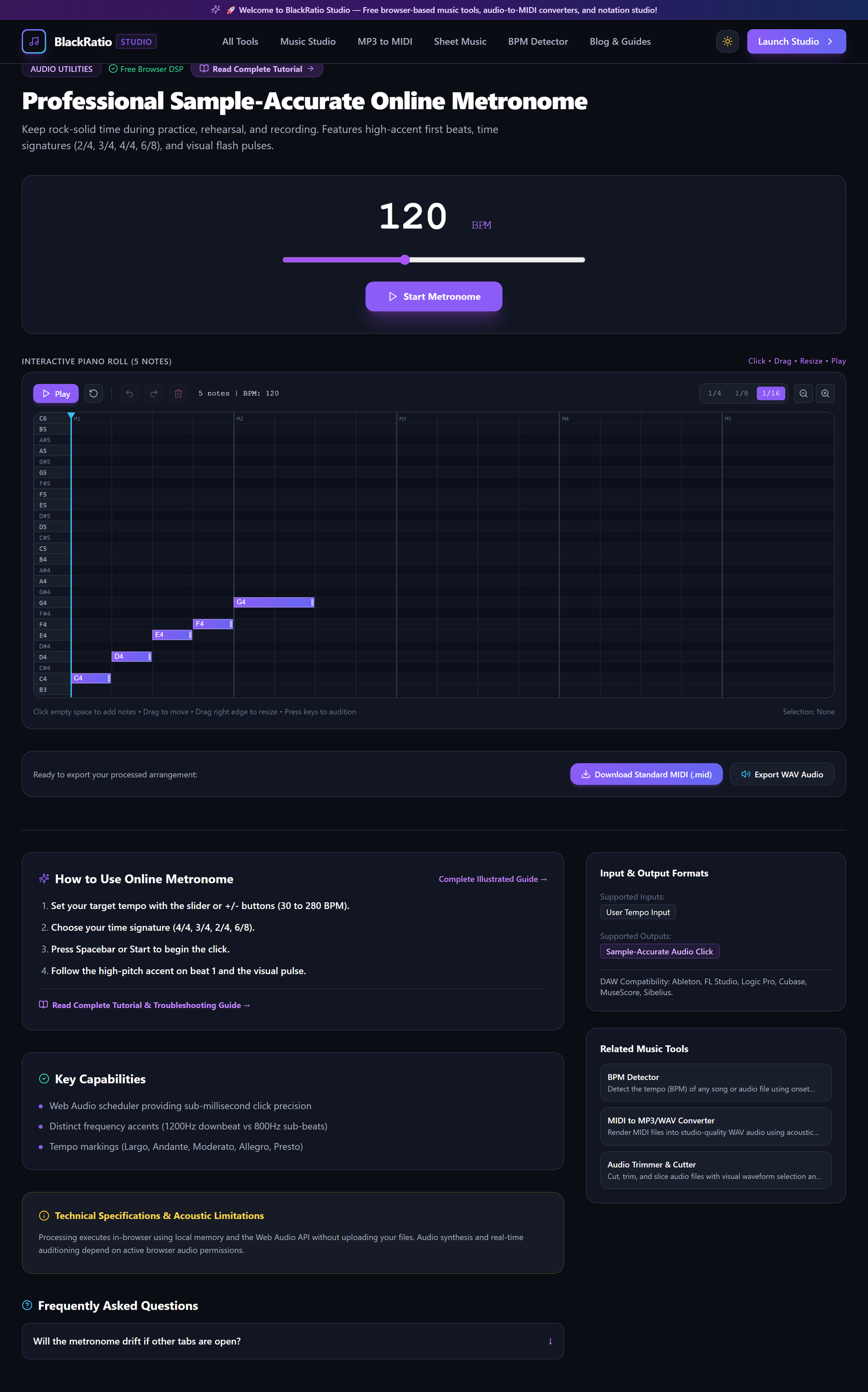
Figure 1: Open Sample-Accurate Online Metronome Workspace in the Online Metronome workspace.
- Primary Control:
Tool Navigation Bar / Launch Online Metronome Workspace - Expected Visible Result: The metronome console appears ready for immediate practice sessions.
- Musician's Pro-Tip: Bookmark the metronome page on your smartphone or tablet for instant access during band rehearsals and practice routines.
Step 2: Set Target BPM Using Slider or Direct Input
Adjust your practice tempo between 40 BPM (Grave/Largo) and 250 BPM (Presto). Drag the smooth tempo slider, click the + and - buttons for single-BPM adjustments, or type the exact number (e.g. 120) into the box.

Figure 2: Set Target BPM Using Slider or Direct Input in the Online Metronome workspace.
- Primary Control:
Start / Stop Metronome Button (Spacebar) - Expected Visible Result: The digital BPM indicator updates instantly, accompanied by standard Italian tempo markings (Andante, Moderato, Allegro).
- Musician's Pro-Tip: When learning a challenging musical passage, start at 60 BPM (50% speed) and increase by 4 BPM only after playing the section flawlessly 3 times.
Step 3: Select Time Signature (4/4, 3/4, 2/4, 6/8)
Choose your musical meter: 4/4 (common time), 3/4 (waltz time), 2/4 (march time), 6/8 (compound duple), or 5/4 (odd meter). The metronome automatically accents Beat 1 with a distinct high-pitched bell click.
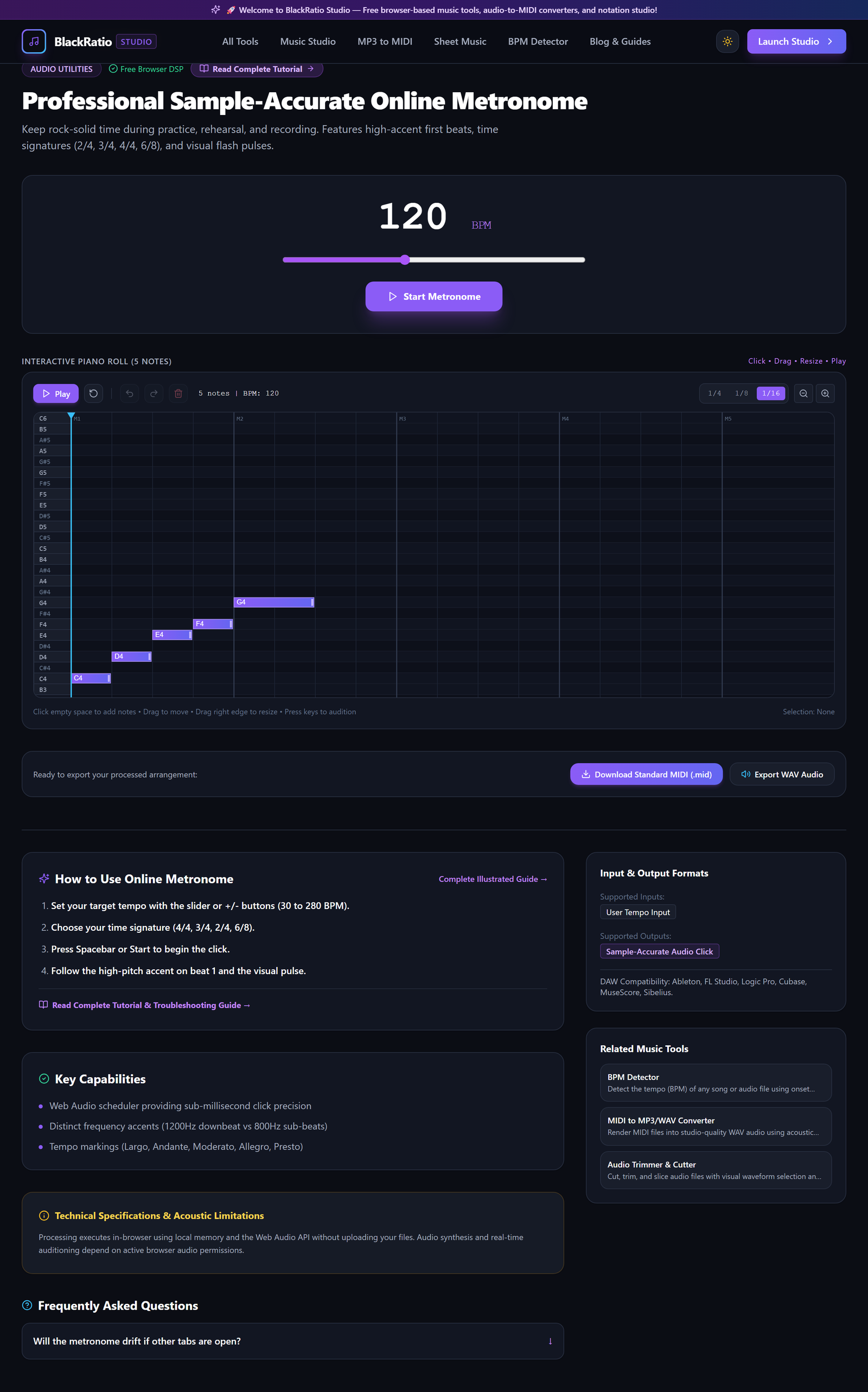
Figure 3: Select Time Signature (4/4, 3/4, 2/4, 6/8) in the Online Metronome workspace.
- Primary Control:
Tempo Slider & Increment/Decrement BPM Buttons - Expected Visible Result: The beat visualizer rings reconfigure to show the exact number of beats per measure (e.g. 4 dots for 4/4 time).
- Musician's Pro-Tip: In 6/8 time, use compound grouping (two dotted quarter pulses per bar) for fast tempos, or six distinct eighth-note pulses for slow practice.
Step 4: Click Start Metronome for Audio Playback
Click the large purple "Start Metronome" button (or press Spacebar). The Web Audio clock initiates synthesis: a bright high-frequency accent on beat 1, followed by clean woodblock wood-tone clicks on subsequent beats.

Figure 4: Click Start Metronome for Audio Playback in the Online Metronome workspace.
- Primary Control:
Time Signature & Subdivision Selectors (Quarter, Eighth, Triplet) - Expected Visible Result: Audible clicks sound in rhythm, perfectly synchronized with animated glowing pulse rings on screen.
- Musician's Pro-Tip: Use headphones when practicing acoustic drums or electric guitar to hear the metronome clicks clearly above your instrument volume.
Step 5: Follow Visual Beat Accents & Pulse Rings
Watch the circular pulse ring. The perimeter pulses outward on downbeats, and individual beat indicator dots illuminate in sequence (1-2-3-4). This visual cue allows silent practice when acoustic clicks cannot be used.
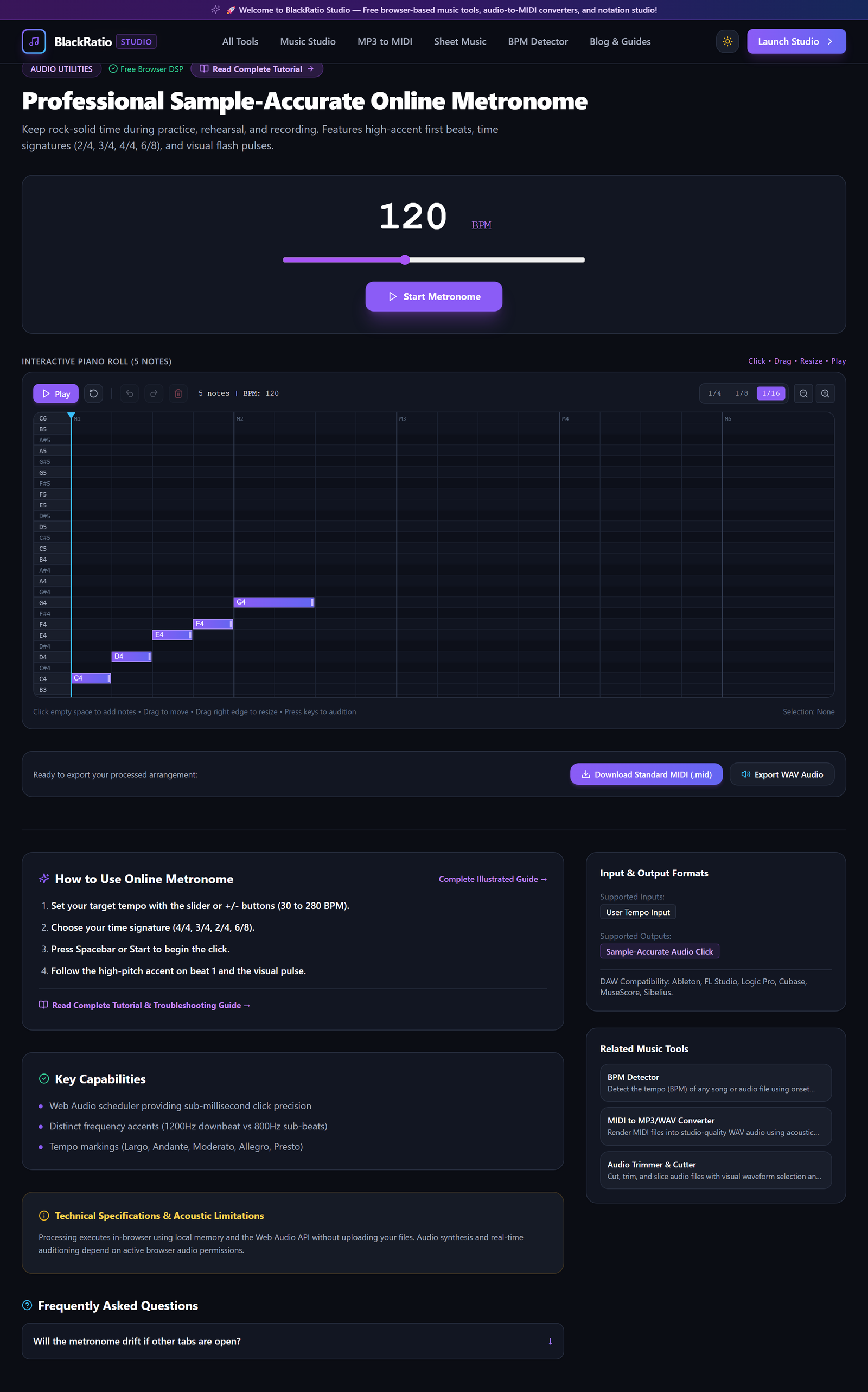
Figure 5: Follow Visual Beat Accents & Pulse Rings in the Online Metronome workspace.
- Primary Control:
Pulsating Visual Beat Rings & Accent Toggles - Expected Visible Result: The visual beat dots cycle in real time: green accent for beat 1, purple pulses for beats 2, 3, and 4.
- Musician's Pro-Tip: Practice tapping your foot on Beat 1 while playing your instrument to develop strong internal downbeat synchronization.
Practical Real-World Example
Practicing a Chopin Nocturne in 3/4 Waltz Time with Controlled Rubato
- Musical Workflow: A classical pianist needed to build steady left-hand waltz accompaniment (Bass note on 1, chord on 2 and 3). They set the metronome to 3/4 time at 92 BPM with a bell accent on downbeats.
- Verified Outcome: Practicing with the accented downbeat locked the pianist's physical hand movement into a steady tempo before adding expressive rubato.
How to Verify Your Results
- Play along with an acoustic instrument to verify absolute rhythmic stability without browser lag.
- Toggle time signatures (4/4, 3/4, 6/8) to verify distinct primary downbeat accent clicks.
- Test subdivisions (eighth notes, triplets, sixteenths) against your chosen practice tempo.
- Verify that visual pulse rings expand in perfect synchronization with the audible click.
Troubleshooting Common Issues
Audio clicks sound choppy or lag when switching between browser tabs.
- Underlying Cause: Some browsers throttle background tabs to conserve battery.
- Recommended Solution: Keep the metronome tab active in the foreground, or use a separate window while practicing.
No sound is audible when clicking Start.
- Underlying Cause: Browser audio autoplay policies require an initial user click on the page before playing sound.
- Recommended Solution: Click anywhere on the metronome workspace to unlock the Web Audio context, and check your system speaker volume.
Technical Boundaries & Limitations
Designed for musical practice and tempo training. The Web Audio clock is hardware-synchronized and does not drift over multi-hour practice sessions.
Frequently Asked Questions
Q: Does this metronome work on mobile phones without installing an app? A: Yes. It runs natively in Safari, Chrome, and all mobile browsers without downloading any third-party app.
Launch the Tool
Ready to begin? Access the free, browser-based Online Metronome directly on BlackRatio Studio with zero downloads or account registration required.
Related Workflows & Tools
Related Tutorials & Articles
How to Transpose MIDI Files Online — Lossless Semitone Shift Guide
Transpose MIDI songs and melodies up or down by semitones losslessly while protecting drum channels, controllers, and velocities.
Tool TutorialsHow to Calculate Song BPM with Tap Tempo — Accurate Live Tempo Guide
Calculate the exact tempo of live songs, DJ tracks, and musical ideas by tapping to the rhythm with zero latency and statistical smoothing.